
A Quick Note on Processors
Software Development: The Three Workloads
Monolithic Development
In a monolithic project, the entire application lives in one codebase. You typically open one IDE, connect to one database and run one local server. The workload is concentrated but not scattered.
For a small monolithic project, a Core i5 or i7 processor with 16GB of RAM is usually sufficient. For medium projects, especially those using containers and local databases, 24GB to 32GB provides a more comfortable experience. For large enterprise monoliths with heavy build processes, complex database schemas or extensive local testing suites, 32GB or more becomes appropriate. The key point is that monolithic development scales vertically. One big project needs more resources, but you are still managing one context.
Microservices Development
Microservices change everything. Instead of one project, you are working across multiple codebases. You might have five or ten services running locally, each in its own IDE window or terminal session. You are switching between APIs, databases, message queues and configuration files constantly. Your browser has twenty tabs open with documentation, dashboards and monitoring tools.
This is where 16GB RAM becomes a serious bottleneck. With multiple IDEs, database management tools, browsers and supporting applications running together, memory usage climbs fast. It is common to see systems slow to a crawl as they hit 95% or higher RAM utilization.
For a small microservices setup with three to five services, 24GB RAM is a comfortable starting point, while 32GB is preferable for sustained productivity. For a medium to large setup with ten or more services, multiple databases and message brokers running locally, 32GB is strongly recommended. Very large microservices environments with heavy local emulation might need 48GB or even 64GB to run smoothly.
Teams using Docker Desktop, Kubernetes, WSL2 or local virtual machines should prioritize RAM even more aggressively, as virtualization layers consume memory independently of the applications running inside them.
A Core i7, Core Ultra 7, Ryzen 7 or equivalent processor is a good starting point with higher core counts becoming more valuable as the number of services grows.
AI Development
Cloud AI Development
If you are building applications that call AI models through APIs like OpenAI, Azure OpenAI or similar services, the heavy computation happens on remote servers. Your laptop is essentially a client. You write code, send requests and process responses.
For cloud-based AI application development, 16GB is sufficient for many projects, while 24GB to 32GB provides additional headroom for data processing, embeddings and local vector databases. You do not need a dedicated GPU or NPU for this path. The RAM needs grow with the size of the data you handle locally, not with the model itself.
Local AI Development
This is where things get demanding. Local AI means running language models, image generators or machine learning pipelines directly on your machine. You are not calling an API. You are the server.
Local AI development benefits significantly from dedicated AI hardware such as an NPU or GPU, although smaller models can still be run using CPU-only inference. RAM requirements jump significantly and scale directly with model size. If you are new to local AI and want a deeper explanation of model sizes, quantization, memory requirements, and hardware considerations, I covered these topics in my earlier article, “AI Model Basics: Understanding Size, Hardware, and Setup.” : https://wisecodes.venuthomas.in/2025/08/24/ai-model-basics-understanding-size-hardware-and-setup/
For running smaller models locally like 7B parameter language models, 32GB is the starting point. For medium models in the 13B to 30B range, 48GB to 64GB is more realistic. For large model experimentation or fine-tuning work, you might need 64GB or more, often paired with a dedicated GPU with substantial VRAM.
The NPU handles inference efficiently for smaller workloads, while the GPU accelerates training and larger model loads. However, NPUs are currently most useful for Windows AI features and optimized inference workloads, while GPUs remain the primary accelerator for most local LLM frameworks like Ollama, llama.cpp and vLLM. Storage speed also matters, because model files are large and loading them from a slow drive creates frustrating delays.
The GPU Reality for Local AI Tools
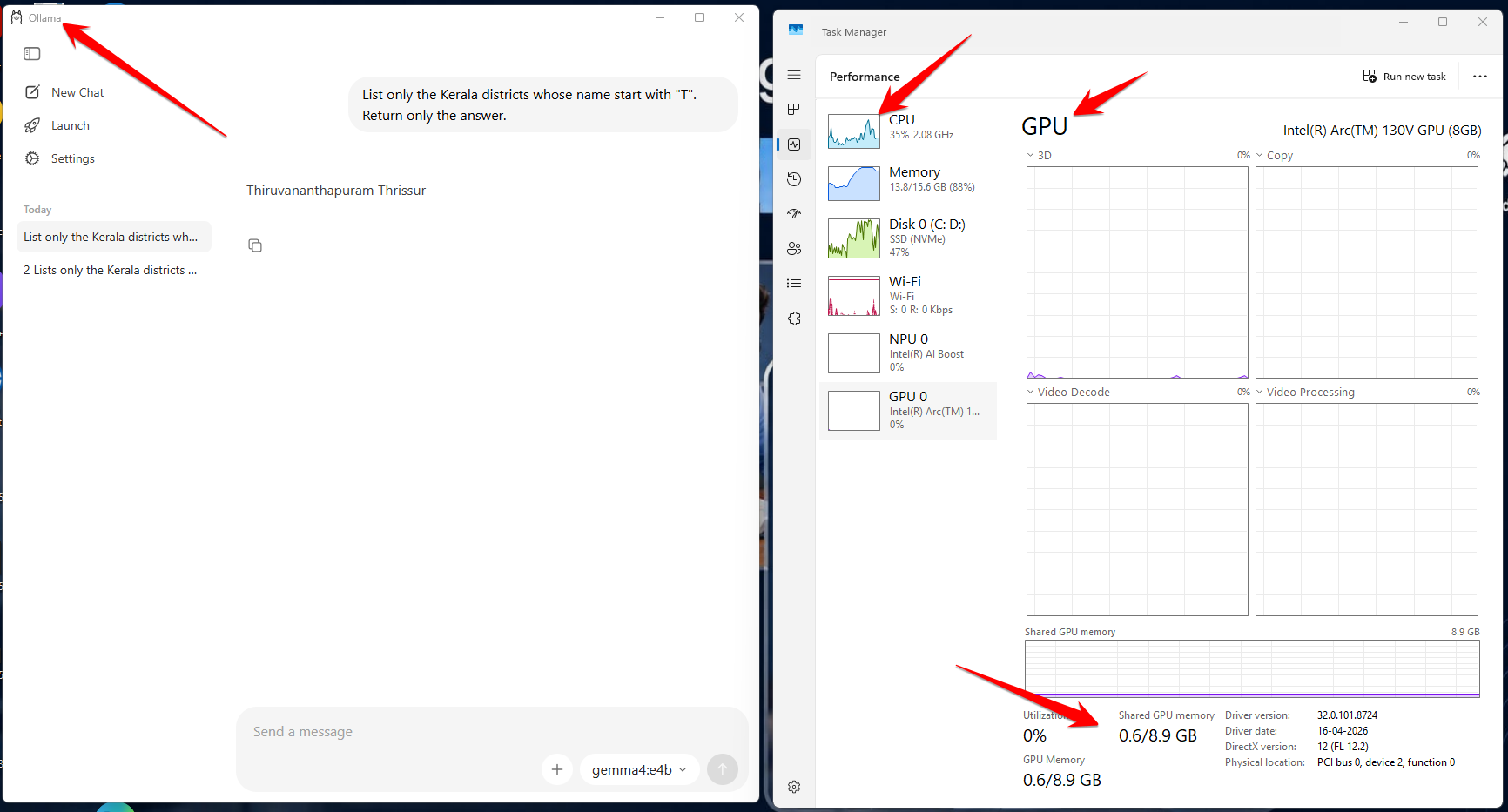
Most developer laptops ship with integrated Intel graphics like Intel Arc or Iris Xe. These can run local AI tools like Ollama, but there is an important distinction to understand. Ollama has traditionally focused on NVIDIA and AMD GPU acceleration, with Intel GPU support still limited and evolving. On many Intel-only laptops, inference may fall back to CPU execution. The model still runs, but performance is significantly slower than GPU-accelerated inference. https://docs.ollama.com/gpu
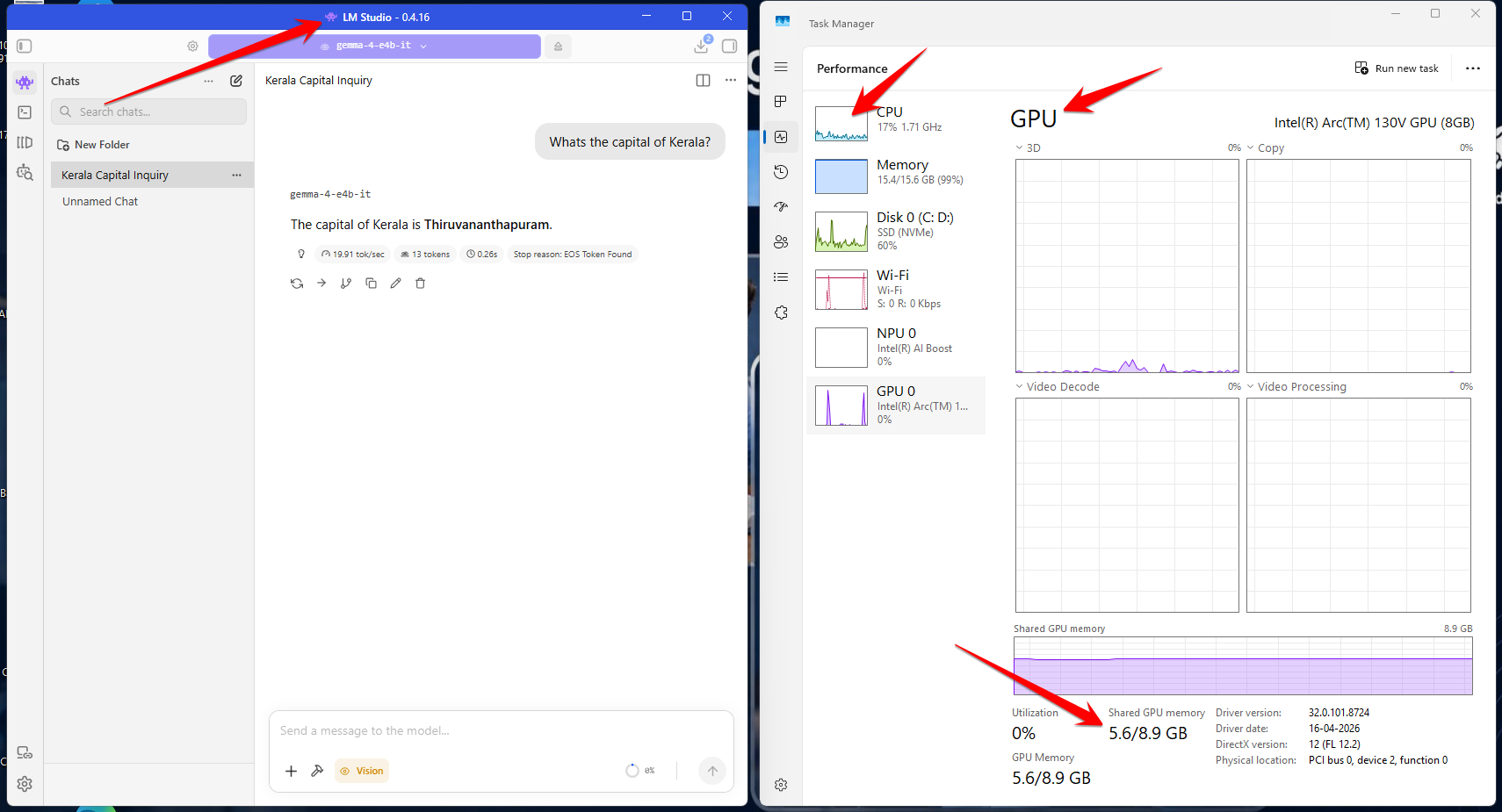
LM Studo, on the other hand, supports GPU acceleration across a broader range of hardware including Intel GPUs through Vulkan. This makes LM Studio a more flexible choice if you are working with Intel-graphics-only hardware and want some level of GPU-assisted inference. The performance will not match a dedicated NVIDIA GPU, but it is noticeably better than pure CPU execution.
If local AI is a serious part of your workflow, a discrete NVIDIA GPU remains the most reliable path. For occasional experimentation or learning, Intel-integrated graphics with LM Studio is a workable starting point.
The Memory Problem Nobody Talks About
Here is something that caught my colleague off guard. Many modern ultrabooks and business laptops come with soldered RAM. That means the memory is permanently attached to the motherboard. You cannot upgrade it later. What you buy is what you are stuck with for the life of the machine.
If you are choosing between 16GB and 32GB at purchase time and the RAM is soldered, the decision becomes critical. Saving money today by choosing 16GB might mean buying an entirely new laptop in eighteen months when your projects outgrow it. For development work, 32GB is the safer long-term investment if the memory cannot be upgraded.
Storage Matters Too
How to Decide: Budget vs Future-Proofing
When helping my colleague choose, I gave them two clear options.
If budget is the priority and their work is focused on traditional software development, whether monolithic or microservices, a Core i7 with 32GB RAM is the sweet spot for average projects. It handles current workloads well and leaves enough room for growth. For smaller projects, this might be more than you need. For larger ones, you might still feel the limit. For most developers, moving from 16GB to 32GB provides a larger productivity gain than moving from a Core i7 to a Core Ultra processor.
If they want to future-proof their purchase, especially with AI-assisted development tools becoming standard in IDEs, a Core Ultra 5 or higher with 32GB RAM is the better choice. The integrated NPU may accelerate future on-device AI features, Windows AI capabilities and optimized local inference workloads, though RAM remains the more impactful upgrade for daily productivity. This option costs more upfront but extends the useful life of the machine.
For teams working with larger microservices environments or experimenting with local AI models, 48GB or 64GB might be the right call from the start. It is better to overprovision RAM slightly than to fight memory constraints every day.
Final Thoughts
Choosing a laptop is not about buying the most expensive machine available. It is about understanding your workflow, your project size and buying hardware that removes friction from your daily work.
A powerful laptop is not always the best laptop. A Core i9 paired with a dedicated GPU may compile code faster, but it can also run hotter, produce more fan noise and deliver significantly shorter battery life. Developers who frequently work away from a desk may prefer a slightly less powerful but more efficient processor such as a Core Ultra, Ryzen AI series or Apple Silicon for a better balance between performance and portability. Apple Silicon in particular has set a new standard for battery life. An M3 MacBook Pro can easily deliver ten to twelve hours of real development work on a single charge. Intel Core Ultra and AMD Ryzen AI processors have narrowed much of that gap, although Apple Silicon still generally leads in battery life under sustained development workloads. If your work involves frequent travel, client meetings or coding from coffee shops, power efficiency should be part of your decision, not an afterthought.
For monolithic development, keep it simple and scale with project size. For microservices, prioritize RAM and multicore performance, knowing that more services mean more memory. For AI, know whether you are going cloud or local and understand that local model size directly determines your RAM needs.
And if you are buying a laptop with soldered RAM, choose the memory you will need three years from now, not just today. It is the one specification you truly cannot change later.