Welcome to this comprehensive guide on integrating Artificial Intelligence (AI) into .NET applications! If you’re new to AI development, this article explains everything step by step, including how to work with both traditional AI services and modern MCP (Model Context Protocol) servers. We’ll start with simple ways to call AI services and build up to creating your own MCP servers that AI agents can connect to for enhanced functionality.
AI integration means adding smart features to your apps, like answering questions or generating text, using tools from companies like OpenAI. .NET is a framework for building apps in C#, and we’ll use it here to connect to AI. Don’t worry if terms seem complex—we’ll break them down with simple analogies and examples.
We’ll use practical examples like asking “What’s the capital of India?” or “What’s the capital of Kerala?” to demonstrate concepts.
All examples use C# in .NET Core console apps (create with dotnet new console) and assume .NET 8 or later. A console app is like a simple program that runs in a command window, perfect for testing without a full UI.
Prerequisites
Before diving in, ensure you have the following set up to avoid common pitfalls:
- .NET SDK: Install .NET 8 or later from dotnet.microsoft.com. Verify with
<strong><em>dotnet --version</em></strong>in your terminal.
API Keys and Accounts: - For OpenAI: Sign up at openai.com and generate an API key from your dashboard. This key authenticates your requests and incurs usage-based costs—start with a small budget.
- For Azure OpenAI: Create an Azure account at portal.azure.com, deploy a model (e.g., gpt-4o-mini) in the Azure AI Studio, and note your endpoint, key, and deployment name. Azure offers enterprise features like private endpoints for security.
- Development Environment: Use Visual Studio, VS Code, or Rider. For VS Code MCP integration, install extensions like GitHub Copilot or Claude for AI agent support.
- Cost Awareness: AI APIs charge per token (roughly words processed). Test with free tiers or low-volume queries to learn without surprise bills.
- Error Handling Tip: Always wrap async calls in try-catch blocks in production (e.g., try { … } catch (Exception ex) { Console.WriteLine($”Error: {ex.Message}”); }) to handle network issues or invalid keys gracefully.
What You’ll Learn
- Getting Started with AI in .NET
* Using the OpenAI NuGet Package
* Using the Azure OpenAI Package - Building with Semantic Kernel
* AI with Semantic Kernel
* Functions and Plugins in Semantic Kernel
* Creating Prompt Functions with CreateFunctionFromPrompt - Working with Knowledge & Search
* Implementing Vector Search with Semantic Kernel
* Enhancing results using the Text Search Wrapper
* Applying RAG (Retrieval-Augmented Generation) with Vector Search - Next-Level AI Integration
* Building an AI Agent with an MCP Server - Local LLM
* Run LLMs like Ollama or LM Studio locally for privacy, low latency, and no token costs
1. Traditional AI Integration
Traditional integration is like directly texting an AI friend for answers. It’s simple and doesn’t require fancy setups, making it great for your first AI project.
Using OpenAI NuGet Package
This is the simplest way for beginners to start with AI. You directly call OpenAI’s API to get responses.
What it does: Sends a prompt to OpenAI and prints the response. Great for quick tests. An API is like a menu of services you can order from.
Setup: Run dotnet add package OpenAI. NuGet is like an app store for code libraries.
Code:
<span class="line"><span style="color: #569CD6">using</span>
<span style="color: #D4D4D4"> </span>
<span style="color: #4FC1FF">OpenAI</span>
<span style="color: #D4D4D4">.Chat;</span></span>
<span class="line"></span>
<span class="line"><span style="color: #569CD6">var</span>
<span style="color: #D4D4D4"> </span>
<span style="color: #9CDCFE">client</span>
<span style="color: #D4D4D4"> = </span>
<span style="color: #569CD6">new</span>
<span style="color: #D4D4D4"> </span>
<span style="color: #DCDCAA">ChatClient</span>
<span style="color: #D4D4D4">(</span>
<span style="color: #CE9178">"gpt-4o-mini"</span>
<span style="color: #D4D4D4">, </span>
<span style="color: #CE9178">"<your-api-key>"</span>
<span style="color: #D4D4D4">);  </span>
<span style="color: #6A9955">// ChatClient: Connects directly to OpenAI for AI tasks. Replace <your-api-key> with your actual OpenAI key (get one from openai.com).</span></span>
<span class="line"></span>
<span class="line"><span style="color: #569CD6">var</span>
<span style="color: #D4D4D4"> </span>
<span style="color: #9CDCFE">messages</span>
<span style="color: #D4D4D4"> = </span>
<span style="color: #569CD6">new</span>
<span style="color: #D4D4D4"> </span>
<span style="color: #9CDCFE">ChatMessage</span>
<span style="color: #D4D4D4">[]</span></span>
<span class="line"><span style="color: #D4D4D4">{</span></span>
<span class="line"><span style="color: #D4D4D4">    </span>
<span style="color: #569CD6">new</span>
<span style="color: #D4D4D4"> </span>
<span style="color: #DCDCAA">SystemChatMessage</span>
<span style="color: #D4D4D4">(</span>
<span style="color: #CE9178">"You are a helpful assistant."</span>
<span style="color: #D4D4D4">),  </span>
<span style="color: #6A9955">// SystemChatMessage: Defines AI's role and behavior, like telling it to be friendly.</span></span>
<span class="line"><span style="color: #D4D4D4">    </span>
<span style="color: #569CD6">new</span>
<span style="color: #D4D4D4"> </span>
<span style="color: #DCDCAA">UserChatMessage</span>
<span style="color: #D4D4D4">(</span>
<span style="color: #CE9178">"What's the capital of India?"</span>
<span style="color: #D4D4D4">)     </span>
<span style="color: #6A9955">// UserChatMessage: User's input or question—this is what you're asking.</span></span>
<span class="line"><span style="color: #D4D4D4">};</span></span>
<span class="line"></span>
<span class="line"><span style="color: #569CD6">var</span>
<span style="color: #D4D4D4"> </span>
<span style="color: #9CDCFE">response</span>
<span style="color: #D4D4D4"> = </span>
<span style="color: #C586C0">await</span>
<span style="color: #D4D4D4"> </span>
<span style="color: #9CDCFE">client</span>
<span style="color: #D4D4D4">.</span>
<span style="color: #DCDCAA">CompleteChatAsync</span>
<span style="color: #D4D4D4">(</span>
<span style="color: #9CDCFE">messages</span>
<span style="color: #D4D4D4">);  </span>
<span style="color: #6A9955">// CompleteChatAsync: Sends chat and gets AI response. 'Await' handles waiting for the reply.</span></span>
<span class="line"><span style="color: #9CDCFE">Console</span>
<span style="color: #D4D4D4">.</span>
<span style="color: #DCDCAA">WriteLine</span>
<span style="color: #D4D4D4">(</span>
<span style="color: #9CDCFE">response</span>
<span style="color: #D4D4D4">.</span>
<span style="color: #9CDCFE">Value</span>
<span style="color: #D4D4D4">.</span>
<span style="color: #9CDCFE">Content</span>
<span style="color: #D4D4D4">[</span>
<span style="color: #B5CEA8">0</span>
<span style="color: #D4D4D4">].</span>
<span style="color: #9CDCFE">Text</span>
<span style="color: #D4D4D4">);  </span>
<span style="color: #6A9955">// Prints the AI's answer to the console.</span></span>
Expected Output:
The capital of India is New Delhi.
This code creates a chat with the AI. The system message sets the tone, and the user message is your question. The AI thinks and responds based on its training. Useful explanation: Prompts like this can be chained for conversations—add more UserChatMessage/SystemChatMessage pairs to build context, mimicking a real dialogue.
Using Azure OpenAI Package
For enterprise scenarios, Azure OpenAI provides better security and control. Azure is Microsoft’s cloud service, like a secure online storage for AI.
Setup: Run dotnet add package Azure.AI.OpenAI.
Code:
<span class="line"><span style="color: #569CD6">using</span>
<span style="color: #D4D4D4"> </span>
<span style="color: #4FC1FF">Azure</span>
<span style="color: #D4D4D4">.AI.OpenAI;</span></span>
<span class="line"></span>
<span class="line"><span style="color: #569CD6">var</span>
<span style="color: #D4D4D4"> </span>
<span style="color: #9CDCFE">client</span>
<span style="color: #D4D4D4"> = </span>
<span style="color: #569CD6">new</span>
<span style="color: #D4D4D4"> </span>
<span style="color: #DCDCAA">OpenAIClient</span>
<span style="color: #D4D4D4">(  </span>
<span style="color: #6A9955">// OpenAIClient: Connects your .NET app to Azure OpenAI services for AI tasks</span></span>
<span class="line"><span style="color: #D4D4D4">    </span>
<span style="color: #569CD6">new</span>
<span style="color: #D4D4D4"> </span>
<span style="color: #DCDCAA">Uri</span>
<span style="color: #D4D4D4">(</span>
<span style="color: #CE9178">"https://<your-endpoint>.openai.azure.com/"</span>
<span style="color: #D4D4D4">),  </span>
<span style="color: #6A9955">// URI is like the web address for your Azure AI service.</span></span>
<span class="line"><span style="color: #D4D4D4">    </span>
<span style="color: #569CD6">new</span>
<span style="color: #D4D4D4"> </span>
<span style="color: #9CDCFE">Azure</span>
<span style="color: #D4D4D4">.</span>
<span style="color: #DCDCAA">AzureKeyCredential</span>
<span style="color: #D4D4D4">(</span>
<span style="color: #CE9178">"<your-key>"</span>
<span style="color: #D4D4D4">)  </span>
<span style="color: #6A9955">// Credential is like a password to access the service.</span></span>
<span class="line"><span style="color: #D4D4D4">);</span></span>
<span class="line"></span>
<span class="line"><span style="color: #569CD6">var</span>
<span style="color: #D4D4D4"> </span>
<span style="color: #9CDCFE">chatCompletionsOptions</span>
<span style="color: #D4D4D4"> = </span>
<span style="color: #569CD6">new</span>
<span style="color: #D4D4D4"> </span>
<span style="color: #9CDCFE">ChatCompletionsOptions</span>
<span style="color: #D4D4D4">  </span>
<span style="color: #6A9955">// ChatCompletionsOptions: Configuration object for Azure OpenAI chat requests—like a settings menu.</span></span>
<span class="line"><span style="color: #D4D4D4">{</span></span>
<span class="line"><span style="color: #D4D4D4">    </span>
<span style="color: #9CDCFE">DeploymentName</span>
<span style="color: #D4D4D4"> = </span>
<span style="color: #CE9178">"<your-deployment>"</span>
<span style="color: #D4D4D4">,  </span>
<span style="color: #6A9955">// Deployment is your specific AI model setup in Azure.</span></span>
<span class="line"><span style="color: #D4D4D4">    </span>
<span style="color: #9CDCFE">Messages</span>
<span style="color: #D4D4D4"> =</span></span>
<span class="line"><span style="color: #D4D4D4">    {</span></span>
<span class="line"><span style="color: #D4D4D4">        </span>
<span style="color: #569CD6">new</span>
<span style="color: #D4D4D4"> </span>
<span style="color: #DCDCAA">ChatRequestSystemMessage</span>
<span style="color: #D4D4D4">(</span>
<span style="color: #CE9178">"You are a helpful assistant."</span>
<span style="color: #D4D4D4">),  </span>
<span style="color: #6A9955">// ChatRequestSystemMessage: Defines AI's role or behavior</span></span>
<span class="line"><span style="color: #D4D4D4">        </span>
<span style="color: #569CD6">new</span>
<span style="color: #D4D4D4"> </span>
<span style="color: #DCDCAA">ChatRequestUserMessage</span>
<span style="color: #D4D4D4">(</span>
<span style="color: #CE9178">"What's the capital of India?"</span>
<span style="color: #D4D4D4">)     </span>
<span style="color: #6A9955">// ChatRequestUserMessage: User's question or input</span></span>
<span class="line"><span style="color: #D4D4D4">    }</span></span>
<span class="line"><span style="color: #D4D4D4">};</span></span>
<span class="line"></span>
<span class="line"><span style="color: #569CD6">var</span>
<span style="color: #D4D4D4"> </span>
<span style="color: #9CDCFE">response</span>
<span style="color: #D4D4D4"> = </span>
<span style="color: #C586C0">await</span>
<span style="color: #D4D4D4"> </span>
<span style="color: #9CDCFE">client</span>
<span style="color: #D4D4D4">.</span>
<span style="color: #DCDCAA">GetChatCompletionsAsync</span>
<span style="color: #D4D4D4">(</span>
<span style="color: #9CDCFE">chatCompletionsOptions</span>
<span style="color: #D4D4D4">);  </span>
<span style="color: #6A9955">// GetChatCompletionsAsync: Sends chat request and returns AI response</span></span>
<span class="line"><span style="color: #9CDCFE">Console</span>
<span style="color: #D4D4D4">.</span>
<span style="color: #DCDCAA">WriteLine</span>
<span style="color: #D4D4D4">(</span>
<span style="color: #9CDCFE">response</span>
<span style="color: #D4D4D4">.</span>
<span style="color: #9CDCFE">Value</span>
<span style="color: #D4D4D4">.</span>
<span style="color: #9CDCFE">Choices</span>
<span style="color: #D4D4D4">[</span>
<span style="color: #B5CEA8">0</span>
<span style="color: #D4D4D4">].</span>
<span style="color: #9CDCFE">Message</span>
<span style="color: #D4D4D4">.</span>
<span style="color: #9CDCFE">Content</span>
<span style="color: #D4D4D4">);  </span>
<span style="color: #6A9955">// Prints the first choice from the AI's response.</span></span>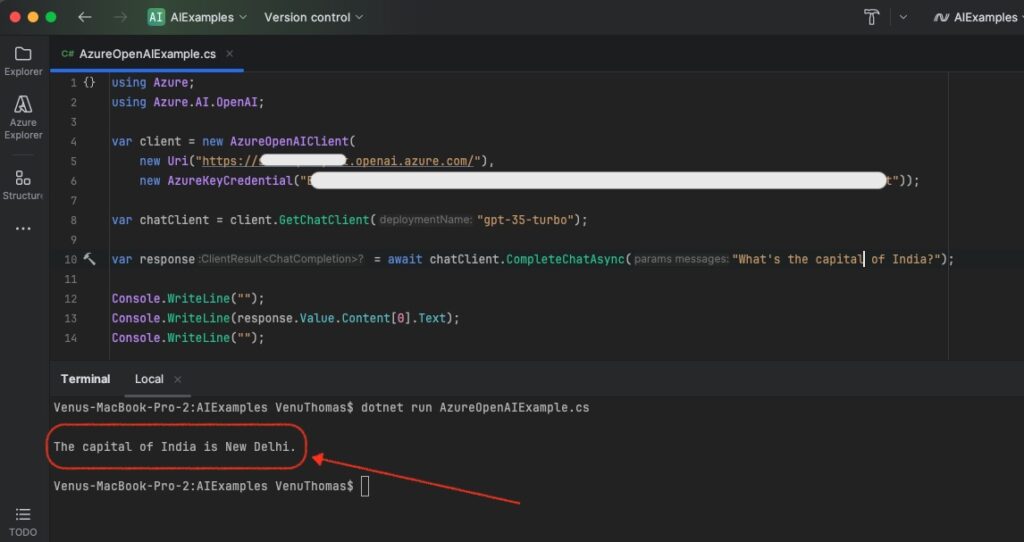
This is similar to the previous example but uses Azure for more control, like in big companies. You need an Azure account to get the endpoint and key. Useful explanation: Azure supports fine-tuning models for domain-specific tasks (e.g., legal or medical) and integrates seamlessly with other Azure services like Cosmos DB for storing chat histories.
2. Advanced AI with Semantic Kernel
Semantic Kernel (SK) is Microsoft’s open-source framework that makes AI development more powerful and organized. Think of SK as a toolkit that helps you build smarter AI apps by combining prompts, functions, and data—like Lego blocks for AI. Install via dotnet add package Microsoft.SemanticKernel. SK abstracts AI providers, so you can switch between OpenAI and Azure easily without rewriting code.
Basic Semantic Kernel Usage
Setup: Run dotnet add package Microsoft.SemanticKernel.
Code:
<span class="line"><span style="color: #569CD6">using</span>
<span style="color: #D4D4D4"> </span>
<span style="color: #4FC1FF">Microsoft</span>
<span style="color: #D4D4D4">.SemanticKernel;</span></span>
<span class="line"></span>
<span class="line"><span style="color: #569CD6">var</span>
<span style="color: #D4D4D4"> </span>
<span style="color: #9CDCFE">builder</span>
<span style="color: #D4D4D4"> = </span>
<span style="color: #9CDCFE">Kernel</span>
<span style="color: #D4D4D4">.</span>
<span style="color: #DCDCAA">CreateBuilder</span>
<span style="color: #D4D4D4">();  </span>
<span style="color: #6A9955">// CreateBuilder: Starts building the Kernel with services and plugins—like assembling a car.</span></span>
<span class="line"><span style="color: #9CDCFE">builder</span>
<span style="color: #D4D4D4">.</span>
<span style="color: #DCDCAA">AddOpenAIChatCompletion</span>
<span style="color: #D4D4D4">(</span>
<span style="color: #CE9178">"gpt-4o-mini"</span>
<span style="color: #D4D4D4">, </span>
<span style="color: #CE9178">"<your-key>"</span>
<span style="color: #D4D4D4">);  </span>
<span style="color: #6A9955">// Adds OpenAI as the AI engine.</span></span>
<span class="line"></span>
<span class="line"><span style="color: #569CD6">var</span>
<span style="color: #D4D4D4"> </span>
<span style="color: #9CDCFE">kernel</span>
<span style="color: #D4D4D4"> = </span>
<span style="color: #9CDCFE">builder</span>
<span style="color: #D4D4D4">.</span>
<span style="color: #DCDCAA">Build</span>
<span style="color: #D4D4D4">();  </span>
<span style="color: #6A9955">// Build: Finalizes and creates the Kernel object—now it's ready to use.</span></span>
<span class="line"><span style="color: #569CD6">var</span>
<span style="color: #D4D4D4"> </span>
<span style="color: #9CDCFE">result</span>
<span style="color: #D4D4D4"> = </span>
<span style="color: #C586C0">await</span>
<span style="color: #D4D4D4"> </span>
<span style="color: #9CDCFE">kernel</span>
<span style="color: #D4D4D4">.</span>
<span style="color: #DCDCAA">InvokePromptAsync</span>
<span style="color: #D4D4D4">(</span>
<span style="color: #CE9178">"What's the capital of India?"</span>
<span style="color: #D4D4D4">);  </span>
<span style="color: #6A9955">// InvokePromptAsync: Sends prompt to AI model and gets response—like pressing "send" on a message.</span></span>
<span class="line"><span style="color: #9CDCFE">Console</span>
<span style="color: #D4D4D4">.</span>
<span style="color: #DCDCAA">WriteLine</span>
<span style="color: #D4D4D4">(</span>
<span style="color: #9CDCFE">result</span>
<span style="color: #D4D4D4">.</span>
<span style="color: #DCDCAA">GetValue</span>
<span style="color: #D4D4D4"><</span>
<span style="color: #4EC9B0">string</span>
<span style="color: #D4D4D4">>());  </span>
<span style="color: #6A9955">// GetValue: Extracts string value from AI response.</span></span>
Expected Output:
The capital of India is New Delhi.
Here, the kernel acts as a manager that handles your AI requests. It’s more structured than direct calls, allowing you to add more features later. Useful explanation: SK supports multi-modal inputs (e.g., images) and planners for chaining tasks automatically, like “research topic → summarize → generate report.”
Functions and Plugins in Semantic Kernel
Functions let AI call your C# code automatically to get accurate data. A function is like a mini-program that does one job, and plugins group them—like apps on your phone.
Code (Plugin Class):
<span class="line"><span style="color: #569CD6">using</span>
<span style="color: #D4D4D4"> </span>
<span style="color: #4FC1FF">Microsoft</span>
<span style="color: #D4D4D4">.SemanticKernel;</span></span>
<span class="line"><span style="color: #569CD6">using</span>
<span style="color: #D4D4D4"> </span>
<span style="color: #4FC1FF">System</span>
<span style="color: #D4D4D4">.ComponentModel;</span></span>
<span class="line"></span>
<span class="line"><span style="color: #D4D4D4">[</span>
<span style="color: #DCDCAA">Description</span>
<span style="color: #D4D4D4">(</span>
<span style="color: #CE9178">"Geography information plugin"</span>
<span style="color: #D4D4D4">)]  </span>
<span style="color: #6A9955">// Description: Explains what this plugin does.</span></span>
<span class="line"><span style="color: #569CD6">class</span>
<span style="color: #D4D4D4"> </span>
<span style="color: #4EC9B0">GeographyPlugin</span></span>
<span class="line"><span style="color: #D4D4D4">{</span></span>
<span class="line"><span style="color: #D4D4D4">    [</span>
<span style="color: #9CDCFE">KernelFunction</span>
<span style="color: #D4D4D4">]  </span>
<span style="color: #6A9955">// KernelFunction: Marks C# method as callable by AI automatically—like making it AI-friendly.</span></span>
<span class="line"><span style="color: #D4D4D4">    [</span>
<span style="color: #DCDCAA">Description</span>
<span style="color: #D4D4D4">(</span>
<span style="color: #CE9178">"Get capital of a country or state"</span>
<span style="color: #D4D4D4">)]</span></span>
<span class="line"><span style="color: #D4D4D4">    [</span>
<span style="color: #9CDCFE">return</span>
<span style="color: #D4D4D4">: </span>
<span style="color: #4EC9B0">Description</span>
<span style="color: #D4D4D4">(</span>
<span style="color: #CE9178">"Capital city name"</span>
<span style="color: #D4D4D4">)]</span></span>
<span class="line"><span style="color: #D4D4D4">    </span>
<span style="color: #569CD6">public</span>
<span style="color: #D4D4D4"> </span>
<span style="color: #9CDCFE">string</span>
<span style="color: #D4D4D4"> </span>
<span style="color: #DCDCAA">GetCapital</span>
<span style="color: #D4D4D4">(</span></span>
<span class="line"><span style="color: #D4D4D4">        [</span>
<span style="color: #9CDCFE">Description</span>
<span style="color: #D4D4D4">(</span>
<span style="color: #CE9178">"Country or state name"</span>
<span style="color: #D4D4D4">)] </span>
<span style="color: #9CDCFE">string</span>
<span style="color: #D4D4D4"> </span>
<span style="color: #9CDCFE">location</span>
<span style="color: #D4D4D4">)  </span>
<span style="color: #6A9955">// Parameter: Input that the AI provides.</span></span>
<span class="line"><span style="color: #D4D4D4">    {</span></span>
<span class="line"><span style="color: #D4D4D4">        </span>
<span style="color: #C586C0">return</span>
<span style="color: #D4D4D4"> </span>
<span style="color: #9CDCFE">location</span>
<span style="color: #D4D4D4">.</span>
<span style="color: #DCDCAA">ToLower</span>
<span style="color: #D4D4D4">() </span>
<span style="color: #9CDCFE">switch</span>
<span style="color: #D4D4D4">  </span>
<span style="color: #6A9955">// Switch: Like a menu that picks the right answer based on input.</span></span>
<span class="line"><span style="color: #D4D4D4">        {</span></span>
<span class="line"><span style="color: #D4D4D4">            </span>
<span style="color: #CE9178">"india"</span>
<span style="color: #D4D4D4"> </span>
<span style="color: #569CD6">=></span>
<span style="color: #D4D4D4"> </span>
<span style="color: #CE9178">"New Delhi"</span>
<span style="color: #D4D4D4">,</span></span>
<span class="line"><span style="color: #D4D4D4">            </span>
<span style="color: #CE9178">"kerala"</span>
<span style="color: #D4D4D4"> </span>
<span style="color: #569CD6">=></span>
<span style="color: #D4D4D4"> </span>
<span style="color: #CE9178">"Thiruvananthapuram"</span>
<span style="color: #D4D4D4">,</span></span>
<span class="line"><span style="color: #D4D4D4">            </span>
<span style="color: #CE9178">"karnataka"</span>
<span style="color: #D4D4D4"> </span>
<span style="color: #569CD6">=></span>
<span style="color: #D4D4D4"> </span>
<span style="color: #CE9178">"Bengaluru"</span>
<span style="color: #D4D4D4">,</span></span>
<span class="line"><span style="color: #D4D4D4">            </span>
<span style="color: #CE9178">"tamil nadu"</span>
<span style="color: #D4D4D4"> </span>
<span style="color: #569CD6">=></span>
<span style="color: #D4D4D4"> </span>
<span style="color: #CE9178">"Chennai"</span>
<span style="color: #D4D4D4">,</span></span>
<span class="line"><span style="color: #D4D4D4">            </span>
<span style="color: #9CDCFE">_</span>
<span style="color: #D4D4D4"> </span>
<span style="color: #569CD6">=></span>
<span style="color: #D4D4D4"> </span>
<span style="color: #CE9178">"Unknown"</span>
<span style="color: #D4D4D4">  </span>
<span style="color: #6A9955">// Default if no match.</span></span>
<span class="line"><span style="color: #D4D4D4">        };</span></span>
<span class="line"><span style="color: #D4D4D4">    }</span></span>
<span class="line"><span style="color: #D4D4D4">}</span></span>
Register Plugin/Usage
<span class="line"><span style="color: #9CDCFE">kernel</span>
<span style="color: #D4D4D4">.</span>
<span style="color: #9CDCFE">Plugins</span>
<span style="color: #D4D4D4">.</span>
<span style="color: #DCDCAA">AddFromType</span>
<span style="color: #D4D4D4"><</span>
<span style="color: #4EC9B0">GeographyPlugin</span>
<span style="color: #D4D4D4">>();  </span>
<span style="color: #6A9955">// AddFromType: Registers plugin from class type—adds it to the kernel's toolkit.</span></span>
<span class="line"><span style="color: #569CD6">var</span>
<span style="color: #D4D4D4"> </span>
<span style="color: #9CDCFE">response</span>
<span style="color: #D4D4D4"> = </span>
<span style="color: #C586C0">await</span>
<span style="color: #D4D4D4"> </span>
<span style="color: #9CDCFE">kernel</span>
<span style="color: #D4D4D4">.</span>
<span style="color: #DCDCAA">InvokePromptAsync</span>
<span style="color: #D4D4D4">(</span>
<span style="color: #CE9178">"What's the capital of Kerala?"</span>
<span style="color: #D4D4D4">);  </span>
<span style="color: #6A9955">// The AI can now call GetCapital automatically.</span></span>
<span class="line"><span style="color: #9CDCFE">Console</span>
<span style="color: #D4D4D4">.</span>
<span style="color: #DCDCAA">WriteLine</span>
<span style="color: #D4D4D4">(</span>
<span style="color: #9CDCFE">response</span>
<span style="color: #D4D4D4">.</span>
<span style="color: #DCDCAA">GetValue</span>
<span style="color: #D4D4D4"><</span>
<span style="color: #4EC9B0">string</span>
<span style="color: #D4D4D4">>());</span></span>
Expected Output:
The capital of Kerala is Trivandrum.
The AI sees your function as a tool it can use. If it needs a capital, it calls this instead of guessing. Useful explanation: Plugins can be native (C# code) or imported from YAML files for non-code teams. This reduces hallucinations (AI making up facts) by grounding responses in your logic.
Advanced Prompt Functions with CreateFunctionFromPrompt
CreateFunctionFromPrompt is a powerful method that converts prompt templates into reusable functions. This is particularly useful for creating standardized AI interactions that can be called multiple times with different parameters.
What it does: Converts a text prompt template into a KernelFunction that can be invoked with parameters and execution settings. It’s like turning a recipe into a reusable cooking machine where you just change ingredients.
Code (Basic Prompt Function):
<span class="line"><span style="color: #569CD6">using</span>
<span style="color: #D4D4D4"> </span>
<span style="color: #4FC1FF">Microsoft</span>
<span style="color: #D4D4D4">.SemanticKernel;</span></span>
<span class="line"><span style="color: #569CD6">using</span>
<span style="color: #D4D4D4"> </span>
<span style="color: #4FC1FF">Microsoft</span>
<span style="color: #D4D4D4">.SemanticKernel.Connectors.AzureOpenAI;</span></span>
<span class="line"><span style="color: #569CD6">using</span>
<span style="color: #D4D4D4"> </span>
<span style="color: #4FC1FF">Microsoft</span>
<span style="color: #D4D4D4">.SemanticKernel.Connectors.OpenAI; </span>
<span style="color: #6A9955">// Import for Azure OpenAI connectors</span></span>
<span class="line"></span>
<span class="line"></span>
<span class="line"><span style="color: #569CD6">var</span>
<span style="color: #D4D4D4"> </span>
<span style="color: #9CDCFE">builder</span>
<span style="color: #D4D4D4"> = </span>
<span style="color: #9CDCFE">Kernel</span>
<span style="color: #D4D4D4">.</span>
<span style="color: #DCDCAA">CreateBuilder</span>
<span style="color: #D4D4D4">();  </span>
<span style="color: #6A9955">// CreateBuilder: Starts building the Kernel with services and plugins—like assembling a car.</span></span>
<span class="line"></span>
<span class="line"><span style="color: #6A9955">// Add Azure OpenAI chat completion service instead of direct OpenAI</span></span>
<span class="line"><span style="color: #9CDCFE">builder</span>
<span style="color: #D4D4D4">.</span>
<span style="color: #DCDCAA">AddAzureOpenAIChatCompletion</span>
<span style="color: #D4D4D4">(</span></span>
<span class="line"><span style="color: #D4D4D4">    </span>
<span style="color: #9CDCFE">deploymentName</span>
<span style="color: #D4D4D4">: </span>
<span style="color: #CE9178">"gpt-4o-mini"</span>
<span style="color: #D4D4D4">,  </span>
<span style="color: #6A9955">// Deployment name for GPT-4o-mini in your Azure AI resource</span></span>
<span class="line"><span style="color: #D4D4D4">    </span>
<span style="color: #9CDCFE">endpoint</span>
<span style="color: #D4D4D4">: </span>
<span style="color: #CE9178">"AZURE_OPENAI_ENDPOINT"</span>
<span style="color: #D4D4D4">,  </span>
<span style="color: #6A9955">// e.g., "https://your-resource.openai.azure.com/"</span></span>
<span class="line"><span style="color: #D4D4D4">    </span>
<span style="color: #9CDCFE">apiKey</span>
<span style="color: #D4D4D4">: </span>
<span style="color: #CE9178">"AZURE_OPENAI_API_KEY"</span>
<span style="color: #D4D4D4"> </span>
<span style="color: #6A9955">// Your Azure OpenAI API key</span></span>
<span class="line"><span style="color: #D4D4D4">);</span></span>
<span class="line"></span>
<span class="line"><span style="color: #569CD6">var</span>
<span style="color: #D4D4D4"> </span>
<span style="color: #9CDCFE">kernel</span>
<span style="color: #D4D4D4"> = </span>
<span style="color: #9CDCFE">builder</span>
<span style="color: #D4D4D4">.</span>
<span style="color: #DCDCAA">Build</span>
<span style="color: #D4D4D4">();</span></span>
<span class="line"></span>
<span class="line"><span style="color: #6A9955">// CreateFunctionFromPrompt: Turns a prompt template into a reusable function that can be invoked with parameters</span></span>
<span class="line"><span style="color: #569CD6">var</span>
<span style="color: #D4D4D4"> </span>
<span style="color: #9CDCFE">geographyFunction</span>
<span style="color: #D4D4D4"> = </span>
<span style="color: #9CDCFE">kernel</span>
<span style="color: #D4D4D4">.</span>
<span style="color: #DCDCAA">CreateFunctionFromPrompt</span>
<span style="color: #D4D4D4">(</span></span>
<span class="line"><span style="color: #D4D4D4">    </span>
<span style="color: #CE9178">"What's the capital of {{$location}}? Please provide a detailed answer including some facts about the city."</span>
<span style="color: #D4D4D4">,  </span>
<span style="color: #6A9955">// Prompt template with parameter placeholder—{{$location}} is like a blank to fill.</span></span>
<span class="line"><span style="color: #D4D4D4">    </span>
<span style="color: #569CD6">new</span>
<span style="color: #D4D4D4"> </span>
<span style="color: #9CDCFE">AzureOpenAIPromptExecutionSettings</span>
<span style="color: #D4D4D4">  </span>
<span style="color: #6A9955">// Use Azure-specific settings (inherits from OpenAIPromptExecutionSettings)</span></span>
<span class="line"><span style="color: #D4D4D4">    {</span></span>
<span class="line"><span style="color: #D4D4D4">        </span>
<span style="color: #9CDCFE">MaxTokens</span>
<span style="color: #D4D4D4"> = </span>
<span style="color: #B5CEA8">200</span>
<span style="color: #D4D4D4">,  </span>
<span style="color: #6A9955">// MaxTokens: Limits response length—to keep answers short.</span></span>
<span class="line"><span style="color: #D4D4D4">        </span>
<span style="color: #9CDCFE">Temperature</span>
<span style="color: #D4D4D4"> = </span>
<span style="color: #B5CEA8">0.1</span>
<span style="color: #D4D4D4">,  </span>
<span style="color: #6A9955">// Temperature: Controls randomness (0.1 = more focused, 1.0 = more creative)—low for factual answers.</span></span>
<span class="line"><span style="color: #D4D4D4">        </span>
<span style="color: #9CDCFE">ToolCallBehavior</span>
<span style="color: #D4D4D4"> = </span>
<span style="color: #9CDCFE">ToolCallBehavior</span>
<span style="color: #D4D4D4">.</span>
<span style="color: #9CDCFE">AutoInvokeKernelFunctions</span>
<span style="color: #D4D4D4">  </span>
<span style="color: #6A9955">// ToolCallBehavior: Enables automatic function calling—like auto-dialing tools.</span></span>
<span class="line"><span style="color: #D4D4D4">    },</span></span>
<span class="line"><span style="color: #D4D4D4">    </span>
<span style="color: #9CDCFE">functionName</span>
<span style="color: #D4D4D4">: </span>
<span style="color: #CE9178">"GetGeographyInfo"</span>
<span style="color: #D4D4D4">,  </span>
<span style="color: #6A9955">// functionName: Optional name for the function</span></span>
<span class="line"><span style="color: #D4D4D4">    </span>
<span style="color: #9CDCFE">description</span>
<span style="color: #D4D4D4">: </span>
<span style="color: #CE9178">"Provides detailed information about a location's capital city"</span>
<span style="color: #D4D4D4">  </span>
<span style="color: #6A9955">// description: Explains what this function does</span></span>
<span class="line"><span style="color: #D4D4D4">);</span></span>
<span class="line"></span>
<span class="line"><span style="color: #6A9955">// Invoke the function with parameters</span></span>
<span class="line"><span style="color: #569CD6">var</span>
<span style="color: #D4D4D4"> </span>
<span style="color: #9CDCFE">result</span>
<span style="color: #D4D4D4"> = </span>
<span style="color: #C586C0">await</span>
<span style="color: #D4D4D4"> </span>
<span style="color: #9CDCFE">kernel</span>
<span style="color: #D4D4D4">.</span>
<span style="color: #DCDCAA">InvokeAsync</span>
<span style="color: #D4D4D4">(</span>
<span style="color: #9CDCFE">geographyFunction</span>
<span style="color: #D4D4D4">, </span>
<span style="color: #569CD6">new</span>
<span style="color: #D4D4D4"> </span>
<span style="color: #9CDCFE">KernelArguments</span>
<span style="color: #D4D4D4">  </span>
<span style="color: #6A9955">// KernelArguments: Dictionary-like object for passing parameters—like a bag of inputs.</span></span>
<span class="line"><span style="color: #D4D4D4">{</span></span>
<span class="line"><span style="color: #D4D4D4">    </span>
<span style="color: #9CDCFE">[</span>
<span style="color: #CE9178">"location"</span>
<span style="color: #9CDCFE">] = "Kerala"  </span>
<span style="color: #6A9955">// Parameter value for the {{$location}} placeholder</span></span>
<span class="line"><span style="color: #9CDCFE">});</span></span>
<span class="line"></span>
<span class="line"><span style="color: #9CDCFE">Console.WriteLine(result.GetValue<string>());</span></span>
<span class="line"></span>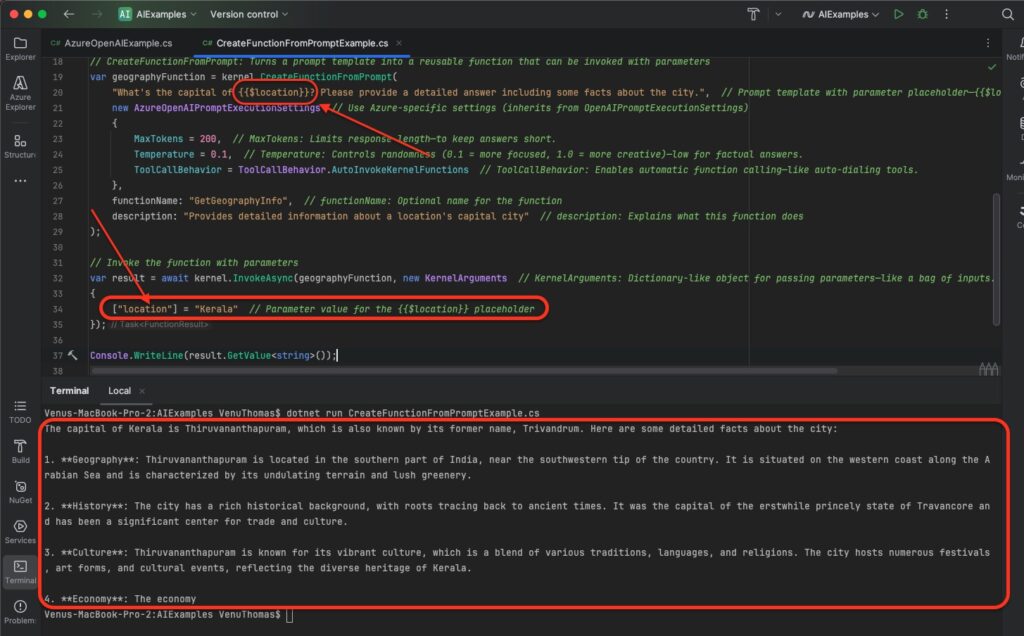
This makes prompts reusable. Change “Kerala” to “India,” and it works without rewriting the whole prompt. Useful explanation: Settings like Temperature fine-tune creativity—use 0 for deterministic outputs (e.g., math) and higher for brainstorming. This method also supports few-shot learning by including examples in the template.
3. Vector Search
What is Vector Search? Vector search enables AI to find information based on semantic meaning rather than exact keyword matches. It converts text into numerical vectors (embeddings) that capture meaning, allowing searches like “What’s the capital of Kerala?” to find relevant information even if the stored data uses different words like “administrative center of Kerala state.”
Imagine searching for “red fruit” and finding “apple” because the AI understands meanings, not just words. Vectors are like arrows in space where similar meanings point close together. This is key for smart search in apps, like recommending products or answering questions accurately. Useful explanation: Embeddings are generated by models like text-embedding-3-small, which map text to high-dimensional spaces (e.g., 1536 numbers). Cosine similarity measures “closeness” (0-1 scale, where 1 is identical meaning).
Key Concepts of Vector Search:
- Embeddings: Numerical representations of text that capture semantic meaning. Like turning words into a secret code of numbers.
- Similarity Search: Finding vectors that are “close” to each other in mathematical space. Closeness means similar ideas.
- RAG (Retrieval-Augmented Generation): Using vector search to retrieve relevant information before generating AI responses. First find facts, then let AI explain them.
- Semantic Similarity: Text with similar meanings have similar vector representations. E.g., “car” and “automobile” are close.
Vector Class
<em>Microsoft.Extensions.VectorData.VectorStore</em> class defined in the <em>Microsoft.Extensions.VectorData.Abstractions</em> package. As the name suggests, this class abstracts vector stores and defines methods for working with vector store collections, such as GetCollection and <em>ListCollectionNamesAsync</em>.
The classes that implement this class include the following:
- AzureAISearchVectorStore
- CosmosMongoVectorStore
- CosmosNoSqlVectorStore
- InMemoryVectorStore
- MongoVectorStore
- PineconeVectorStore
- PostgresVectorStore
- QdrantVectorStore
- RedisVectorStore
- SqlServerVectorStore
- SqliteVectorStore
- WeaviateVectorStore
As their names indicate, implementations are provided for many major vector stores.
This time, since the aim is to avoid depending on any special vector database, let’s focus on <em><strong>InMemoryVectorStore</strong></em> and look at the basic usage of VectorStore.
Setting Up Vector Search in Semantic Kernel
Setup: Add the required packages:
dotnet add package Microsoft.SemanticKernel.Connectors.InMemory --prerelease
dotnet add package Microsoft.Extensions.VectorData.Abstractions --prerelease
Prerelease means it’s a beta version—use with caution, but great for learning new features. Useful explanation: For production, swap InMemory with persistent stores like Azure AI Search or Pinecone to handle millions of vectors without losing data on restart.
Creating a Geography Vector Store
What it does: Creates a vector store to hold geography information that can be searched semantically. A vector store is like a smart database for meanings.
Code (Geography Record Class):
<span class="line"><span style="color: #569CD6">using</span>
<span style="color: #D4D4D4"> </span>
<span style="color: #4FC1FF">Microsoft</span>
<span style="color: #D4D4D4">.Extensions.VectorData;</span></span>
<span class="line"></span>
<span class="line"><span style="color: #569CD6">class</span>
<span style="color: #D4D4D4"> </span>
<span style="color: #4EC9B0">GeographyRecord</span></span>
<span class="line"><span style="color: #D4D4D4">{</span></span>
<span class="line"><span style="color: #D4D4D4">    [</span>
<span style="color: #9CDCFE">VectorStoreKey</span>
<span style="color: #D4D4D4">] </span>
<span style="color: #569CD6">public</span>
<span style="color: #D4D4D4"> </span>
<span style="color: #9CDCFE">required</span>
<span style="color: #D4D4D4"> </span>
<span style="color: #9CDCFE">string</span>
<span style="color: #D4D4D4"> </span>
<span style="color: #9CDCFE">Id</span>
<span style="color: #D4D4D4"> { </span>
<span style="color: #9CDCFE">get</span>
<span style="color: #D4D4D4">; </span>
<span style="color: #9CDCFE">set</span>
<span style="color: #D4D4D4">; }  </span>
<span style="color: #6A9955">// VectorStoreKey: Marks property as unique identifier for records—like a serial number.</span></span>
<span class="line"><span style="color: #D4D4D4">    [</span>
<span style="color: #9CDCFE">VectorStoreData</span>
<span style="color: #D4D4D4">] </span>
<span style="color: #569CD6">public</span>
<span style="color: #D4D4D4"> </span>
<span style="color: #9CDCFE">required</span>
<span style="color: #D4D4D4"> </span>
<span style="color: #9CDCFE">string</span>
<span style="color: #D4D4D4"> </span>
<span style="color: #9CDCFE">Info</span>
<span style="color: #D4D4D4"> { </span>
<span style="color: #9CDCFE">get</span>
<span style="color: #D4D4D4">; </span>
<span style="color: #9CDCFE">set</span>
<span style="color: #D4D4D4">; }  </span>
<span style="color: #6A9955">// VectorStoreData: Indicates property holds searchable data—the main text.</span></span>
<span class="line"><span style="color: #D4D4D4">    [</span>
<span style="color: #DCDCAA">VectorStoreVector</span>
<span style="color: #D4D4D4">(</span>
<span style="color: #B5CEA8">1536</span>
<span style="color: #D4D4D4">)] </span>
<span style="color: #569CD6">public</span>
<span style="color: #D4D4D4"> </span>
<span style="color: #9CDCFE">required</span>
<span style="color: #D4D4D4"> </span>
<span style="color: #9CDCFE">ReadOnlyMemory</span>
<span style="color: #D4D4D4"><</span>
<span style="color: #9CDCFE">float</span>
<span style="color: #D4D4D4">> </span>
<span style="color: #9CDCFE">Vector</span>
<span style="color: #D4D4D4"> { </span>
<span style="color: #9CDCFE">get</span>
<span style="color: #D4D4D4">; </span>
<span style="color: #9CDCFE">set</span>
<span style="color: #D4D4D4">; }  </span>
<span style="color: #6A9955">// VectorStoreVector: Specifies vector embedding with 1536 dimensions—a long list of numbers representing meaning.</span></span>
<span class="line"><span style="color: #D4D4D4">    [</span>
<span style="color: #9CDCFE">VectorStoreData</span>
<span style="color: #D4D4D4">] </span>
<span style="color: #569CD6">public</span>
<span style="color: #D4D4D4"> </span>
<span style="color: #9CDCFE">required</span>
<span style="color: #D4D4D4"> </span>
<span style="color: #9CDCFE">string</span>
<span style="color: #D4D4D4"> </span>
<span style="color: #9CDCFE">Location</span>
<span style="color: #D4D4D4"> { </span>
<span style="color: #9CDCFE">get</span>
<span style="color: #D4D4D4">; </span>
<span style="color: #9CDCFE">set</span>
<span style="color: #D4D4D4">; }  </span>
<span style="color: #6A9955">// Additional searchable data field.</span></span>
<span class="line"><span style="color: #D4D4D4">    [</span>
<span style="color: #9CDCFE">VectorStoreData</span>
<span style="color: #D4D4D4">] </span>
<span style="color: #569CD6">public</span>
<span style="color: #D4D4D4"> </span>
<span style="color: #9CDCFE">required</span>
<span style="color: #D4D4D4"> </span>
<span style="color: #9CDCFE">string</span>
<span style="color: #D4D4D4"> </span>
<span style="color: #9CDCFE">Type</span>
<span style="color: #D4D4D4"> { </span>
<span style="color: #9CDCFE">get</span>
<span style="color: #D4D4D4">; </span>
<span style="color: #9CDCFE">set</span>
<span style="color: #D4D4D4">; }  </span>
<span style="color: #6A9955">// Country or State classification.</span></span>
<span class="line"><span style="color: #D4D4D4">}</span></span>
<span class="line"></span>
Vector Store Setup
Code (Vector Store Implementation):
<span class="line"><span style="color: #569CD6">using</span>
<span style="color: #D4D4D4"> </span>
<span style="color: #4FC1FF">Microsoft</span>
<span style="color: #D4D4D4">.SemanticKernel;</span></span>
<span class="line"><span style="color: #569CD6">using</span>
<span style="color: #D4D4D4"> </span>
<span style="color: #4FC1FF">Microsoft</span>
<span style="color: #D4D4D4">.SemanticKernel.Embeddings;  </span>
<span style="color: #6A9955">// For ITextEmbeddingGenerationService</span></span>
<span class="line"><span style="color: #569CD6">using</span>
<span style="color: #D4D4D4"> </span>
<span style="color: #4FC1FF">Microsoft</span>
<span style="color: #D4D4D4">.Extensions.VectorData;  </span>
<span style="color: #6A9955">// For IVectorStore and related interfaces/attributes</span></span>
<span class="line"><span style="color: #569CD6">using</span>
<span style="color: #D4D4D4"> </span>
<span style="color: #4FC1FF">Microsoft</span>
<span style="color: #D4D4D4">.Extensions.DependencyInjection;</span></span>
<span class="line"></span>
<span class="line"><span style="color: #6A9955">// GeographyRecord: Custom record class for storing geography data in a vector store—like a data card.</span></span>
<span class="line"><span style="color: #569CD6">var</span>
<span style="color: #D4D4D4"> </span>
<span style="color: #9CDCFE">builder</span>
<span style="color: #D4D4D4"> = </span>
<span style="color: #9CDCFE">Kernel</span>
<span style="color: #D4D4D4">.</span>
<span style="color: #DCDCAA">CreateBuilder</span>
<span style="color: #D4D4D4">();</span></span>
<span class="line"><span style="color: #9CDCFE">builder</span>
<span style="color: #D4D4D4">.</span>
<span style="color: #DCDCAA">AddAzureOpenAIChatCompletion</span>
<span style="color: #D4D4D4">(</span>
<span style="color: #CE9178">"<your-deployment>"</span>
<span style="color: #D4D4D4">, </span>
<span style="color: #CE9178">"<your-endpoint>"</span>
<span style="color: #D4D4D4">, </span>
<span style="color: #CE9178">"<your-key>"</span>
<span style="color: #D4D4D4">);  </span>
<span style="color: #6A9955">// Registers Azure OpenAI chat completion</span></span>
<span class="line"></span>
<span class="line"><span style="color: #6A9955">// AddInMemoryVectorStore: Registers an in-memory vector store in Semantic Kernel's services—stores data in RAM for speed.</span></span>
<span class="line"><span style="color: #9CDCFE">builder</span>
<span style="color: #D4D4D4">.</span>
<span style="color: #9CDCFE">Services</span>
<span style="color: #D4D4D4">.</span>
<span style="color: #DCDCAA">AddInMemoryVectorStore</span>
<span style="color: #D4D4D4">();</span></span>
<span class="line"></span>
<span class="line"><span style="color: #6A9955">// AddAzureOpenAITextEmbeddingGeneration: Adds Azure OpenAI embedding service to generate vectors from text.</span></span>
<span class="line"><span style="color: #9CDCFE">builder</span>
<span style="color: #D4D4D4">.</span>
<span style="color: #DCDCAA">AddAzureOpenAITextEmbeddingGeneration</span>
<span style="color: #D4D4D4">(</span>
<span style="color: #CE9178">"text-embedding-3-small"</span>
<span style="color: #D4D4D4">, </span>
<span style="color: #CE9178">"<your-endpoint>"</span>
<span style="color: #D4D4D4">, </span>
<span style="color: #CE9178">"<your-key>"</span>
<span style="color: #D4D4D4">);</span></span>
<span class="line"></span>
<span class="line"><span style="color: #569CD6">var</span>
<span style="color: #D4D4D4"> </span>
<span style="color: #9CDCFE">kernel</span>
<span style="color: #D4D4D4"> = </span>
<span style="color: #9CDCFE">builder</span>
<span style="color: #D4D4D4">.</span>
<span style="color: #DCDCAA">Build</span>
<span style="color: #D4D4D4">();</span></span>
<span class="line"></span>
<span class="line"><span style="color: #6A9955">// GetRequiredService: Fetches required service instance from dependency injection—like asking for a tool from a toolbox.</span></span>
<span class="line"><span style="color: #9CDCFE">VectorStore</span>
<span style="color: #D4D4D4"> </span>
<span style="color: #9CDCFE">vectorStore</span>
<span style="color: #D4D4D4"> = </span>
<span style="color: #9CDCFE">kernel</span>
<span style="color: #D4D4D4">.</span>
<span style="color: #9CDCFE">Services</span>
<span style="color: #D4D4D4">.</span>
<span style="color: #DCDCAA">GetRequiredService</span>
<span style="color: #D4D4D4"><</span>
<span style="color: #4EC9B0">VectorStore</span>
<span style="color: #D4D4D4">>();</span></span>
<span class="line"><span style="color: #569CD6">var</span>
<span style="color: #D4D4D4"> </span>
<span style="color: #9CDCFE">embeddingGeneration</span>
<span style="color: #D4D4D4"> = </span>
<span style="color: #9CDCFE">kernel</span>
<span style="color: #D4D4D4">.</span>
<span style="color: #DCDCAA">GetRequiredService</span>
<span style="color: #D4D4D4"><</span>
<span style="color: #4EC9B0">ITextEmbeddingGenerationService</span>
<span style="color: #D4D4D4">>();  </span>
<span style="color: #6A9955">// ITextEmbeddingGenerationService: Service that converts text into vector embeddings</span></span>
<span class="line"></span>
<span class="line"><span style="color: #6A9955">// GetCollection: Retrieves or creates a named collection of records—like a folder in the database.</span></span>
<span class="line"><span style="color: #569CD6">var</span>
<span style="color: #D4D4D4"> </span>
<span style="color: #9CDCFE">collection</span>
<span style="color: #D4D4D4"> = </span>
<span style="color: #9CDCFE">vectorStore</span>
<span style="color: #D4D4D4">.</span>
<span style="color: #DCDCAA">GetCollection</span>
<span style="color: #D4D4D4"><</span>
<span style="color: #4EC9B0">string</span>
<span style="color: #D4D4D4">, </span>
<span style="color: #4EC9B0">GeographyRecord</span>
<span style="color: #D4D4D4">>(</span>
<span style="color: #CE9178">"Geography"</span>
<span style="color: #D4D4D4">);</span></span>
<span class="line"><span style="color: #C586C0">await</span>
<span style="color: #D4D4D4"> </span>
<span style="color: #9CDCFE">collection</span>
<span style="color: #D4D4D4">.</span>
<span style="color: #DCDCAA">EnsureCollectionExistsAsync</span>
<span style="color: #D4D4D4">();  </span>
<span style="color: #6A9955">// EnsureCollectionExistsAsync: Creates vector store collection if it doesn't exist</span></span>
<span class="line"></span>
<span class="line"><span style="color: #6A9955">// Sample geography data to populate the vector store</span></span>
<span class="line"><span style="color: #569CD6">var</span>
<span style="color: #D4D4D4"> </span>
<span style="color: #9CDCFE">geographyData</span>
<span style="color: #D4D4D4"> = </span>
<span style="color: #569CD6">new</span>
<span style="color: #D4D4D4">[]</span></span>
<span class="line"><span style="color: #D4D4D4">{</span></span>
<span class="line"><span style="color: #D4D4D4">    </span>
<span style="color: #569CD6">new</span>
<span style="color: #D4D4D4"> { </span>
<span style="color: #9CDCFE">Id</span>
<span style="color: #D4D4D4"> = </span>
<span style="color: #CE9178">"1"</span>
<span style="color: #D4D4D4">, </span>
<span style="color: #9CDCFE">Info</span>
<span style="color: #D4D4D4"> = </span>
<span style="color: #CE9178">"India's capital is New Delhi, the seat of government and administrative center."</span>
<span style="color: #D4D4D4">, </span>
<span style="color: #9CDCFE">Location</span>
<span style="color: #D4D4D4"> = </span>
<span style="color: #CE9178">"India"</span>
<span style="color: #D4D4D4">, </span>
<span style="color: #9CDCFE">Type</span>
<span style="color: #D4D4D4"> = </span>
<span style="color: #CE9178">"Country"</span>
<span style="color: #D4D4D4"> },</span></span>
<span class="line"><span style="color: #D4D4D4">    </span>
<span style="color: #569CD6">new</span>
<span style="color: #D4D4D4"> { </span>
<span style="color: #9CDCFE">Id</span>
<span style="color: #D4D4D4"> = </span>
<span style="color: #CE9178">"2"</span>
<span style="color: #D4D4D4">, </span>
<span style="color: #9CDCFE">Info</span>
<span style="color: #D4D4D4"> = </span>
<span style="color: #CE9178">"Kerala's capital is Thiruvananthapuram, also known as Trivandrum, located in southern India."</span>
<span style="color: #D4D4D4">, </span>
<span style="color: #9CDCFE">Location</span>
<span style="color: #D4D4D4"> = </span>
<span style="color: #CE9178">"Kerala"</span>
<span style="color: #D4D4D4">, </span>
<span style="color: #9CDCFE">Type</span>
<span style="color: #D4D4D4"> = </span>
<span style="color: #CE9178">"State"</span>
<span style="color: #D4D4D4"> },</span></span>
<span class="line"><span style="color: #D4D4D4">    </span>
<span style="color: #569CD6">new</span>
<span style="color: #D4D4D4"> { </span>
<span style="color: #9CDCFE">Id</span>
<span style="color: #D4D4D4"> = </span>
<span style="color: #CE9178">"3"</span>
<span style="color: #D4D4D4">, </span>
<span style="color: #9CDCFE">Info</span>
<span style="color: #D4D4D4"> = </span>
<span style="color: #CE9178">"Karnataka's capital is Bengaluru, formerly Bangalore, known as India's Silicon Valley."</span>
<span style="color: #D4D4D4">, </span>
<span style="color: #9CDCFE">Location</span>
<span style="color: #D4D4D4"> = </span>
<span style="color: #CE9178">"Karnataka"</span>
<span style="color: #D4D4D4">, </span>
<span style="color: #9CDCFE">Type</span>
<span style="color: #D4D4D4"> = </span>
<span style="color: #CE9178">"State"</span>
<span style="color: #D4D4D4"> },</span></span>
<span class="line"><span style="color: #D4D4D4">    </span>
<span style="color: #569CD6">new</span>
<span style="color: #D4D4D4"> { </span>
<span style="color: #9CDCFE">Id</span>
<span style="color: #D4D4D4"> = </span>
<span style="color: #CE9178">"4"</span>
<span style="color: #D4D4D4">, </span>
<span style="color: #9CDCFE">Info</span>
<span style="color: #D4D4D4"> = </span>
<span style="color: #CE9178">"Tamil Nadu's capital is Chennai, formerly Madras, a major cultural and economic center."</span>
<span style="color: #D4D4D4">, </span>
<span style="color: #9CDCFE">Location</span>
<span style="color: #D4D4D4"> = </span>
<span style="color: #CE9178">"Tamil Nadu"</span>
<span style="color: #D4D4D4">, </span>
<span style="color: #9CDCFE">Type</span>
<span style="color: #D4D4D4"> = </span>
<span style="color: #CE9178">"State"</span>
<span style="color: #D4D4D4"> },</span></span>
<span class="line"><span style="color: #D4D4D4">    </span>
<span style="color: #569CD6">new</span>
<span style="color: #D4D4D4"> { </span>
<span style="color: #9CDCFE">Id</span>
<span style="color: #D4D4D4"> = </span>
<span style="color: #CE9178">"5"</span>
<span style="color: #D4D4D4">, </span>
<span style="color: #9CDCFE">Info</span>
<span style="color: #D4D4D4"> = </span>
<span style="color: #CE9178">"Maharashtra's capital is Mumbai, the financial capital of India and Bollywood hub."</span>
<span style="color: #D4D4D4">, </span>
<span style="color: #9CDCFE">Location</span>
<span style="color: #D4D4D4"> = </span>
<span style="color: #CE9178">"Maharashtra"</span>
<span style="color: #D4D4D4">, </span>
<span style="color: #9CDCFE">Type</span>
<span style="color: #D4D4D4"> = </span>
<span style="color: #CE9178">"State"</span>
<span style="color: #D4D4D4"> },</span></span>
<span class="line"><span style="color: #D4D4D4">    </span>
<span style="color: #569CD6">new</span>
<span style="color: #D4D4D4"> { </span>
<span style="color: #9CDCFE">Id</span>
<span style="color: #D4D4D4"> = </span>
<span style="color: #CE9178">"6"</span>
<span style="color: #D4D4D4">, </span>
<span style="color: #9CDCFE">Info</span>
<span style="color: #D4D4D4"> = </span>
<span style="color: #CE9178">"United States capital is Washington D.C., home to federal government institutions."</span>
<span style="color: #D4D4D4">, </span>
<span style="color: #9CDCFE">Location</span>
<span style="color: #D4D4D4"> = </span>
<span style="color: #CE9178">"USA"</span>
<span style="color: #D4D4D4">, </span>
<span style="color: #9CDCFE">Type</span>
<span style="color: #D4D4D4"> = </span>
<span style="color: #CE9178">"Country"</span>
<span style="color: #D4D4D4"> },</span></span>
<span class="line"><span style="color: #D4D4D4">    </span>
<span style="color: #569CD6">new</span>
<span style="color: #D4D4D4"> { </span>
<span style="color: #9CDCFE">Id</span>
<span style="color: #D4D4D4"> = </span>
<span style="color: #CE9178">"7"</span>
<span style="color: #D4D4D4">, </span>
<span style="color: #9CDCFE">Info</span>
<span style="color: #D4D4D4"> = </span>
<span style="color: #CE9178">"France's capital is Paris, known for the Eiffel Tower and rich cultural heritage."</span>
<span style="color: #D4D4D4">, </span>
<span style="color: #9CDCFE">Location</span>
<span style="color: #D4D4D4"> = </span>
<span style="color: #CE9178">"France"</span>
<span style="color: #D4D4D4">, </span>
<span style="color: #9CDCFE">Type</span>
<span style="color: #D4D4D4"> = </span>
<span style="color: #CE9178">"Country"</span>
<span style="color: #D4D4D4"> }</span></span>
<span class="line"><span style="color: #D4D4D4">};</span></span>
<span class="line"></span>
<span class="line"><span style="color: #6A9955">// Populate vector store with embeddings</span></span>
<span class="line"><span style="color: #DCDCAA">foreach</span>
<span style="color: #D4D4D4"> (</span>
<span style="color: #9CDCFE">var</span>
<span style="color: #D4D4D4"> </span>
<span style="color: #9CDCFE">data</span>
<span style="color: #D4D4D4"> </span>
<span style="color: #569CD6">in</span>
<span style="color: #D4D4D4"> </span>
<span style="color: #9CDCFE">geographyData</span>
<span style="color: #D4D4D4">)</span></span>
<span class="line"><span style="color: #D4D4D4">{</span></span>
<span class="line"><span style="color: #D4D4D4">    </span>
<span style="color: #6A9955">// GenerateAsync: Creates vector embeddings from input text asynchronously—turns text into numbers.</span></span>
<span class="line"><span style="color: #D4D4D4">    </span>
<span style="color: #569CD6">var</span>
<span style="color: #D4D4D4"> </span>
<span style="color: #9CDCFE">embedding</span>
<span style="color: #D4D4D4"> = </span>
<span style="color: #C586C0">await</span>
<span style="color: #D4D4D4"> </span>
<span style="color: #9CDCFE">embeddingGeneration</span>
<span style="color: #D4D4D4">.</span>
<span style="color: #DCDCAA">GenerateEmbeddingAsync</span>
<span style="color: #D4D4D4">(</span>
<span style="color: #9CDCFE">data</span>
<span style="color: #D4D4D4">.</span>
<span style="color: #9CDCFE">Info</span>
<span style="color: #D4D4D4">);</span></span>
<span class="line"><span style="color: #D4D4D4">    </span></span>
<span class="line"><span style="color: #D4D4D4">    </span>
<span style="color: #569CD6">var</span>
<span style="color: #D4D4D4"> </span>
<span style="color: #9CDCFE">record</span>
<span style="color: #D4D4D4"> = </span>
<span style="color: #569CD6">new</span>
<span style="color: #D4D4D4"> </span>
<span style="color: #9CDCFE">GeographyRecord</span></span>
<span class="line"><span style="color: #D4D4D4">    {</span></span>
<span class="line"><span style="color: #D4D4D4">        </span>
<span style="color: #9CDCFE">Id</span>
<span style="color: #D4D4D4"> = </span>
<span style="color: #9CDCFE">data</span>
<span style="color: #D4D4D4">.</span>
<span style="color: #9CDCFE">Id</span>
<span style="color: #D4D4D4">,</span></span>
<span class="line"><span style="color: #D4D4D4">        </span>
<span style="color: #9CDCFE">Info</span>
<span style="color: #D4D4D4"> = </span>
<span style="color: #9CDCFE">data</span>
<span style="color: #D4D4D4">.</span>
<span style="color: #9CDCFE">Info</span>
<span style="color: #D4D4D4">,</span></span>
<span class="line"><span style="color: #D4D4D4">        </span>
<span style="color: #9CDCFE">Location</span>
<span style="color: #D4D4D4"> = </span>
<span style="color: #9CDCFE">data</span>
<span style="color: #D4D4D4">.</span>
<span style="color: #9CDCFE">Location</span>
<span style="color: #D4D4D4">,</span></span>
<span class="line"><span style="color: #D4D4D4">        </span>
<span style="color: #9CDCFE">Type</span>
<span style="color: #D4D4D4"> = </span>
<span style="color: #9CDCFE">data</span>
<span style="color: #D4D4D4">.</span>
<span style="color: #9CDCFE">Type</span>
<span style="color: #D4D4D4">,</span></span>
<span class="line"><span style="color: #D4D4D4">        </span>
<span style="color: #9CDCFE">Vector</span>
<span style="color: #D4D4D4"> = </span>
<span style="color: #9CDCFE">embedding</span>
<span style="color: #D4D4D4">  </span>
<span style="color: #6A9955">// Vector property contains the numerical representation</span></span>
<span class="line"><span style="color: #D4D4D4">    };</span></span>
<span class="line"><span style="color: #D4D4D4">    </span></span>
<span class="line"><span style="color: #D4D4D4">    </span>
<span style="color: #C586C0">await</span>
<span style="color: #D4D4D4"> </span>
<span style="color: #9CDCFE">collection</span>
<span style="color: #D4D4D4">.</span>
<span style="color: #DCDCAA">UpsertAsync</span>
<span style="color: #D4D4D4">(</span>
<span style="color: #9CDCFE">record</span>
<span style="color: #D4D4D4">);  </span>
<span style="color: #6A9955">// UpsertAsync: Inserts or updates records in vector store collection—like saving or updating a file.</span></span>
<span class="line"><span style="color: #D4D4D4">}</span></span>
<span class="line"></span>
<span class="line"><span style="color: #9CDCFE">Console</span>
<span style="color: #D4D4D4">.</span>
<span style="color: #DCDCAA">WriteLine</span>
<span style="color: #D4D4D4">(</span>
<span style="color: #CE9178">"Vector store populated with geography data!"</span>
<span style="color: #D4D4D4">);</span></span>
This code sets up a memory-like store. It takes text (like capital facts), converts them to vectors using an embedding generator, and saves them. In-memory means it’s temporary and fast for testing. Useful explanation: For larger datasets, batch embeddings (process multiple texts at once) to reduce API calls and costs—SK supports this via GenerateBatchAsync.
Performing Vector Search
Code (Basic Vector Search):
<span class="line"><span style="color: #6A9955">// Convert user query to vector for similarity search</span></span>
<span class="line"><span style="color: #9CDCFE">string</span>
<span style="color: #D4D4D4"> </span>
<span style="color: #9CDCFE">userQuery</span>
<span style="color: #D4D4D4"> = </span>
<span style="color: #CE9178">"What's the capital of Kerala?"</span>
<span style="color: #D4D4D4">;</span></span>
<span class="line"><span style="color: #569CD6">var</span>
<span style="color: #D4D4D4"> </span>
<span style="color: #9CDCFE">queryEmbedding</span>
<span style="color: #D4D4D4"> = </span>
<span style="color: #C586C0">await</span>
<span style="color: #D4D4D4"> </span>
<span style="color: #9CDCFE">embeddingGeneration</span>
<span style="color: #D4D4D4">.</span>
<span style="color: #DCDCAA">GenerateEmbeddingAsync</span>
<span style="color: #D4D4D4">(</span>
<span style="color: #9CDCFE">userQuery</span>
<span style="color: #D4D4D4">);  </span>
<span style="color: #6A9955">// Turn the query into a vector.</span></span>
<span class="line"></span>
<span class="line"><span style="color: #9CDCFE">Console</span>
<span style="color: #D4D4D4">.</span>
<span style="color: #DCDCAA">WriteLine</span>
<span style="color: #D4D4D4">(</span>
<span style="color: #9CDCFE">$</span>
<span style="color: #CE9178">"Searching for: {userQuery}"</span>
<span style="color: #D4D4D4">);</span></span>
<span class="line"><span style="color: #9CDCFE">Console</span>
<span style="color: #D4D4D4">.</span>
<span style="color: #DCDCAA">WriteLine</span>
<span style="color: #D4D4D4">(</span>
<span style="color: #CE9178">"Results:"</span>
<span style="color: #D4D4D4">);</span></span>
<span class="line"></span>
<span class="line"><span style="color: #6A9955">// VectorSearchAsync: Performs vector-based searches and returns matching results with similarity scores—like finding nearest neighbors.</span></span>
<span class="line"><span style="color: #C586C0">await</span>
<span style="color: #D4D4D4"> </span>
<span style="color: #DCDCAA">foreach</span>
<span style="color: #D4D4D4"> (</span>
<span style="color: #9CDCFE">var</span>
<span style="color: #D4D4D4"> </span>
<span style="color: #9CDCFE">result</span>
<span style="color: #D4D4D4"> </span>
<span style="color: #569CD6">in</span>
<span style="color: #D4D4D4"> </span>
<span style="color: #9CDCFE">collection</span>
<span style="color: #D4D4D4">.</span>
<span style="color: #DCDCAA">SearchAsync</span>
<span style="color: #D4D4D4">(</span></span>
<span class="line"><span style="color: #D4D4D4">                   </span>
<span style="color: #9CDCFE">queryEmbedding</span>
<span style="color: #D4D4D4">,</span></span>
<span class="line"><span style="color: #D4D4D4">                   </span>
<span style="color: #9CDCFE">top</span>
<span style="color: #D4D4D4">: </span>
<span style="color: #B5CEA8">3</span>
<span style="color: #D4D4D4">))  </span>
<span style="color: #6A9955">// Return top 3 most similar results</span></span>
<span class="line"><span style="color: #D4D4D4">{</span></span>
<span class="line"><span style="color: #D4D4D4">    </span>
<span style="color: #9CDCFE">Console</span>
<span style="color: #D4D4D4">.</span>
<span style="color: #DCDCAA">WriteLine</span>
<span style="color: #D4D4D4">(</span>
<span style="color: #9CDCFE">$</span>
<span style="color: #CE9178">"Score: {result.Score:F4} | {result.Record.Info}"</span>
<span style="color: #D4D4D4">);  </span>
<span style="color: #6A9955">// Score is how close the match is (higher = better).</span></span>
<span class="line"><span style="color: #D4D4D4">}</span></span>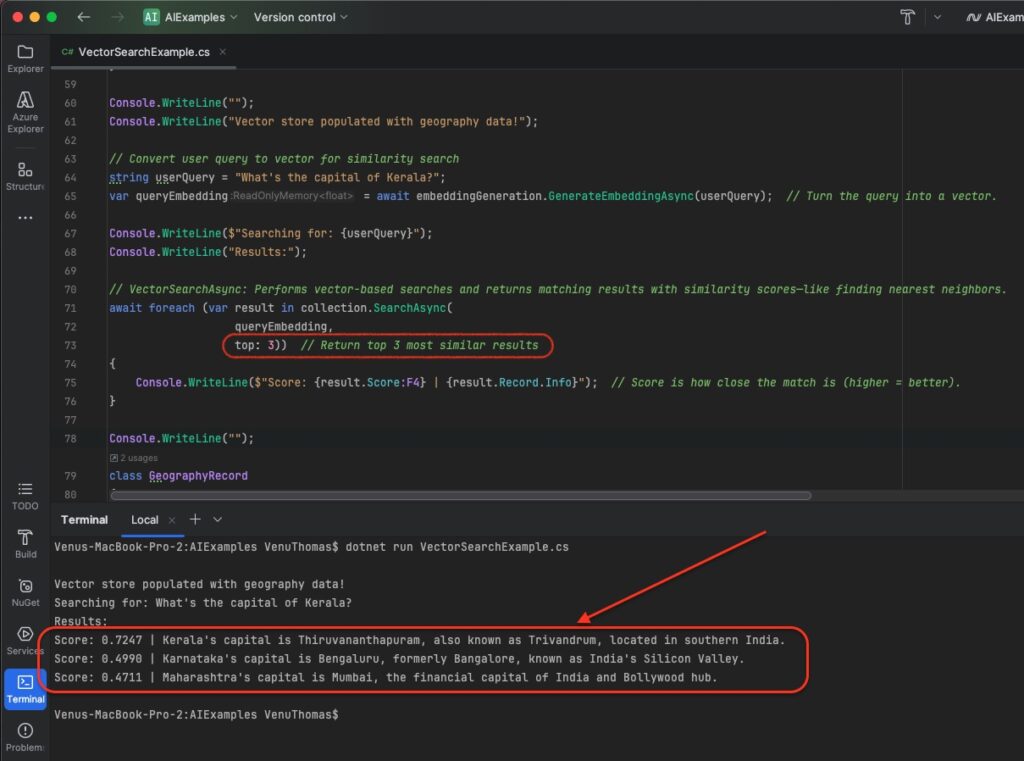
The search finds “close” vectors, so even if your query doesn’t match words exactly, it finds related info. The score shows confidence 1.0 would be perfect. Useful explanation: Threshold scores (e.g., >0.7) to filter noisy results; combine with hybrid search (keywords + vectors) for precision in noisy data.
Advanced Semantic Search with Text Search Wrapper
A wrapper is also provided for VectorStore that specializes in text search. This is done using the VectorStoreTextSearch class. The VectorStoreTextSearch<TRecord> class implements the ITextSearch interface, allowing you to perform text searches. By using <strong><em>VectorStoreTextSearch<TRecord></em></strong>, you can handle the data in a vector store in a way that is specialized for text search.
In order to enable text search with this class, you need to annotate the property in your RecordData class that represents the search result text with the TextSearchResultValue attribute. This attribute specifies which property should be used when retrieving the results of a text search.
For example, if you want the Info property of the <em>GeographyRecord</em> class to serve as the search result text, you would define it as follows:
<span class="line"><span style="color: #9CDCFE">public</span>
<span style="color: #D4D4D4"> </span>
<span style="color: #569CD6">class</span>
<span style="color: #D4D4D4"> </span>
<span style="color: #4EC9B0">GeographyRecord</span></span>
<span class="line"><span style="color: #D4D4D4">{</span></span>
<span class="line"><span style="color: #D4D4D4">    [</span>
<span style="color: #9CDCFE">VectorStoreKey</span>
<span style="color: #D4D4D4">] </span>
<span style="color: #569CD6">public</span>
<span style="color: #D4D4D4"> </span>
<span style="color: #9CDCFE">required</span>
<span style="color: #D4D4D4"> </span>
<span style="color: #9CDCFE">string</span>
<span style="color: #D4D4D4"> </span>
<span style="color: #9CDCFE">Id</span>
<span style="color: #D4D4D4"> { </span>
<span style="color: #9CDCFE">get</span>
<span style="color: #D4D4D4">; </span>
<span style="color: #9CDCFE">set</span>
<span style="color: #D4D4D4">; }  </span></span>
<span class="line"><span style="color: #D4D4D4">    [</span>
<span style="color: #9CDCFE">TextSearchResultValue</span>
<span style="color: #D4D4D4">][</span>
<span style="color: #9CDCFE">VectorStoreData</span>
<span style="color: #D4D4D4">] </span>
<span style="color: #569CD6">public</span>
<span style="color: #D4D4D4"> </span>
<span style="color: #9CDCFE">required</span>
<span style="color: #D4D4D4"> </span>
<span style="color: #9CDCFE">string</span>
<span style="color: #D4D4D4"> </span>
<span style="color: #9CDCFE">Info</span>
<span style="color: #D4D4D4"> { </span>
<span style="color: #9CDCFE">get</span>
<span style="color: #D4D4D4">; </span>
<span style="color: #9CDCFE">set</span>
<span style="color: #D4D4D4">; }  </span></span>
<span class="line"><span style="color: #D4D4D4">    [</span>
<span style="color: #DCDCAA">VectorStoreVector</span>
<span style="color: #D4D4D4">(</span>
<span style="color: #B5CEA8">1536</span>
<span style="color: #D4D4D4">)] </span>
<span style="color: #569CD6">public</span>
<span style="color: #D4D4D4"> </span>
<span style="color: #9CDCFE">required</span>
<span style="color: #D4D4D4"> </span>
<span style="color: #9CDCFE">ReadOnlyMemory</span>
<span style="color: #D4D4D4"><</span>
<span style="color: #9CDCFE">float</span>
<span style="color: #D4D4D4">> </span>
<span style="color: #9CDCFE">Vector</span>
<span style="color: #D4D4D4"> { </span>
<span style="color: #9CDCFE">get</span>
<span style="color: #D4D4D4">; </span>
<span style="color: #9CDCFE">set</span>
<span style="color: #D4D4D4">; }  </span></span>
<span class="line"><span style="color: #D4D4D4">}</span></span>
<span class="line"></span>
Although we won’t use them here, you can also apply attributes such as TextSearchResultName to specify a property to use as the “name,” or TextSearchResultLink to specify a property to use as a “link.” By combining these attributes, you could, for example, specify a file name, chunked text, or a URL link to the file.
In this example, since we are only working with text, we’ll only use the TextSearchResultValue attribute.
Now let’s actually perform a text search using <em><strong>VectorStoreTextSearch<TRecord></strong></em> with our VectorStore
Code (Text Search Implementation):
<span class="line"><span style="color: #569CD6">using</span>
<span style="color: #D4D4D4"> </span>
<span style="color: #4FC1FF">Microsoft</span>
<span style="color: #D4D4D4">.SemanticKernel;</span></span>
<span class="line"><span style="color: #569CD6">using</span>
<span style="color: #D4D4D4"> </span>
<span style="color: #4FC1FF">Microsoft</span>
<span style="color: #D4D4D4">.SemanticKernel.Embeddings;  </span></span>
<span class="line"><span style="color: #569CD6">using</span>
<span style="color: #D4D4D4"> </span>
<span style="color: #4FC1FF">Microsoft</span>
<span style="color: #D4D4D4">.Extensions.VectorData;  </span></span>
<span class="line"><span style="color: #569CD6">using</span>
<span style="color: #D4D4D4"> </span>
<span style="color: #4FC1FF">Microsoft</span>
<span style="color: #D4D4D4">.Extensions.DependencyInjection;</span></span>
<span class="line"><span style="color: #569CD6">using</span>
<span style="color: #D4D4D4"> </span>
<span style="color: #4FC1FF">Microsoft</span>
<span style="color: #D4D4D4">.SemanticKernel.Data;</span></span>
<span class="line"></span>
<span class="line"><span style="color: #D4D4D4">#</span>
<span style="color: #9CDCFE">pragma</span>
<span style="color: #D4D4D4"> </span>
<span style="color: #9CDCFE">warning</span>
<span style="color: #D4D4D4"> </span>
<span style="color: #9CDCFE">disable</span>
<span style="color: #D4D4D4"> </span>
<span style="color: #4FC1FF">SKEXP0001</span>
<span style="color: #D4D4D4">, </span>
<span style="color: #4FC1FF">SKEXP0010</span>
<span style="color: #D4D4D4">, </span>
<span style="color: #4FC1FF">SKEXP0020</span>
<span style="color: #D4D4D4">, </span>
<span style="color: #4FC1FF">SKEXP0050</span>
<span style="color: #D4D4D4"> , </span>
<span style="color: #4FC1FF">CS0618</span>
<span style="color: #D4D4D4"> </span></span>
<span class="line"></span>
<span class="line"><span style="color: #569CD6">var</span>
<span style="color: #D4D4D4"> </span>
<span style="color: #9CDCFE">builder</span>
<span style="color: #D4D4D4"> = </span>
<span style="color: #9CDCFE">Kernel</span>
<span style="color: #D4D4D4">.</span>
<span style="color: #DCDCAA">CreateBuilder</span>
<span style="color: #D4D4D4">();</span></span>
<span class="line"><span style="color: #9CDCFE">builder</span>
<span style="color: #D4D4D4">.</span>
<span style="color: #DCDCAA">AddAzureOpenAIChatCompletion</span>
<span style="color: #D4D4D4">(</span>
<span style="color: #CE9178">"gpt-35-turbo"</span>
<span style="color: #D4D4D4">, </span>
<span style="color: #CE9178">"<your-endpoint>"</span>
<span style="color: #D4D4D4">, </span>
<span style="color: #CE9178">"<your-key>"</span>
<span style="color: #D4D4D4">);  </span></span>
<span class="line"></span>
<span class="line"><span style="color: #6A9955">// AddInMemoryVectorStore: Registers an in-memory vector store in Semantic Kernel's services—stores data in RAM for speed.</span></span>
<span class="line"><span style="color: #9CDCFE">builder</span>
<span style="color: #D4D4D4">.</span>
<span style="color: #9CDCFE">Services</span>
<span style="color: #D4D4D4">.</span>
<span style="color: #DCDCAA">AddInMemoryVectorStore</span>
<span style="color: #D4D4D4">();</span></span>
<span class="line"></span>
<span class="line"><span style="color: #6A9955">// AddAzureOpenAITextEmbeddingGeneration: Adds Azure OpenAI embedding service to generate vectors from text.</span></span>
<span class="line"><span style="color: #9CDCFE">builder</span>
<span style="color: #D4D4D4">.</span>
<span style="color: #DCDCAA">AddAzureOpenAITextEmbeddingGeneration</span>
<span style="color: #D4D4D4">(</span>
<span style="color: #CE9178">"text-embedding-3-small"</span>
<span style="color: #D4D4D4">, </span>
<span style="color: #CE9178">"<your-endpoint>"</span>
<span style="color: #D4D4D4">, </span>
<span style="color: #CE9178">"<your-key>"</span>
<span style="color: #D4D4D4">);</span></span>
<span class="line"></span>
<span class="line"><span style="color: #569CD6">var</span>
<span style="color: #D4D4D4"> </span>
<span style="color: #9CDCFE">kernel</span>
<span style="color: #D4D4D4"> = </span>
<span style="color: #9CDCFE">builder</span>
<span style="color: #D4D4D4">.</span>
<span style="color: #DCDCAA">Build</span>
<span style="color: #D4D4D4">();</span></span>
<span class="line"></span>
<span class="line"><span style="color: #6A9955">// GetRequiredService: Fetches required service instance from dependency injection—like asking for a tool from a toolbox.</span></span>
<span class="line"><span style="color: #569CD6">var</span>
<span style="color: #D4D4D4"> </span>
<span style="color: #9CDCFE">vectorStore</span>
<span style="color: #D4D4D4"> = </span>
<span style="color: #9CDCFE">kernel</span>
<span style="color: #D4D4D4">.</span>
<span style="color: #9CDCFE">Services</span>
<span style="color: #D4D4D4">.</span>
<span style="color: #DCDCAA">GetRequiredService</span>
<span style="color: #D4D4D4"><</span>
<span style="color: #4EC9B0">VectorStore</span>
<span style="color: #D4D4D4">>();  </span>
<span style="color: #6A9955">// Use IVectorStore for type safety</span></span>
<span class="line"><span style="color: #569CD6">var</span>
<span style="color: #D4D4D4"> </span>
<span style="color: #9CDCFE">embeddingGeneration</span>
<span style="color: #D4D4D4"> = </span>
<span style="color: #9CDCFE">kernel</span>
<span style="color: #D4D4D4">.</span>
<span style="color: #DCDCAA">GetRequiredService</span>
<span style="color: #D4D4D4"><</span>
<span style="color: #4EC9B0">ITextEmbeddingGenerationService</span>
<span style="color: #D4D4D4">>();  </span>
<span style="color: #6A9955">// ITextEmbeddingGenerationService: Service that converts text into vector embeddings</span></span>
<span class="line"></span>
<span class="line"><span style="color: #6A9955">// GetCollection: Retrieves or creates a named collection of records—like a folder in the database.</span></span>
<span class="line"><span style="color: #569CD6">var</span>
<span style="color: #D4D4D4"> </span>
<span style="color: #9CDCFE">collection</span>
<span style="color: #D4D4D4"> = </span>
<span style="color: #9CDCFE">vectorStore</span>
<span style="color: #D4D4D4">.</span>
<span style="color: #DCDCAA">GetCollection</span>
<span style="color: #D4D4D4"><</span>
<span style="color: #4EC9B0">string</span>
<span style="color: #D4D4D4">, </span>
<span style="color: #4EC9B0">GeographyRecord</span>
<span style="color: #D4D4D4">>(</span>
<span style="color: #CE9178">"Geography"</span>
<span style="color: #D4D4D4">);</span></span>
<span class="line"><span style="color: #C586C0">await</span>
<span style="color: #D4D4D4"> </span>
<span style="color: #9CDCFE">collection</span>
<span style="color: #D4D4D4">.</span>
<span style="color: #DCDCAA">EnsureCollectionExistsAsync</span>
<span style="color: #D4D4D4">();  </span>
<span style="color: #6A9955">// EnsureCollectionExistsAsync: Creates vector store collection if it doesn't exist (note: corrected method name from EnsureCollectionExistsAsync based on SK docs)</span></span>
<span class="line"></span>
<span class="line"><span style="color: #6A9955">// Sample geography data to populate the vector store</span></span>
<span class="line"><span style="color: #569CD6">var</span>
<span style="color: #D4D4D4"> </span>
<span style="color: #9CDCFE">geographyData</span>
<span style="color: #D4D4D4"> = </span>
<span style="color: #569CD6">new</span>
<span style="color: #D4D4D4">[]</span></span>
<span class="line"><span style="color: #D4D4D4">{</span></span>
<span class="line"><span style="color: #D4D4D4">    </span>
<span style="color: #569CD6">new</span>
<span style="color: #D4D4D4"> { </span>
<span style="color: #9CDCFE">Id</span>
<span style="color: #D4D4D4"> = </span>
<span style="color: #CE9178">"1"</span>
<span style="color: #D4D4D4">, </span>
<span style="color: #9CDCFE">Info</span>
<span style="color: #D4D4D4"> = </span>
<span style="color: #CE9178">"India's capital is New Delhi, the seat of government and administrative center."</span>
<span style="color: #D4D4D4">, </span>
<span style="color: #9CDCFE">Location</span>
<span style="color: #D4D4D4"> = </span>
<span style="color: #CE9178">"India"</span>
<span style="color: #D4D4D4">, </span>
<span style="color: #9CDCFE">Type</span>
<span style="color: #D4D4D4"> = </span>
<span style="color: #CE9178">"Country"</span>
<span style="color: #D4D4D4"> },</span></span>
<span class="line"><span style="color: #D4D4D4">    </span>
<span style="color: #569CD6">new</span>
<span style="color: #D4D4D4"> { </span>
<span style="color: #9CDCFE">Id</span>
<span style="color: #D4D4D4"> = </span>
<span style="color: #CE9178">"2"</span>
<span style="color: #D4D4D4">, </span>
<span style="color: #9CDCFE">Info</span>
<span style="color: #D4D4D4"> = </span>
<span style="color: #CE9178">"Kerala's capital is Thiruvananthapuram, also known as Trivandrum, located in southern India."</span>
<span style="color: #D4D4D4">, </span>
<span style="color: #9CDCFE">Location</span>
<span style="color: #D4D4D4"> = </span>
<span style="color: #CE9178">"Kerala"</span>
<span style="color: #D4D4D4">, </span>
<span style="color: #9CDCFE">Type</span>
<span style="color: #D4D4D4"> = </span>
<span style="color: #CE9178">"State"</span>
<span style="color: #D4D4D4"> },</span></span>
<span class="line"><span style="color: #D4D4D4">    </span>
<span style="color: #569CD6">new</span>
<span style="color: #D4D4D4"> { </span>
<span style="color: #9CDCFE">Id</span>
<span style="color: #D4D4D4"> = </span>
<span style="color: #CE9178">"3"</span>
<span style="color: #D4D4D4">, </span>
<span style="color: #9CDCFE">Info</span>
<span style="color: #D4D4D4"> = </span>
<span style="color: #CE9178">"Karnataka's capital is Bengaluru, formerly Bangalore, known as India's Silicon Valley."</span>
<span style="color: #D4D4D4">, </span>
<span style="color: #9CDCFE">Location</span>
<span style="color: #D4D4D4"> = </span>
<span style="color: #CE9178">"Karnataka"</span>
<span style="color: #D4D4D4">, </span>
<span style="color: #9CDCFE">Type</span>
<span style="color: #D4D4D4"> = </span>
<span style="color: #CE9178">"State"</span>
<span style="color: #D4D4D4"> },</span></span>
<span class="line"><span style="color: #D4D4D4">    </span>
<span style="color: #569CD6">new</span>
<span style="color: #D4D4D4"> { </span>
<span style="color: #9CDCFE">Id</span>
<span style="color: #D4D4D4"> = </span>
<span style="color: #CE9178">"4"</span>
<span style="color: #D4D4D4">, </span>
<span style="color: #9CDCFE">Info</span>
<span style="color: #D4D4D4"> = </span>
<span style="color: #CE9178">"Tamil Nadu's capital is Chennai, formerly Madras, a major cultural and economic center."</span>
<span style="color: #D4D4D4">, </span>
<span style="color: #9CDCFE">Location</span>
<span style="color: #D4D4D4"> = </span>
<span style="color: #CE9178">"Tamil Nadu"</span>
<span style="color: #D4D4D4">, </span>
<span style="color: #9CDCFE">Type</span>
<span style="color: #D4D4D4"> = </span>
<span style="color: #CE9178">"State"</span>
<span style="color: #D4D4D4"> },</span></span>
<span class="line"><span style="color: #D4D4D4">    </span>
<span style="color: #569CD6">new</span>
<span style="color: #D4D4D4"> { </span>
<span style="color: #9CDCFE">Id</span>
<span style="color: #D4D4D4"> = </span>
<span style="color: #CE9178">"5"</span>
<span style="color: #D4D4D4">, </span>
<span style="color: #9CDCFE">Info</span>
<span style="color: #D4D4D4"> = </span>
<span style="color: #CE9178">"Maharashtra's capital is Mumbai, the financial capital of India and Bollywood hub."</span>
<span style="color: #D4D4D4">, </span>
<span style="color: #9CDCFE">Location</span>
<span style="color: #D4D4D4"> = </span>
<span style="color: #CE9178">"Maharashtra"</span>
<span style="color: #D4D4D4">, </span>
<span style="color: #9CDCFE">Type</span>
<span style="color: #D4D4D4"> = </span>
<span style="color: #CE9178">"State"</span>
<span style="color: #D4D4D4"> },</span></span>
<span class="line"><span style="color: #D4D4D4">    </span>
<span style="color: #569CD6">new</span>
<span style="color: #D4D4D4"> { </span>
<span style="color: #9CDCFE">Id</span>
<span style="color: #D4D4D4"> = </span>
<span style="color: #CE9178">"6"</span>
<span style="color: #D4D4D4">, </span>
<span style="color: #9CDCFE">Info</span>
<span style="color: #D4D4D4"> = </span>
<span style="color: #CE9178">"United States capital is Washington D.C., home to federal government institutions."</span>
<span style="color: #D4D4D4">, </span>
<span style="color: #9CDCFE">Location</span>
<span style="color: #D4D4D4"> = </span>
<span style="color: #CE9178">"USA"</span>
<span style="color: #D4D4D4">, </span>
<span style="color: #9CDCFE">Type</span>
<span style="color: #D4D4D4"> = </span>
<span style="color: #CE9178">"Country"</span>
<span style="color: #D4D4D4"> },</span></span>
<span class="line"><span style="color: #D4D4D4">    </span>
<span style="color: #569CD6">new</span>
<span style="color: #D4D4D4"> { </span>
<span style="color: #9CDCFE">Id</span>
<span style="color: #D4D4D4"> = </span>
<span style="color: #CE9178">"7"</span>
<span style="color: #D4D4D4">, </span>
<span style="color: #9CDCFE">Info</span>
<span style="color: #D4D4D4"> = </span>
<span style="color: #CE9178">"France's capital is Paris, known for the Eiffel Tower and rich cultural heritage."</span>
<span style="color: #D4D4D4">, </span>
<span style="color: #9CDCFE">Location</span>
<span style="color: #D4D4D4"> = </span>
<span style="color: #CE9178">"France"</span>
<span style="color: #D4D4D4">, </span>
<span style="color: #9CDCFE">Type</span>
<span style="color: #D4D4D4"> = </span>
<span style="color: #CE9178">"Country"</span>
<span style="color: #D4D4D4"> }</span></span>
<span class="line"><span style="color: #D4D4D4">};</span></span>
<span class="line"></span>
<span class="line"><span style="color: #6A9955">// Populate vector store with embeddings</span></span>
<span class="line"><span style="color: #DCDCAA">foreach</span>
<span style="color: #D4D4D4"> (</span>
<span style="color: #9CDCFE">var</span>
<span style="color: #D4D4D4"> </span>
<span style="color: #9CDCFE">data</span>
<span style="color: #D4D4D4"> </span>
<span style="color: #569CD6">in</span>
<span style="color: #D4D4D4"> </span>
<span style="color: #9CDCFE">geographyData</span>
<span style="color: #D4D4D4">)</span></span>
<span class="line"><span style="color: #D4D4D4">{</span></span>
<span class="line"><span style="color: #D4D4D4">    </span>
<span style="color: #6A9955">// GenerateAsync: Creates vector embeddings from input text asynchronously—turns text into numbers.</span></span>
<span class="line"><span style="color: #D4D4D4">    </span>
<span style="color: #569CD6">var</span>
<span style="color: #D4D4D4"> </span>
<span style="color: #9CDCFE">embedding</span>
<span style="color: #D4D4D4"> = </span>
<span style="color: #C586C0">await</span>
<span style="color: #D4D4D4"> </span>
<span style="color: #9CDCFE">embeddingGeneration</span>
<span style="color: #D4D4D4">.</span>
<span style="color: #DCDCAA">GenerateEmbeddingAsync</span>
<span style="color: #D4D4D4">(</span>
<span style="color: #9CDCFE">data</span>
<span style="color: #D4D4D4">.</span>
<span style="color: #9CDCFE">Info</span>
<span style="color: #D4D4D4">);</span></span>
<span class="line"><span style="color: #D4D4D4">    </span></span>
<span class="line"><span style="color: #D4D4D4">    </span>
<span style="color: #569CD6">var</span>
<span style="color: #D4D4D4"> </span>
<span style="color: #9CDCFE">record</span>
<span style="color: #D4D4D4"> = </span>
<span style="color: #569CD6">new</span>
<span style="color: #D4D4D4"> </span>
<span style="color: #9CDCFE">GeographyRecord</span></span>
<span class="line"><span style="color: #D4D4D4">    {</span></span>
<span class="line"><span style="color: #D4D4D4">        </span>
<span style="color: #9CDCFE">Id</span>
<span style="color: #D4D4D4"> = </span>
<span style="color: #9CDCFE">data</span>
<span style="color: #D4D4D4">.</span>
<span style="color: #9CDCFE">Id</span>
<span style="color: #D4D4D4">,</span></span>
<span class="line"><span style="color: #D4D4D4">        </span>
<span style="color: #9CDCFE">Info</span>
<span style="color: #D4D4D4"> = </span>
<span style="color: #9CDCFE">data</span>
<span style="color: #D4D4D4">.</span>
<span style="color: #9CDCFE">Info</span>
<span style="color: #D4D4D4">,</span></span>
<span class="line"><span style="color: #D4D4D4">        </span>
<span style="color: #9CDCFE">Location</span>
<span style="color: #D4D4D4"> = </span>
<span style="color: #9CDCFE">data</span>
<span style="color: #D4D4D4">.</span>
<span style="color: #9CDCFE">Location</span>
<span style="color: #D4D4D4">,</span></span>
<span class="line"><span style="color: #D4D4D4">        </span>
<span style="color: #9CDCFE">Type</span>
<span style="color: #D4D4D4"> = </span>
<span style="color: #9CDCFE">data</span>
<span style="color: #D4D4D4">.</span>
<span style="color: #9CDCFE">Type</span>
<span style="color: #D4D4D4">,</span></span>
<span class="line"><span style="color: #D4D4D4">        </span>
<span style="color: #9CDCFE">Vector</span>
<span style="color: #D4D4D4"> = </span>
<span style="color: #9CDCFE">embedding</span>
<span style="color: #D4D4D4">  </span>
<span style="color: #6A9955">// Vector property contains the numerical representation</span></span>
<span class="line"><span style="color: #D4D4D4">    };</span></span>
<span class="line"><span style="color: #D4D4D4">    </span></span>
<span class="line"><span style="color: #D4D4D4">    </span>
<span style="color: #C586C0">await</span>
<span style="color: #D4D4D4"> </span>
<span style="color: #9CDCFE">collection</span>
<span style="color: #D4D4D4">.</span>
<span style="color: #DCDCAA">UpsertAsync</span>
<span style="color: #D4D4D4">(</span>
<span style="color: #9CDCFE">record</span>
<span style="color: #D4D4D4">);  </span>
<span style="color: #6A9955">// UpsertAsync: Inserts or updates records in vector store collection—like saving or updating a file.</span></span>
<span class="line"><span style="color: #D4D4D4">}</span></span>
<span class="line"></span>
<span class="line"><span style="color: #9CDCFE">Console</span>
<span style="color: #D4D4D4">.</span>
<span style="color: #DCDCAA">WriteLine</span>
<span style="color: #D4D4D4">(</span>
<span style="color: #CE9178">"Vector store populated with geography data!"</span>
<span style="color: #D4D4D4">);</span></span>
<span class="line"></span>
<span class="line"><span style="color: #6A9955">// Add text search functionality here</span></span>
<span class="line"><span style="color: #569CD6">var</span>
<span style="color: #D4D4D4"> </span>
<span style="color: #9CDCFE">textSearch</span>
<span style="color: #D4D4D4"> = </span>
<span style="color: #569CD6">new</span>
<span style="color: #D4D4D4"> </span>
<span style="color: #DCDCAA">VectorStoreTextSearch</span>
<span style="color: #D4D4D4"><</span>
<span style="color: #4EC9B0">GeographyRecord</span>
<span style="color: #D4D4D4">>(</span></span>
<span class="line"><span style="color: #D4D4D4">    </span>
<span style="color: #9CDCFE">collection</span>
<span style="color: #D4D4D4">,</span></span>
<span class="line"><span style="color: #D4D4D4">    </span>
<span style="color: #9CDCFE">embeddingGeneration</span>
<span style="color: #D4D4D4">);  </span>
<span style="color: #6A9955">// Use GeographyRecord as the type parameter</span></span>
<span class="line"></span>
<span class="line"><span style="color: #9CDCFE">Console</span>
<span style="color: #D4D4D4">.</span>
<span style="color: #DCDCAA">WriteLine</span>
<span style="color: #D4D4D4">(</span>
<span style="color: #CE9178">""</span>
<span style="color: #D4D4D4">);</span></span>
<span class="line"><span style="color: #569CD6">var</span>
<span style="color: #D4D4D4"> </span>
<span style="color: #9CDCFE">textQuery</span>
<span style="color: #D4D4D4"> = </span>
<span style="color: #CE9178">"What's financial capital Bollywood?"</span>
<span style="color: #D4D4D4">;</span></span>
<span class="line"><span style="color: #569CD6">var</span>
<span style="color: #D4D4D4">  </span>
<span style="color: #9CDCFE">textSearchResults</span>
<span style="color: #D4D4D4"> = </span>
<span style="color: #C586C0">await</span>
<span style="color: #D4D4D4"> </span>
<span style="color: #9CDCFE">textSearch</span>
<span style="color: #D4D4D4">.</span>
<span style="color: #DCDCAA">GetTextSearchResultsAsync</span>
<span style="color: #D4D4D4">(</span>
<span style="color: #9CDCFE">textQuery</span>
<span style="color: #D4D4D4">);  </span>
<span style="color: #6A9955">// Perform the text search</span></span>
<span class="line"></span>
<span class="line"><span style="color: #9CDCFE">Console</span>
<span style="color: #D4D4D4">.</span>
<span style="color: #DCDCAA">WriteLine</span>
<span style="color: #D4D4D4">(</span>
<span style="color: #9CDCFE">$</span>
<span style="color: #CE9178">"Text searching for: {textQuery}"</span>
<span style="color: #D4D4D4">);</span></span>
<span class="line"><span style="color: #9CDCFE">Console</span>
<span style="color: #D4D4D4">.</span>
<span style="color: #DCDCAA">WriteLine</span>
<span style="color: #D4D4D4">(</span>
<span style="color: #CE9178">"Text Search Results:"</span>
<span style="color: #D4D4D4">);</span></span>
<span class="line"><span style="color: #C586C0">await</span>
<span style="color: #D4D4D4"> </span>
<span style="color: #DCDCAA">foreach</span>
<span style="color: #D4D4D4"> (</span>
<span style="color: #9CDCFE">var</span>
<span style="color: #D4D4D4"> </span>
<span style="color: #9CDCFE">textSearchResult</span>
<span style="color: #D4D4D4"> </span>
<span style="color: #569CD6">in</span>
<span style="color: #D4D4D4"> </span>
<span style="color: #9CDCFE">textSearchResults</span>
<span style="color: #D4D4D4">.</span>
<span style="color: #9CDCFE">Results</span>
<span style="color: #D4D4D4">)</span></span>
<span class="line"><span style="color: #D4D4D4">{</span></span>
<span class="line"><span style="color: #D4D4D4">    </span>
<span style="color: #9CDCFE">Console</span>
<span style="color: #D4D4D4">.</span>
<span style="color: #DCDCAA">WriteLine</span>
<span style="color: #D4D4D4">(</span>
<span style="color: #9CDCFE">$</span>
<span style="color: #CE9178">"{textSearchResult.Value}"</span>
<span style="color: #D4D4D4">);</span></span>
<span class="line"><span style="color: #D4D4D4">}</span></span>
<span class="line"></span>
<span class="line"><span style="color: #9CDCFE">Console</span>
<span style="color: #D4D4D4">.</span>
<span style="color: #DCDCAA">WriteLine</span>
<span style="color: #D4D4D4">(</span>
<span style="color: #CE9178">""</span>
<span style="color: #D4D4D4">);</span></span>
<span class="line"><span style="color: #9CDCFE">public</span>
<span style="color: #D4D4D4"> </span>
<span style="color: #569CD6">class</span>
<span style="color: #D4D4D4"> </span>
<span style="color: #4EC9B0">GeographyRecord</span></span>
<span class="line"><span style="color: #D4D4D4">{</span></span>
<span class="line"><span style="color: #D4D4D4">    [</span>
<span style="color: #9CDCFE">VectorStoreKey</span>
<span style="color: #D4D4D4">] </span>
<span style="color: #569CD6">public</span>
<span style="color: #D4D4D4"> </span>
<span style="color: #9CDCFE">required</span>
<span style="color: #D4D4D4"> </span>
<span style="color: #9CDCFE">string</span>
<span style="color: #D4D4D4"> </span>
<span style="color: #9CDCFE">Id</span>
<span style="color: #D4D4D4"> { </span>
<span style="color: #9CDCFE">get</span>
<span style="color: #D4D4D4">; </span>
<span style="color: #9CDCFE">set</span>
<span style="color: #D4D4D4">; } </span></span>
<span class="line"><span style="color: #D4D4D4">    [</span>
<span style="color: #9CDCFE">TextSearchResultValue</span>
<span style="color: #D4D4D4">][</span>
<span style="color: #9CDCFE">VectorStoreData</span>
<span style="color: #D4D4D4">] </span>
<span style="color: #569CD6">public</span>
<span style="color: #D4D4D4"> </span>
<span style="color: #9CDCFE">required</span>
<span style="color: #D4D4D4"> </span>
<span style="color: #9CDCFE">string</span>
<span style="color: #D4D4D4"> </span>
<span style="color: #9CDCFE">Info</span>
<span style="color: #D4D4D4"> { </span>
<span style="color: #9CDCFE">get</span>
<span style="color: #D4D4D4">; </span>
<span style="color: #9CDCFE">set</span>
<span style="color: #D4D4D4">; }  </span></span>
<span class="line"><span style="color: #D4D4D4">    [</span>
<span style="color: #DCDCAA">VectorStoreVector</span>
<span style="color: #D4D4D4">(</span>
<span style="color: #B5CEA8">1536</span>
<span style="color: #D4D4D4">)] </span>
<span style="color: #569CD6">public</span>
<span style="color: #D4D4D4"> </span>
<span style="color: #9CDCFE">required</span>
<span style="color: #D4D4D4"> </span>
<span style="color: #9CDCFE">ReadOnlyMemory</span>
<span style="color: #D4D4D4"><</span>
<span style="color: #9CDCFE">float</span>
<span style="color: #D4D4D4">> </span>
<span style="color: #9CDCFE">Vector</span>
<span style="color: #D4D4D4"> { </span>
<span style="color: #9CDCFE">get</span>
<span style="color: #D4D4D4">; </span>
<span style="color: #9CDCFE">set</span>
<span style="color: #D4D4D4">; }  </span></span>
<span class="line"><span style="color: #D4D4D4">    [</span>
<span style="color: #9CDCFE">VectorStoreData</span>
<span style="color: #D4D4D4">] </span>
<span style="color: #569CD6">public</span>
<span style="color: #D4D4D4"> </span>
<span style="color: #9CDCFE">required</span>
<span style="color: #D4D4D4"> </span>
<span style="color: #9CDCFE">string</span>
<span style="color: #D4D4D4"> </span>
<span style="color: #9CDCFE">Location</span>
<span style="color: #D4D4D4"> { </span>
<span style="color: #9CDCFE">get</span>
<span style="color: #D4D4D4">; </span>
<span style="color: #9CDCFE">set</span>
<span style="color: #D4D4D4">; } </span></span>
<span class="line"><span style="color: #D4D4D4">    [</span>
<span style="color: #9CDCFE">VectorStoreData</span>
<span style="color: #D4D4D4">] </span>
<span style="color: #569CD6">public</span>
<span style="color: #D4D4D4"> </span>
<span style="color: #9CDCFE">required</span>
<span style="color: #D4D4D4"> </span>
<span style="color: #9CDCFE">string</span>
<span style="color: #D4D4D4"> </span>
<span style="color: #9CDCFE">Type</span>
<span style="color: #D4D4D4"> { </span>
<span style="color: #9CDCFE">get</span>
<span style="color: #D4D4D4">; </span>
<span style="color: #9CDCFE">set</span>
<span style="color: #D4D4D4">; } </span></span>
<span class="line"><span style="color: #D4D4D4">}</span></span>
<span class="line"></span>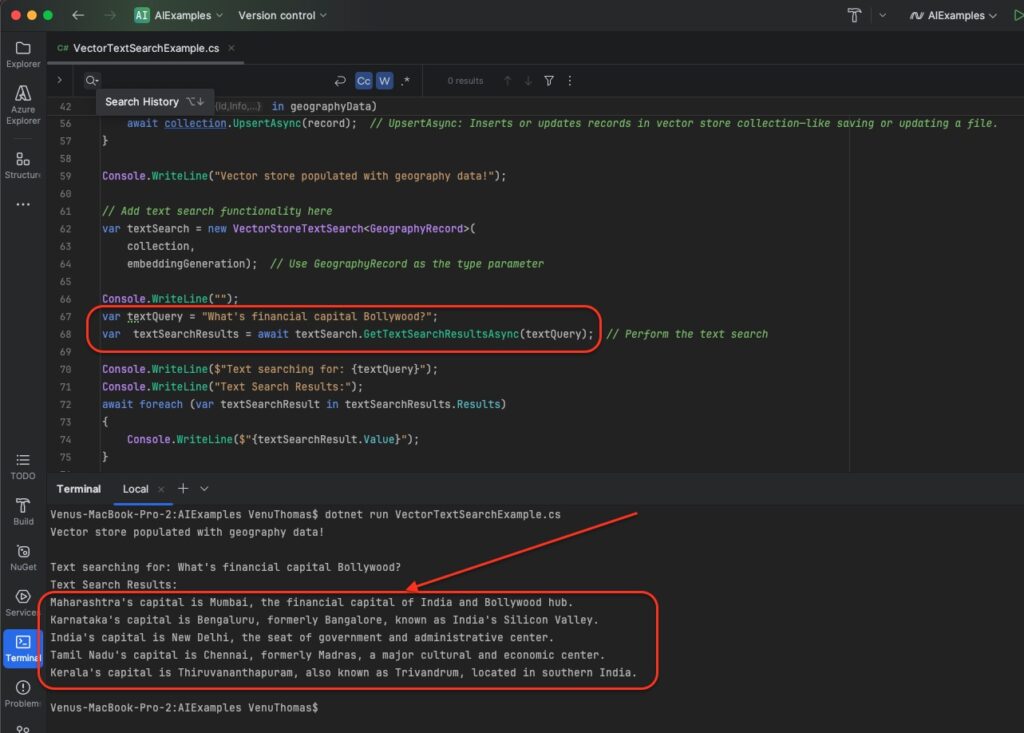
This wraps the vector search to make it feel like a regular text search but with semantic smarts. It’s useful for apps where users type natural questions. Useful explanation: This abstraction hides vector math, letting you query with strings. Extend with metadata filters (e.g., by date) for temporal searches.
RAG (Retrieval-Augmented Generation) with Vector Search
Up to this point, the code allows you to insert sample data and perform text searches effectively. Now, the goal is to use this functionality in a Retrieval-Augmented Generation (RAG) style.
Previously, you instantiated the <strong><em>VectorStoreTextSearch</em></strong> class manually, but it’s better to delegate this responsibility to the Dependency Injection (DI) container. When registering services to enable text search via DI, keep the following points in mind:
- Register
<strong><em>VectorStoreTextSearch</em></strong>in the DI container as theITextSearchinterface. - Since the constructor of
VectorStoreTextSearchrequires anIVectorSearchable, register the collection obtained from theVectorStoreunder this interface in the DI container. - Ensure that the
IEmbeddingGeneratorservice is also registered in the DI container. - Mark the property that you want to use as the searchable text result in your data record class with the [
TextSearchResultValue] attribute. For example, apply it to the Text property in your RecordData class. - Use the CreateWithSearch method of
ITextSearchto create a plugin instance, and register this plugin with the DI container.
Now, let’s implement this approach.
<span class="line"><span style="color: #D4D4D4">#</span>
<span style="color: #9CDCFE">pragma</span>
<span style="color: #D4D4D4"> </span>
<span style="color: #9CDCFE">warning</span>
<span style="color: #D4D4D4"> </span>
<span style="color: #9CDCFE">disable</span>
<span style="color: #D4D4D4"> </span>
<span style="color: #4FC1FF">SKEXP0010</span></span>
<span class="line"><span style="color: #D4D4D4">#</span>
<span style="color: #9CDCFE">pragma</span>
<span style="color: #D4D4D4"> </span>
<span style="color: #9CDCFE">warning</span>
<span style="color: #D4D4D4"> </span>
<span style="color: #9CDCFE">disable</span>
<span style="color: #D4D4D4"> </span>
<span style="color: #4FC1FF">SKEXP0001</span>
<span style="color: #D4D4D4">, </span>
<span style="color: #4FC1FF">CS0618</span></span>
<span class="line"><span style="color: #569CD6">using</span>
<span style="color: #D4D4D4"> </span>
<span style="color: #4FC1FF">Microsoft</span>
<span style="color: #D4D4D4">.Extensions.AI;</span></span>
<span class="line"><span style="color: #569CD6">using</span>
<span style="color: #D4D4D4"> </span>
<span style="color: #4FC1FF">Microsoft</span>
<span style="color: #D4D4D4">.Extensions.DependencyInjection;</span></span>
<span class="line"><span style="color: #569CD6">using</span>
<span style="color: #D4D4D4"> </span>
<span style="color: #4FC1FF">Microsoft</span>
<span style="color: #D4D4D4">.Extensions.VectorData;</span></span>
<span class="line"><span style="color: #569CD6">using</span>
<span style="color: #D4D4D4"> </span>
<span style="color: #4FC1FF">Microsoft</span>
<span style="color: #D4D4D4">.SemanticKernel;</span></span>
<span class="line"><span style="color: #569CD6">using</span>
<span style="color: #D4D4D4"> </span>
<span style="color: #4FC1FF">Microsoft</span>
<span style="color: #D4D4D4">.SemanticKernel.Data;</span></span>
<span class="line"><span style="color: #569CD6">using</span>
<span style="color: #D4D4D4"> </span>
<span style="color: #4FC1FF">Microsoft</span>
<span style="color: #D4D4D4">.SemanticKernel.Embeddings;</span></span>
<span class="line"></span>
<span class="line"><span style="color: #6A9955">// Create KernelBuilder</span></span>
<span class="line"><span style="color: #569CD6">var</span>
<span style="color: #D4D4D4"> </span>
<span style="color: #9CDCFE">builder</span>
<span style="color: #D4D4D4"> = </span>
<span style="color: #9CDCFE">Kernel</span>
<span style="color: #D4D4D4">.</span>
<span style="color: #DCDCAA">CreateBuilder</span>
<span style="color: #D4D4D4">();</span></span>
<span class="line"><span style="color: #9CDCFE">builder</span>
<span style="color: #D4D4D4">.</span>
<span style="color: #DCDCAA">AddAzureOpenAIChatCompletion</span>
<span style="color: #D4D4D4">(</span>
<span style="color: #CE9178">"gpt-35-turbo"</span>
<span style="color: #D4D4D4">, </span>
<span style="color: #CE9178">"<your-endpoint>"</span>
<span style="color: #D4D4D4">, </span>
<span style="color: #CE9178">"<your-key>"</span>
<span style="color: #D4D4D4">);  </span>
<span style="color: #6A9955">// Registers Azure OpenAI chat completion</span></span>
<span class="line"></span>
<span class="line"><span style="color: #6A9955">// AddInMemoryVectorStore: Registers an in-memory vector store in Semantic Kernel's services—stores data in RAM for speed.</span></span>
<span class="line"><span style="color: #9CDCFE">builder</span>
<span style="color: #D4D4D4">.</span>
<span style="color: #9CDCFE">Services</span>
<span style="color: #D4D4D4">.</span>
<span style="color: #DCDCAA">AddInMemoryVectorStore</span>
<span style="color: #D4D4D4">();</span></span>
<span class="line"></span>
<span class="line"><span style="color: #6A9955">// AddAzureOpenAITextEmbeddingGeneration: Adds Azure OpenAI embedding service to generate vectors from text.</span></span>
<span class="line"><span style="color: #9CDCFE">builder</span>
<span style="color: #D4D4D4">.</span>
<span style="color: #DCDCAA">AddAzureOpenAITextEmbeddingGeneration</span>
<span style="color: #D4D4D4">(</span>
<span style="color: #CE9178">"text-embedding-3-small"</span>
<span style="color: #D4D4D4">, </span>
<span style="color: #CE9178">"<your-endpoint>"</span>
<span style="color: #D4D4D4">, </span>
<span style="color: #CE9178">"<your-key>"</span>
<span style="color: #D4D4D4">);</span></span>
<span class="line"></span>
<span class="line"><span style="color: #6A9955">// Add InMemoryVectorStore and set up services for text search</span></span>
<span class="line"><span style="color: #9CDCFE">builder</span>
<span style="color: #D4D4D4">.</span>
<span style="color: #9CDCFE">Services</span>
<span style="color: #D4D4D4">.</span>
<span style="color: #DCDCAA">AddInMemoryVectorStore</span>
<span style="color: #D4D4D4">();</span></span>
<span class="line"><span style="color: #9CDCFE">builder</span>
<span style="color: #D4D4D4">.</span>
<span style="color: #9CDCFE">Services</span>
<span style="color: #D4D4D4">.</span>
<span style="color: #DCDCAA">AddSingleton</span>
<span style="color: #D4D4D4"><</span>
<span style="color: #4EC9B0">IVectorSearchable</span>
<span style="color: #D4D4D4"><</span>
<span style="color: #4EC9B0">GeographyRecord</span>
<span style="color: #D4D4D4">>>(</span>
<span style="color: #9CDCFE">sp</span>
<span style="color: #D4D4D4"> </span>
<span style="color: #569CD6">=></span>
<span style="color: #D4D4D4"> </span></span>
<span class="line"><span style="color: #D4D4D4">    </span>
<span style="color: #9CDCFE">sp</span>
<span style="color: #D4D4D4">.</span>
<span style="color: #DCDCAA">GetRequiredService</span>
<span style="color: #D4D4D4"><</span>
<span style="color: #4EC9B0">VectorStore</span>
<span style="color: #D4D4D4">>().</span>
<span style="color: #DCDCAA">GetCollection</span>
<span style="color: #D4D4D4"><</span>
<span style="color: #4EC9B0">string</span>
<span style="color: #D4D4D4">, </span>
<span style="color: #4EC9B0">GeographyRecord</span>
<span style="color: #D4D4D4">>(</span>
<span style="color: #CE9178">"GeographyCollection"</span>
<span style="color: #D4D4D4">));</span></span>
<span class="line"><span style="color: #9CDCFE">builder</span>
<span style="color: #D4D4D4">.</span>
<span style="color: #9CDCFE">Services</span>
<span style="color: #D4D4D4">.</span>
<span style="color: #DCDCAA">AddSingleton</span>
<span style="color: #D4D4D4"><</span>
<span style="color: #4EC9B0">ITextSearch</span>
<span style="color: #D4D4D4">, </span>
<span style="color: #4EC9B0">VectorStoreTextSearch</span>
<span style="color: #D4D4D4"><</span>
<span style="color: #4EC9B0">GeographyRecord</span>
<span style="color: #D4D4D4">>>();</span></span>
<span class="line"></span>
<span class="line"></span>
<span class="line"><span style="color: #6A9955">// Register ITextSearch as a plugin</span></span>
<span class="line"><span style="color: #9CDCFE">builder</span>
<span style="color: #D4D4D4">.</span>
<span style="color: #9CDCFE">Services</span>
<span style="color: #D4D4D4">.</span>
<span style="color: #DCDCAA">AddSingleton</span>
<span style="color: #D4D4D4">(</span>
<span style="color: #9CDCFE">sp</span>
<span style="color: #D4D4D4"> </span>
<span style="color: #569CD6">=></span>
<span style="color: #D4D4D4"> </span>
<span style="color: #9CDCFE">sp</span>
<span style="color: #D4D4D4">.</span>
<span style="color: #DCDCAA">GetRequiredService</span>
<span style="color: #D4D4D4"><</span>
<span style="color: #4EC9B0">ITextSearch</span>
<span style="color: #D4D4D4">>().</span>
<span style="color: #DCDCAA">CreateWithSearch</span>
<span style="color: #D4D4D4">(</span>
<span style="color: #CE9178">"GeographyStore"</span>
<span style="color: #D4D4D4">, </span>
<span style="color: #CE9178">"Data store for geography information"</span>
<span style="color: #D4D4D4">));</span></span>
<span class="line"></span>
<span class="line"><span style="color: #6A9955">// Create Kernel</span></span>
<span class="line"><span style="color: #569CD6">var</span>
<span style="color: #D4D4D4"> </span>
<span style="color: #9CDCFE">kernel</span>
<span style="color: #D4D4D4"> = </span>
<span style="color: #9CDCFE">builder</span>
<span style="color: #D4D4D4">.</span>
<span style="color: #DCDCAA">Build</span>
<span style="color: #D4D4D4">();</span></span>
<span class="line"></span>
<span class="line"><span style="color: #6A9955">// Get VectorStore from Kernel</span></span>
<span class="line"><span style="color: #569CD6">var</span>
<span style="color: #D4D4D4"> </span>
<span style="color: #9CDCFE">vectorStore</span>
<span style="color: #D4D4D4"> = </span>
<span style="color: #9CDCFE">kernel</span>
<span style="color: #D4D4D4">.</span>
<span style="color: #9CDCFE">Services</span>
<span style="color: #D4D4D4">.</span>
<span style="color: #DCDCAA">GetRequiredService</span>
<span style="color: #D4D4D4"><</span>
<span style="color: #4EC9B0">VectorStore</span>
<span style="color: #D4D4D4">>();</span></span>
<span class="line"></span>
<span class="line"><span style="color: #6A9955">// Create collection</span></span>
<span class="line"><span style="color: #569CD6">var</span>
<span style="color: #D4D4D4"> </span>
<span style="color: #9CDCFE">collection</span>
<span style="color: #D4D4D4"> = </span>
<span style="color: #9CDCFE">vectorStore</span>
<span style="color: #D4D4D4">.</span>
<span style="color: #DCDCAA">GetCollection</span>
<span style="color: #D4D4D4"><</span>
<span style="color: #4EC9B0">string</span>
<span style="color: #D4D4D4">, </span>
<span style="color: #4EC9B0">GeographyRecord</span>
<span style="color: #D4D4D4">>(</span>
<span style="color: #CE9178">"GeographyCollection"</span>
<span style="color: #D4D4D4">);</span></span>
<span class="line"><span style="color: #C586C0">await</span>
<span style="color: #D4D4D4"> </span>
<span style="color: #9CDCFE">collection</span>
<span style="color: #D4D4D4">.</span>
<span style="color: #DCDCAA">EnsureCollectionExistsAsync</span>
<span style="color: #D4D4D4">(); </span></span>
<span class="line"></span>
<span class="line"><span style="color: #6A9955">// Get embedding generation service</span></span>
<span class="line"><span style="color: #569CD6">var</span>
<span style="color: #D4D4D4"> </span>
<span style="color: #9CDCFE">embeddingGenerator</span>
<span style="color: #D4D4D4"> = </span>
<span style="color: #9CDCFE">kernel</span>
<span style="color: #D4D4D4">.</span>
<span style="color: #DCDCAA">GetRequiredService</span>
<span style="color: #D4D4D4"><</span>
<span style="color: #4EC9B0">ITextEmbeddingGenerationService</span>
<span style="color: #D4D4D4">>();</span></span>
<span class="line"></span>
<span class="line"><span style="color: #6A9955">// Register data (sample geography entries)</span></span>
<span class="line"><span style="color: #C586C0">await</span>
<span style="color: #D4D4D4"> </span>
<span style="color: #9CDCFE">collection</span>
<span style="color: #D4D4D4">.</span>
<span style="color: #DCDCAA">UpsertAsync</span>
<span style="color: #D4D4D4">(</span>
<span style="color: #569CD6">new</span>
<span style="color: #D4D4D4">[]</span></span>
<span class="line"><span style="color: #D4D4D4">{</span></span>
<span class="line"><span style="color: #D4D4D4">    new </span>
<span style="color: #9CDCFE">GeographyRecord</span></span>
<span class="line"><span style="color: #D4D4D4">    {</span></span>
<span class="line"><span style="color: #D4D4D4">        </span>
<span style="color: #9CDCFE">Id</span>
<span style="color: #D4D4D4"> = </span>
<span style="color: #CE9178">"1"</span>
<span style="color: #D4D4D4">,</span></span>
<span class="line"><span style="color: #D4D4D4">        </span>
<span style="color: #9CDCFE">Info</span>
<span style="color: #D4D4D4"> = </span>
<span style="color: #CE9178">"India's capital is New Delhi, the seat of government and administrative center."</span>
<span style="color: #D4D4D4">,</span></span>
<span class="line"><span style="color: #D4D4D4">        </span>
<span style="color: #9CDCFE">Vector</span>
<span style="color: #D4D4D4"> = (</span>
<span style="color: #C586C0">await</span>
<span style="color: #D4D4D4"> </span>
<span style="color: #9CDCFE">embeddingGenerator</span>
<span style="color: #D4D4D4">.</span>
<span style="color: #DCDCAA">GenerateEmbeddingAsync</span>
<span style="color: #D4D4D4">(</span></span>
<span class="line"><span style="color: #D4D4D4">            </span>
<span style="color: #CE9178">"India's capital is New Delhi, the seat of government and administrative center."</span>
<span style="color: #D4D4D4">))</span></span>
<span class="line"><span style="color: #D4D4D4">    },</span></span>
<span class="line"><span style="color: #D4D4D4">    new </span>
<span style="color: #9CDCFE">GeographyRecord</span></span>
<span class="line"><span style="color: #D4D4D4">    {</span></span>
<span class="line"><span style="color: #D4D4D4">        </span>
<span style="color: #9CDCFE">Id</span>
<span style="color: #D4D4D4"> = </span>
<span style="color: #CE9178">"2"</span>
<span style="color: #D4D4D4">,</span></span>
<span class="line"><span style="color: #D4D4D4">        </span>
<span style="color: #9CDCFE">Info</span>
<span style="color: #D4D4D4"> = </span>
<span style="color: #CE9178">"Kerala's capital is Thiruvananthapuram, also known as Trivandrum, located in southern India."</span>
<span style="color: #D4D4D4">,</span></span>
<span class="line"><span style="color: #D4D4D4">        </span>
<span style="color: #9CDCFE">Vector</span>
<span style="color: #D4D4D4"> = (</span>
<span style="color: #C586C0">await</span>
<span style="color: #D4D4D4"> </span>
<span style="color: #9CDCFE">embeddingGenerator</span>
<span style="color: #D4D4D4">.</span>
<span style="color: #DCDCAA">GenerateEmbeddingAsync</span>
<span style="color: #D4D4D4">(</span></span>
<span class="line"><span style="color: #D4D4D4">            </span>
<span style="color: #CE9178">"Kerala's capital is Thiruvananthapuram, also known as Trivandrum, located in southern India."</span>
<span style="color: #D4D4D4">))</span></span>
<span class="line"><span style="color: #D4D4D4">    },</span></span>
<span class="line"><span style="color: #D4D4D4">    new </span>
<span style="color: #9CDCFE">GeographyRecord</span></span>
<span class="line"><span style="color: #D4D4D4">    {</span></span>
<span class="line"><span style="color: #D4D4D4">        </span>
<span style="color: #9CDCFE">Id</span>
<span style="color: #D4D4D4"> = </span>
<span style="color: #CE9178">"3"</span>
<span style="color: #D4D4D4">,</span></span>
<span class="line"><span style="color: #D4D4D4">        </span>
<span style="color: #9CDCFE">Info</span>
<span style="color: #D4D4D4"> = </span>
<span style="color: #CE9178">"Karnataka's capital is Bengaluru, formerly Bangalore, known as India's Silicon Valley."</span>
<span style="color: #D4D4D4">,</span></span>
<span class="line"><span style="color: #D4D4D4">        </span>
<span style="color: #9CDCFE">Vector</span>
<span style="color: #D4D4D4"> = (</span>
<span style="color: #C586C0">await</span>
<span style="color: #D4D4D4"> </span>
<span style="color: #9CDCFE">embeddingGenerator</span>
<span style="color: #D4D4D4">.</span>
<span style="color: #DCDCAA">GenerateEmbeddingAsync</span>
<span style="color: #D4D4D4">(</span></span>
<span class="line"><span style="color: #D4D4D4">            </span>
<span style="color: #CE9178">"Karnataka's capital is Bengaluru, formerly Bangalore, known as India's Silicon Valley."</span>
<span style="color: #D4D4D4">))</span></span>
<span class="line"><span style="color: #D4D4D4">    },</span></span>
<span class="line"><span style="color: #D4D4D4">    new </span>
<span style="color: #9CDCFE">GeographyRecord</span></span>
<span class="line"><span style="color: #D4D4D4">    {</span></span>
<span class="line"><span style="color: #D4D4D4">        </span>
<span style="color: #9CDCFE">Id</span>
<span style="color: #D4D4D4"> = </span>
<span style="color: #CE9178">"4"</span>
<span style="color: #D4D4D4">,</span></span>
<span class="line"><span style="color: #D4D4D4">        </span>
<span style="color: #9CDCFE">Info</span>
<span style="color: #D4D4D4"> = </span>
<span style="color: #CE9178">"Tamil Nadu's capital is Chennai, formerly Madras, a major cultural and economic center."</span>
<span style="color: #D4D4D4">,</span></span>
<span class="line"><span style="color: #D4D4D4">        </span>
<span style="color: #9CDCFE">Vector</span>
<span style="color: #D4D4D4"> = (</span>
<span style="color: #C586C0">await</span>
<span style="color: #D4D4D4"> </span>
<span style="color: #9CDCFE">embeddingGenerator</span>
<span style="color: #D4D4D4">.</span>
<span style="color: #DCDCAA">GenerateEmbeddingAsync</span>
<span style="color: #D4D4D4">(</span></span>
<span class="line"><span style="color: #D4D4D4">            </span>
<span style="color: #CE9178">"Tamil Nadu's capital is Chennai, formerly Madras, a major cultural and economic center."</span>
<span style="color: #D4D4D4">))</span></span>
<span class="line"><span style="color: #D4D4D4">    },</span></span>
<span class="line"><span style="color: #D4D4D4">    new </span>
<span style="color: #9CDCFE">GeographyRecord</span></span>
<span class="line"><span style="color: #D4D4D4">    {</span></span>
<span class="line"><span style="color: #D4D4D4">        </span>
<span style="color: #9CDCFE">Id</span>
<span style="color: #D4D4D4"> = </span>
<span style="color: #CE9178">"5"</span>
<span style="color: #D4D4D4">,</span></span>
<span class="line"><span style="color: #D4D4D4">        </span>
<span style="color: #9CDCFE">Info</span>
<span style="color: #D4D4D4"> = </span>
<span style="color: #CE9178">"Maharashtra's capital is Mumbai, the financial capital of India and Bollywood hub."</span>
<span style="color: #D4D4D4">,</span></span>
<span class="line"><span style="color: #D4D4D4">        </span>
<span style="color: #9CDCFE">Vector</span>
<span style="color: #D4D4D4"> = (</span>
<span style="color: #C586C0">await</span>
<span style="color: #D4D4D4"> </span>
<span style="color: #9CDCFE">embeddingGenerator</span>
<span style="color: #D4D4D4">.</span>
<span style="color: #DCDCAA">GenerateEmbeddingAsync</span>
<span style="color: #D4D4D4">(</span></span>
<span class="line"><span style="color: #D4D4D4">            </span>
<span style="color: #CE9178">"Maharashtra's capital is Mumbai, the financial capital of India and Bollywood hub."</span>
<span style="color: #D4D4D4">))</span></span>
<span class="line"><span style="color: #D4D4D4">    },</span></span>
<span class="line"><span style="color: #D4D4D4">    new </span>
<span style="color: #9CDCFE">GeographyRecord</span></span>
<span class="line"><span style="color: #D4D4D4">    {</span></span>
<span class="line"><span style="color: #D4D4D4">        </span>
<span style="color: #9CDCFE">Id</span>
<span style="color: #D4D4D4"> = </span>
<span style="color: #CE9178">"6"</span>
<span style="color: #D4D4D4">,</span></span>
<span class="line"><span style="color: #D4D4D4">        </span>
<span style="color: #9CDCFE">Info</span>
<span style="color: #D4D4D4"> = </span>
<span style="color: #CE9178">"United States capital is Washington D.C., home to federal government institutions."</span>
<span style="color: #D4D4D4">,</span></span>
<span class="line"><span style="color: #D4D4D4">        </span>
<span style="color: #9CDCFE">Vector</span>
<span style="color: #D4D4D4"> = (</span>
<span style="color: #C586C0">await</span>
<span style="color: #D4D4D4"> </span>
<span style="color: #9CDCFE">embeddingGenerator</span>
<span style="color: #D4D4D4">.</span>
<span style="color: #DCDCAA">GenerateEmbeddingAsync</span>
<span style="color: #D4D4D4">(</span></span>
<span class="line"><span style="color: #D4D4D4">            </span>
<span style="color: #CE9178">"United States capital is Washington D.C., home to federal government institutions."</span>
<span style="color: #D4D4D4">))</span></span>
<span class="line"><span style="color: #D4D4D4">    },</span></span>
<span class="line"><span style="color: #D4D4D4">    new </span>
<span style="color: #9CDCFE">GeographyRecord</span></span>
<span class="line"><span style="color: #D4D4D4">    {</span></span>
<span class="line"><span style="color: #D4D4D4">        </span>
<span style="color: #9CDCFE">Id</span>
<span style="color: #D4D4D4"> = </span>
<span style="color: #CE9178">"7"</span>
<span style="color: #D4D4D4">,</span></span>
<span class="line"><span style="color: #D4D4D4">        </span>
<span style="color: #9CDCFE">Info</span>
<span style="color: #D4D4D4"> = </span>
<span style="color: #CE9178">"France's capital is Paris, known for the Eiffel Tower and rich cultural heritage."</span>
<span style="color: #D4D4D4">,</span></span>
<span class="line"><span style="color: #D4D4D4">        </span>
<span style="color: #9CDCFE">Vector</span>
<span style="color: #D4D4D4"> = (</span>
<span style="color: #C586C0">await</span>
<span style="color: #D4D4D4"> </span>
<span style="color: #9CDCFE">embeddingGenerator</span>
<span style="color: #D4D4D4">.</span>
<span style="color: #DCDCAA">GenerateEmbeddingAsync</span>
<span style="color: #D4D4D4">(</span></span>
<span class="line"><span style="color: #D4D4D4">            </span>
<span style="color: #CE9178">"France's capital is Paris, known for the Eiffel Tower and rich cultural heritage."</span>
<span style="color: #D4D4D4">))</span></span>
<span class="line"><span style="color: #D4D4D4">    }</span></span>
<span class="line"><span style="color: #D4D4D4">});</span></span>
<span class="line"></span>
<span class="line"><span style="color: #9CDCFE">Console</span>
<span style="color: #D4D4D4">.</span>
<span style="color: #DCDCAA">WriteLine</span>
<span style="color: #D4D4D4">(</span>
<span style="color: #CE9178">""</span>
<span style="color: #D4D4D4">);</span></span>
<span class="line"><span style="color: #6A9955">// Perform RAG!</span></span>
<span class="line"><span style="color: #569CD6">var</span>
<span style="color: #D4D4D4"> </span>
<span style="color: #9CDCFE">response</span>
<span style="color: #D4D4D4"> = </span>
<span style="color: #C586C0">await</span>
<span style="color: #D4D4D4"> </span>
<span style="color: #9CDCFE">kernel</span>
<span style="color: #D4D4D4">.</span>
<span style="color: #DCDCAA">InvokePromptAsync</span>
<span style="color: #D4D4D4">(</span></span>
<span class="line"><span style="color: #D4D4D4">    </span>
<span style="color: #6A9955">// Prompt for returning capitals</span></span>
<span class="line"><span style="color: #D4D4D4">    </span>
<span style="color: #CE9178">"""</span></span>
<span class="line"><span style="color: #CE9178">    <message role="</span>
<span style="color: #9CDCFE">system</span>
<span style="color: #CE9178">"</span>
<span style="color: #F44747">></span></span>
<span class="line"><span style="color: #D4D4D4">        </span>
<span style="color: #9CDCFE">You</span>
<span style="color: #D4D4D4"> </span>
<span style="color: #9CDCFE">are</span>
<span style="color: #D4D4D4"> </span>
<span style="color: #9CDCFE">a</span>
<span style="color: #D4D4D4"> </span>
<span style="color: #9CDCFE">geography</span>
<span style="color: #D4D4D4"> </span>
<span style="color: #9CDCFE">expert</span>
<span style="color: #D4D4D4">.</span></span>
<span class="line"><span style="color: #D4D4D4">        </span>
<span style="color: #9CDCFE">For</span>
<span style="color: #D4D4D4"> </span>
<span style="color: #9CDCFE">the</span>
<span style="color: #D4D4D4"> </span>
<span style="color: #9CDCFE">users</span>
<span style="color: #D4D4D4"> </span>
<span style="color: #9CDCFE">query</span>
<span style="color: #D4D4D4"> </span>
<span style="color: #9CDCFE">about</span>
<span style="color: #D4D4D4"> </span>
<span style="color: #9CDCFE">location</span>
<span style="color: #D4D4D4"> </span>
<span style="color: #9CDCFE">or</span>
<span style="color: #D4D4D4"> </span>
<span style="color: #9CDCFE">capitals</span>
<span style="color: #D4D4D4">, </span>
<span style="color: #9CDCFE">provide</span>
<span style="color: #D4D4D4"> </span>
<span style="color: #9CDCFE">the</span>
<span style="color: #D4D4D4"> </span>
<span style="color: #9CDCFE">most</span>
<span style="color: #D4D4D4"> </span>
<span style="color: #9CDCFE">accurate</span>
<span style="color: #D4D4D4"> </span>
<span style="color: #9CDCFE">answer</span>
<span style="color: #D4D4D4"> </span>
<span style="color: #9CDCFE">based</span>
<span style="color: #D4D4D4"> </span>
<span style="color: #9CDCFE">solely</span>
<span style="color: #D4D4D4"> </span>
<span style="color: #9CDCFE">on</span>
<span style="color: #D4D4D4"> </span>
<span style="color: #9CDCFE">information</span>
<span style="color: #D4D4D4"> </span>
<span style="color: #569CD6">in</span>
<span style="color: #D4D4D4"> </span>
<span style="color: #9CDCFE">your</span>
<span style="color: #D4D4D4"> </span>
<span style="color: #9CDCFE">data</span>
<span style="color: #D4D4D4"> </span>
<span style="color: #9CDCFE">store</span>
<span style="color: #D4D4D4">.</span></span>
<span class="line"><span style="color: #D4D4D4">        </span>
<span style="color: #9CDCFE">Do</span>
<span style="color: #D4D4D4"> </span>
<span style="color: #9CDCFE">not</span>
<span style="color: #D4D4D4"> </span>
<span style="color: #9CDCFE">use</span>
<span style="color: #D4D4D4"> </span>
<span style="color: #9CDCFE">general</span>
<span style="color: #D4D4D4"> </span>
<span style="color: #9CDCFE">knowledge</span>
<span style="color: #D4D4D4">—</span>
<span style="color: #9CDCFE">only</span>
<span style="color: #D4D4D4"> </span>
<span style="color: #9CDCFE">use</span>
<span style="color: #D4D4D4"> </span>
<span style="color: #9CDCFE">data</span>
<span style="color: #D4D4D4"> </span>
<span style="color: #9CDCFE">from</span>
<span style="color: #D4D4D4"> </span>
<span style="color: #9CDCFE">the</span>
<span style="color: #D4D4D4"> </span>
<span style="color: #9CDCFE">store</span>
<span style="color: #D4D4D4">.</span></span>
<span class="line"><span style="color: #D4D4D4">    </</span>
<span style="color: #9CDCFE">message</span>
<span style="color: #D4D4D4">></span></span>
<span class="line"><span style="color: #D4D4D4">    </span>
<span style="color: #808080"><</span>
<span style="color: #569CD6">message</span>
<span style="color: #D4D4D4"> </span>
<span style="color: #9CDCFE">role</span>
<span style="color: #D4D4D4">=</span>
<span style="color: #CE9178">"user"</span>
<span style="color: #808080">></span></span>
<span class="line"><span style="color: #D4D4D4">        </span>
<span style="color: #569CD6">{</span>
<span style="color: #D4D4D4">{</span>
<span style="color: #9CDCFE">$input</span>
<span style="color: #D4D4D4">}</span>
<span style="color: #569CD6">}</span></span>
<span class="line"><span style="color: #D4D4D4">    </span>
<span style="color: #808080"></</span>
<span style="color: #569CD6">message</span>
<span style="color: #808080">></span></span>
<span class="line"><span style="color: #D4D4D4">    </span>
<span style="color: #CE9178">"""</span>
<span style="color: #F44747">,</span></span>
<span class="line"><span style="color: #D4D4D4">    </span>
<span style="color: #569CD6">new</span>
<span style="color: #D4D4D4">(</span>
<span style="color: #569CD6">new</span>
<span style="color: #D4D4D4"> </span>
<span style="color: #9CDCFE">PromptExecutionSettings</span></span>
<span class="line"><span style="color: #D4D4D4">    {</span></span>
<span class="line"><span style="color: #D4D4D4">        </span>
<span style="color: #6A9955">// Settings to use the data store (automatically calls the plugin)</span></span>
<span class="line"><span style="color: #D4D4D4">        </span>
<span style="color: #9CDCFE">FunctionChoiceBehavior</span>
<span style="color: #D4D4D4"> = </span>
<span style="color: #9CDCFE">FunctionChoiceBehavior</span>
<span style="color: #D4D4D4">.</span>
<span style="color: #DCDCAA">Auto</span>
<span style="color: #D4D4D4">(),</span></span>
<span class="line"><span style="color: #D4D4D4">    })</span></span>
<span class="line"><span style="color: #D4D4D4">    {</span></span>
<span class="line"><span style="color: #D4D4D4">        </span>
<span style="color: #6A9955">// Variable to embed in the prompt</span></span>
<span class="line"><span style="color: #D4D4D4">        </span>
<span style="color: #9CDCFE">[</span>
<span style="color: #CE9178">"input"</span>
<span style="color: #9CDCFE">] = "What is known as the Silicon Valley of India?",</span></span>
<span class="line"><span style="color: #9CDCFE">    });</span></span>
<span class="line"></span>
<span class="line"><span style="color: #9CDCFE">Console.WriteLine($"Searching for:</span>
<span style="color: #D4D4D4"> </span>
<span style="color: #9CDCFE">What</span>
<span style="color: #D4D4D4"> </span>
<span style="color: #9CDCFE">is</span>
<span style="color: #D4D4D4"> </span>
<span style="color: #9CDCFE">known</span>
<span style="color: #D4D4D4"> </span>
<span style="color: #C586C0">as</span>
<span style="color: #D4D4D4"> </span>
<span style="color: #4EC9B0">the</span>
<span style="color: #D4D4D4"> </span>
<span style="color: #4EC9B0">Silicon</span>
<span style="color: #D4D4D4"> </span>
<span style="color: #4EC9B0">Valley</span>
<span style="color: #D4D4D4"> </span>
<span style="color: #4EC9B0">of</span>
<span style="color: #D4D4D4"> </span>
<span style="color: #4EC9B0">India</span>
<span style="color: #D4D4D4">?</span>
<span style="color: #CE9178">")</span>
<span style="color: #F44747">;</span></span>
<span class="line"><span style="color: #9CDCFE">Console</span>
<span style="color: #D4D4D4">.</span>
<span style="color: #DCDCAA">WriteLine</span>
<span style="color: #D4D4D4">(</span>
<span style="color: #CE9178">"Results:"</span>
<span style="color: #D4D4D4">);</span></span>
<span class="line"><span style="color: #9CDCFE">Console</span>
<span style="color: #D4D4D4">.</span>
<span style="color: #DCDCAA">WriteLine</span>
<span style="color: #D4D4D4">(</span>
<span style="color: #9CDCFE">response</span>
<span style="color: #D4D4D4">.</span>
<span style="color: #DCDCAA">GetValue</span>
<span style="color: #D4D4D4"><</span>
<span style="color: #4EC9B0">string</span>
<span style="color: #D4D4D4">>());</span></span>
<span class="line"></span>
<span class="line"><span style="color: #9CDCFE">Console</span>
<span style="color: #D4D4D4">.</span>
<span style="color: #DCDCAA">WriteLine</span>
<span style="color: #D4D4D4">(</span>
<span style="color: #CE9178">""</span>
<span style="color: #D4D4D4">);</span></span>
<span class="line"><span style="color: #569CD6">class</span>
<span style="color: #D4D4D4"> </span>
<span style="color: #4EC9B0">GeographyRecord</span></span>
<span class="line"><span style="color: #D4D4D4">{</span></span>
<span class="line"><span style="color: #D4D4D4">    [</span>
<span style="color: #9CDCFE">VectorStoreKey</span>
<span style="color: #D4D4D4">]    </span></span>
<span class="line"><span style="color: #D4D4D4">    </span>
<span style="color: #569CD6">public</span>
<span style="color: #D4D4D4"> </span>
<span style="color: #9CDCFE">required</span>
<span style="color: #D4D4D4"> </span>
<span style="color: #9CDCFE">string</span>
<span style="color: #D4D4D4"> </span>
<span style="color: #9CDCFE">Id</span>
<span style="color: #D4D4D4"> { </span>
<span style="color: #9CDCFE">get</span>
<span style="color: #D4D4D4">; </span>
<span style="color: #9CDCFE">set</span>
<span style="color: #D4D4D4">; }</span></span>
<span class="line"><span style="color: #D4D4D4">    [</span>
<span style="color: #9CDCFE">TextSearchResultValue</span>
<span style="color: #D4D4D4">]</span></span>
<span class="line"><span style="color: #D4D4D4">    [</span>
<span style="color: #9CDCFE">VectorStoreData</span>
<span style="color: #D4D4D4">]</span></span>
<span class="line"><span style="color: #D4D4D4">    </span>
<span style="color: #569CD6">public</span>
<span style="color: #D4D4D4"> </span>
<span style="color: #9CDCFE">required</span>
<span style="color: #D4D4D4"> </span>
<span style="color: #9CDCFE">string</span>
<span style="color: #D4D4D4"> </span>
<span style="color: #9CDCFE">Info</span>
<span style="color: #D4D4D4"> { </span>
<span style="color: #9CDCFE">get</span>
<span style="color: #D4D4D4">; </span>
<span style="color: #9CDCFE">set</span>
<span style="color: #D4D4D4">; }</span></span>
<span class="line"><span style="color: #D4D4D4">    [</span>
<span style="color: #DCDCAA">VectorStoreVector</span>
<span style="color: #D4D4D4">(</span>
<span style="color: #B5CEA8">1536</span>
<span style="color: #D4D4D4">)] </span>
<span style="color: #569CD6">public</span>
<span style="color: #D4D4D4"> </span>
<span style="color: #9CDCFE">required</span>
<span style="color: #D4D4D4"> </span>
<span style="color: #9CDCFE">ReadOnlyMemory</span>
<span style="color: #D4D4D4"><</span>
<span style="color: #9CDCFE">float</span>
<span style="color: #D4D4D4">> </span>
<span style="color: #9CDCFE">Vector</span>
<span style="color: #D4D4D4"> { </span>
<span style="color: #9CDCFE">get</span>
<span style="color: #D4D4D4">; </span>
<span style="color: #9CDCFE">set</span>
<span style="color: #D4D4D4">; }</span></span>
<span class="line"><span style="color: #D4D4D4">}</span></span>
<span class="line"></span>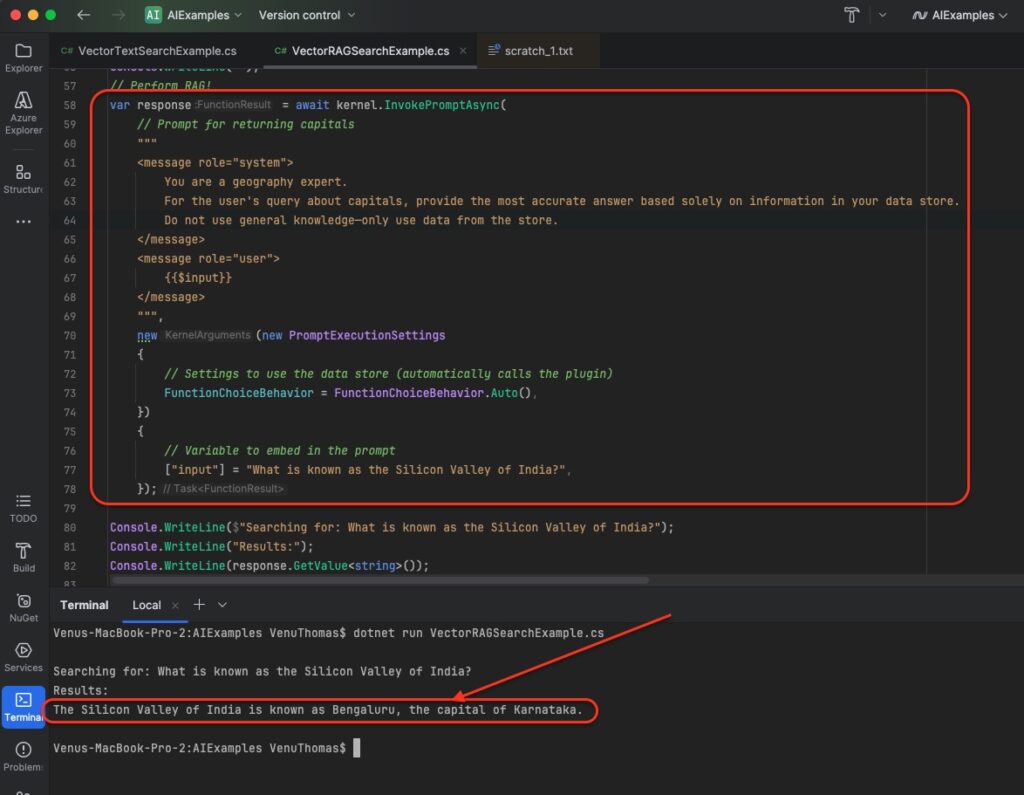
RAG makes AI smarter by giving it real data first, so the model answers based on the vector store rather than relying only on its built-in knowledge. The system prompt ensures responses stick to the data store, avoiding external knowledge.
4. Model Context Protocol (MCP) Servers
What is MCP?
MCP (Model Context Protocol) is an open standard that enables AI agents—such as Claude, GitHub Copilot, or ChatGPT—to seamlessly connect to external servers for data and functionality.
Unlike Semantic Kernel plugins, which run inside your application, MCP servers are independent applications that AI agents can interact with through a standardized protocol. This makes it easier to extend AI capabilities with external tools and services.
To read more, I’ve written a detailed article here: https://wisecodes.venuthomas.in/2025/07/22/ai-replacing-the-browser-exploring-model-context-protocol-mcp/
Creating a Geography MCP Server
This example creates an MCP server that AI agents can connect to for geography information.
Setup:
dotnet add package ModelContextProtocol --prerelease
dotnet add package Microsoft.Extensions.Hosting
botnet add package Microsoft.Extensions.Logging.Console
This creates a new project and adds libraries. Hosting makes it run like a service. Useful explanation: Use <strong><em>dotnet run</em></strong> to start; for production, deploy to Azure App Service or Docker for always-on availability.
MCP Server Implementation (Program.cs):
<span class="line"><span style="color: #569CD6">using</span>
<span style="color: #D4D4D4"> </span>
<span style="color: #4FC1FF">Microsoft</span>
<span style="color: #D4D4D4">.Extensions.DependencyInjection;</span></span>
<span class="line"><span style="color: #569CD6">using</span>
<span style="color: #D4D4D4"> </span>
<span style="color: #4FC1FF">Microsoft</span>
<span style="color: #D4D4D4">.Extensions.Hosting;</span></span>
<span class="line"><span style="color: #569CD6">using</span>
<span style="color: #D4D4D4"> </span>
<span style="color: #4FC1FF">Microsoft</span>
<span style="color: #D4D4D4">.Extensions.Logging;</span></span>
<span class="line"><span style="color: #569CD6">using</span>
<span style="color: #D4D4D4"> </span>
<span style="color: #4FC1FF">Microsoft</span>
<span style="color: #D4D4D4">.Extensions.Logging.Console;  </span></span>
<span class="line"><span style="color: #569CD6">using</span>
<span style="color: #D4D4D4"> </span>
<span style="color: #4FC1FF">ModelContextProtocol</span>
<span style="color: #D4D4D4">.Server;</span></span>
<span class="line"><span style="color: #569CD6">using</span>
<span style="color: #D4D4D4"> </span>
<span style="color: #4FC1FF">System</span>
<span style="color: #D4D4D4">.ComponentModel;</span></span>
<span class="line"></span>
<span class="line"><span style="color: #569CD6">var</span>
<span style="color: #D4D4D4"> </span>
<span style="color: #9CDCFE">builder</span>
<span style="color: #D4D4D4"> = </span>
<span style="color: #9CDCFE">Host</span>
<span style="color: #D4D4D4">.</span>
<span style="color: #DCDCAA">CreateApplicationBuilder</span>
<span style="color: #D4D4D4">(</span>
<span style="color: #9CDCFE">args</span>
<span style="color: #D4D4D4">);</span></span>
<span class="line"></span>
<span class="line"><span style="color: #9CDCFE">builder</span>
<span style="color: #D4D4D4">.</span>
<span style="color: #9CDCFE">Logging</span>
<span style="color: #D4D4D4">.</span>
<span style="color: #DCDCAA">AddConsole</span>
<span style="color: #D4D4D4">(</span>
<span style="color: #9CDCFE">consoleLogOptions</span>
<span style="color: #D4D4D4"> </span>
<span style="color: #569CD6">=></span>
<span style="color: #D4D4D4">  </span>
<span style="color: #6A9955">// AddConsole: Configures logging for MCP compatibility—like adding a debug log.</span></span>
<span class="line"><span style="color: #D4D4D4">{</span></span>
<span class="line"><span style="color: #D4D4D4">    </span>
<span style="color: #9CDCFE">consoleLogOptions</span>
<span style="color: #D4D4D4">.</span>
<span style="color: #9CDCFE">LogToStandardErrorThreshold</span>
<span style="color: #D4D4D4"> = </span>
<span style="color: #9CDCFE">LogLevel</span>
<span style="color: #D4D4D4">.</span>
<span style="color: #9CDCFE">Trace</span>
<span style="color: #D4D4D4">;  </span>
<span style="color: #6A9955">// Ensures MCP protocol compliance—logs everything for troubleshooting.</span></span>
<span class="line"><span style="color: #D4D4D4">});</span></span>
<span class="line"></span>
<span class="line"><span style="color: #9CDCFE">builder</span>
<span style="color: #D4D4D4">.</span>
<span style="color: #9CDCFE">Services</span></span>
<span class="line"><span style="color: #D4D4D4">    .</span>
<span style="color: #DCDCAA">AddMcpServer</span>
<span style="color: #D4D4D4">()  </span>
<span style="color: #6A9955">// AddMcpServer: Registers MCP server infrastructure services—the core setup.</span></span>
<span class="line"><span style="color: #D4D4D4">    .</span>
<span style="color: #DCDCAA">WithStdioServerTransport</span>
<span style="color: #D4D4D4">()  </span>
<span style="color: #6A9955">// WithStdioServerTransport: Uses stdin/stdout for AI agent communication—like simple input/output.</span></span>
<span class="line"><span style="color: #D4D4D4">    .</span>
<span style="color: #DCDCAA">WithPromptsFromAssembly</span>
<span style="color: #D4D4D4">();  </span>
<span style="color: #6A9955">// WithPromptsFromAssembly: Auto-discovers MCP prompt classes—finds your prompts automatically.</span></span>
<span class="line"></span>
<span class="line"><span style="color: #C586C0">await</span>
<span style="color: #D4D4D4"> </span>
<span style="color: #9CDCFE">builder</span>
<span style="color: #D4D4D4">.</span>
<span style="color: #DCDCAA">Build</span>
<span style="color: #D4D4D4">().</span>
<span style="color: #DCDCAA">RunAsync</span>
<span style="color: #D4D4D4">();  </span>
<span style="color: #6A9955">// RunAsync: Starts MCP server and keeps it running—like launching the app.</span></span>
MCP Prompts with Parameters
MCP prompts are methods that AI agents can call to get specific data. Unlike Semantic Kernel functions, these return raw data that AI agents incorporate into their responses. Prompts here are like API endpoints that AIs query for facts.
Geography Prompts Class:
<span class="line"><span style="color: #569CD6">using</span>
<span style="color: #D4D4D4"> </span>
<span style="color: #4FC1FF">ModelContextProtocol</span>
<span style="color: #D4D4D4">.Server;</span></span>
<span class="line"><span style="color: #569CD6">using</span>
<span style="color: #D4D4D4"> </span>
<span style="color: #4FC1FF">System</span>
<span style="color: #D4D4D4">.ComponentModel;</span></span>
<span class="line"></span>
<span class="line"><span style="color: #D4D4D4">[</span>
<span style="color: #9CDCFE">McpServerPromptType</span>
<span style="color: #D4D4D4">]  </span>
<span style="color: #6A9955">// McpServerPromptType: Marks class as containing MCP prompts for AI agents—like a folder of tools.</span></span>
<span class="line"><span style="color: #569CD6">class</span>
<span style="color: #D4D4D4"> </span>
<span style="color: #4EC9B0">GeographyPrompts</span></span>
<span class="line"><span style="color: #D4D4D4">{</span></span>
<span class="line"><span style="color: #D4D4D4">    [</span>
<span style="color: #DCDCAA">McpServerPrompt</span>
<span style="color: #D4D4D4">(</span>
<span style="color: #9CDCFE">Name</span>
<span style="color: #D4D4D4"> = </span>
<span style="color: #CE9178">"CountryCapitalPrompt"</span>
<span style="color: #D4D4D4">)]  </span>
<span style="color: #6A9955">// McpServerPrompt: Marks method as MCP prompt with parameters</span></span>
<span class="line"><span style="color: #D4D4D4">    [</span>
<span style="color: #DCDCAA">Description</span>
<span style="color: #D4D4D4">(</span>
<span style="color: #CE9178">"Provides the capital city of a country"</span>
<span style="color: #D4D4D4">)]</span></span>
<span class="line"><span style="color: #D4D4D4">    </span>
<span style="color: #569CD6">public</span>
<span style="color: #D4D4D4"> </span>
<span style="color: #569CD6">static</span>
<span style="color: #D4D4D4"> </span>
<span style="color: #9CDCFE">string</span>
<span style="color: #D4D4D4"> </span>
<span style="color: #DCDCAA">CountryCapitalPrompt</span>
<span style="color: #D4D4D4">(</span></span>
<span class="line"><span style="color: #D4D4D4">        [</span>
<span style="color: #9CDCFE">Description</span>
<span style="color: #D4D4D4">(</span>
<span style="color: #CE9178">"Country name"</span>
<span style="color: #D4D4D4">)] </span>
<span style="color: #9CDCFE">string</span>
<span style="color: #D4D4D4"> </span>
<span style="color: #9CDCFE">country</span>
<span style="color: #D4D4D4">)  </span>
<span style="color: #6A9955">// Parameter that AI agents can pass—like input fields.</span></span>
<span class="line"><span style="color: #D4D4D4">    {</span></span>
<span class="line"><span style="color: #D4D4D4">        </span>
<span style="color: #C586C0">return</span>
<span style="color: #D4D4D4"> </span>
<span style="color: #9CDCFE">country</span>
<span style="color: #D4D4D4">.</span>
<span style="color: #DCDCAA">ToLower</span>
<span style="color: #D4D4D4">() </span>
<span style="color: #9CDCFE">switch</span>
<span style="color: #D4D4D4">  </span>
<span style="color: #6A9955">// Pattern matching for country lookup—like an if-else chain.</span></span>
<span class="line"><span style="color: #D4D4D4">        {</span></span>
<span class="line"><span style="color: #D4D4D4">            </span>
<span style="color: #CE9178">"india"</span>
<span style="color: #D4D4D4"> </span>
<span style="color: #569CD6">=></span>
<span style="color: #D4D4D4"> </span>
<span style="color: #CE9178">"New Delhi"</span>
<span style="color: #D4D4D4">,</span></span>
<span class="line"><span style="color: #D4D4D4">            </span>
<span style="color: #CE9178">"usa"</span>
<span style="color: #D4D4D4"> </span>
<span style="color: #569CD6">=></span>
<span style="color: #D4D4D4"> </span>
<span style="color: #CE9178">"Washington, D.C."</span>
<span style="color: #D4D4D4">,</span></span>
<span class="line"><span style="color: #D4D4D4">            </span>
<span style="color: #CE9178">"uk"</span>
<span style="color: #D4D4D4"> </span>
<span style="color: #569CD6">=></span>
<span style="color: #D4D4D4"> </span>
<span style="color: #CE9178">"London"</span>
<span style="color: #D4D4D4">,</span></span>
<span class="line"><span style="color: #D4D4D4">            </span>
<span style="color: #CE9178">"france"</span>
<span style="color: #D4D4D4"> </span>
<span style="color: #569CD6">=></span>
<span style="color: #D4D4D4"> </span>
<span style="color: #CE9178">"Paris"</span>
<span style="color: #D4D4D4">,</span></span>
<span class="line"><span style="color: #D4D4D4">            </span>
<span style="color: #CE9178">"germany"</span>
<span style="color: #D4D4D4"> </span>
<span style="color: #569CD6">=></span>
<span style="color: #D4D4D4"> </span>
<span style="color: #CE9178">"Berlin"</span>
<span style="color: #D4D4D4">,</span></span>
<span class="line"><span style="color: #D4D4D4">            </span>
<span style="color: #CE9178">"japan"</span>
<span style="color: #D4D4D4"> </span>
<span style="color: #569CD6">=></span>
<span style="color: #D4D4D4"> </span>
<span style="color: #CE9178">"Tokyo"</span>
<span style="color: #D4D4D4">,</span></span>
<span class="line"><span style="color: #D4D4D4">            </span>
<span style="color: #CE9178">"china"</span>
<span style="color: #D4D4D4"> </span>
<span style="color: #569CD6">=></span>
<span style="color: #D4D4D4"> </span>
<span style="color: #CE9178">"Beijing"</span>
<span style="color: #D4D4D4">,</span></span>
<span class="line"><span style="color: #D4D4D4">            </span>
<span style="color: #CE9178">"brazil"</span>
<span style="color: #D4D4D4"> </span>
<span style="color: #569CD6">=></span>
<span style="color: #D4D4D4"> </span>
<span style="color: #CE9178">"Brasília"</span>
<span style="color: #D4D4D4">,</span></span>
<span class="line"><span style="color: #D4D4D4">            </span>
<span style="color: #CE9178">"canada"</span>
<span style="color: #D4D4D4"> </span>
<span style="color: #569CD6">=></span>
<span style="color: #D4D4D4"> </span>
<span style="color: #CE9178">"Ottawa"</span>
<span style="color: #D4D4D4">,</span></span>
<span class="line"><span style="color: #D4D4D4">            </span>
<span style="color: #CE9178">"australia"</span>
<span style="color: #D4D4D4"> </span>
<span style="color: #569CD6">=></span>
<span style="color: #D4D4D4"> </span>
<span style="color: #CE9178">"Canberra"</span>
<span style="color: #D4D4D4">,</span></span>
<span class="line"><span style="color: #D4D4D4">            </span>
<span style="color: #9CDCFE">_</span>
<span style="color: #D4D4D4"> </span>
<span style="color: #569CD6">=></span>
<span style="color: #D4D4D4"> </span>
<span style="color: #CE9178">"Unknown"</span></span>
<span class="line"><span style="color: #D4D4D4">        };</span></span>
<span class="line"><span style="color: #D4D4D4">    }</span></span>
<span class="line"></span>
<span class="line"><span style="color: #D4D4D4">    [</span>
<span style="color: #DCDCAA">McpServerPrompt</span>
<span style="color: #D4D4D4">(</span>
<span style="color: #9CDCFE">Name</span>
<span style="color: #D4D4D4"> = </span>
<span style="color: #CE9178">"StateCapitalPrompt"</span>
<span style="color: #D4D4D4">)]</span></span>
<span class="line"><span style="color: #D4D4D4">    [</span>
<span style="color: #DCDCAA">Description</span>
<span style="color: #D4D4D4">(</span>
<span style="color: #CE9178">"Provides the capital city of a state or province"</span>
<span style="color: #D4D4D4">)]</span></span>
<span class="line"><span style="color: #D4D4D4">    </span>
<span style="color: #569CD6">public</span>
<span style="color: #D4D4D4"> </span>
<span style="color: #569CD6">static</span>
<span style="color: #D4D4D4"> </span>
<span style="color: #9CDCFE">string</span>
<span style="color: #D4D4D4"> </span>
<span style="color: #DCDCAA">StateCapitalPrompt</span>
<span style="color: #D4D4D4">(</span></span>
<span class="line"><span style="color: #D4D4D4">        [</span>
<span style="color: #9CDCFE">Description</span>
<span style="color: #D4D4D4">(</span>
<span style="color: #CE9178">"State or province name"</span>
<span style="color: #D4D4D4">)] </span>
<span style="color: #9CDCFE">string</span>
<span style="color: #D4D4D4"> </span>
<span style="color: #9CDCFE">state</span>
<span style="color: #D4D4D4">,</span></span>
<span class="line"><span style="color: #D4D4D4">        [</span>
<span style="color: #9CDCFE">Description</span>
<span style="color: #D4D4D4">(</span>
<span style="color: #CE9178">"Country (default: India)"</span>
<span style="color: #D4D4D4">)] </span>
<span style="color: #9CDCFE">string</span>
<span style="color: #D4D4D4"> </span>
<span style="color: #9CDCFE">country</span>
<span style="color: #D4D4D4"> = </span>
<span style="color: #CE9178">"India"</span>
<span style="color: #D4D4D4">)  </span>
<span style="color: #6A9955">// Default parameter value—if not specified, assumes India.</span></span>
<span class="line"><span style="color: #D4D4D4">    {</span></span>
<span class="line"><span style="color: #D4D4D4">        </span>
<span style="color: #C586C0">return</span>
<span style="color: #D4D4D4"> (</span>
<span style="color: #9CDCFE">country</span>
<span style="color: #D4D4D4">.</span>
<span style="color: #DCDCAA">ToLower</span>
<span style="color: #D4D4D4">(), </span>
<span style="color: #9CDCFE">state</span>
<span style="color: #D4D4D4">.</span>
<span style="color: #DCDCAA">ToLower</span>
<span style="color: #D4D4D4">()) </span>
<span style="color: #9CDCFE">switch</span>
<span style="color: #D4D4D4">  </span>
<span style="color: #6A9955">// Tuple pattern matching—like checking two things at once.</span></span>
<span class="line"><span style="color: #D4D4D4">        {</span></span>
<span class="line"><span style="color: #D4D4D4">            </span>
<span style="color: #6A9955">// Indian states</span></span>
<span class="line"><span style="color: #D4D4D4">            (</span>
<span style="color: #CE9178">"india"</span>
<span style="color: #D4D4D4">, </span>
<span style="color: #CE9178">"kerala"</span>
<span style="color: #D4D4D4">) </span>
<span style="color: #569CD6">=></span>
<span style="color: #D4D4D4"> </span>
<span style="color: #CE9178">"Thiruvananthapuram"</span>
<span style="color: #D4D4D4">,</span></span>
<span class="line"><span style="color: #D4D4D4">            (</span>
<span style="color: #CE9178">"india"</span>
<span style="color: #D4D4D4">, </span>
<span style="color: #CE9178">"karnataka"</span>
<span style="color: #D4D4D4">) </span>
<span style="color: #569CD6">=></span>
<span style="color: #D4D4D4"> </span>
<span style="color: #CE9178">"Bengaluru"</span>
<span style="color: #D4D4D4">,</span></span>
<span class="line"><span style="color: #D4D4D4">            (</span>
<span style="color: #CE9178">"india"</span>
<span style="color: #D4D4D4">, </span>
<span style="color: #CE9178">"tamil nadu"</span>
<span style="color: #D4D4D4">) </span>
<span style="color: #569CD6">=></span>
<span style="color: #D4D4D4"> </span>
<span style="color: #CE9178">"Chennai"</span>
<span style="color: #D4D4D4">,</span></span>
<span class="line"><span style="color: #D4D4D4">            (</span>
<span style="color: #CE9178">"india"</span>
<span style="color: #D4D4D4">, </span>
<span style="color: #CE9178">"maharashtra"</span>
<span style="color: #D4D4D4">) </span>
<span style="color: #569CD6">=></span>
<span style="color: #D4D4D4"> </span>
<span style="color: #CE9178">"Mumbai"</span>
<span style="color: #D4D4D4">,</span></span>
<span class="line"><span style="color: #D4D4D4">            (</span>
<span style="color: #CE9178">"india"</span>
<span style="color: #D4D4D4">, </span>
<span style="color: #CE9178">"west bengal"</span>
<span style="color: #D4D4D4">) </span>
<span style="color: #569CD6">=></span>
<span style="color: #D4D4D4"> </span>
<span style="color: #CE9178">"Kolkata"</span>
<span style="color: #D4D4D4">,</span></span>
<span class="line"><span style="color: #D4D4D4">            (</span>
<span style="color: #CE9178">"india"</span>
<span style="color: #D4D4D4">, </span>
<span style="color: #CE9178">"rajasthan"</span>
<span style="color: #D4D4D4">) </span>
<span style="color: #569CD6">=></span>
<span style="color: #D4D4D4"> </span>
<span style="color: #CE9178">"Jaipur"</span>
<span style="color: #D4D4D4">,</span></span>
<span class="line"><span style="color: #D4D4D4">            (</span>
<span style="color: #CE9178">"india"</span>
<span style="color: #D4D4D4">, </span>
<span style="color: #CE9178">"gujarat"</span>
<span style="color: #D4D4D4">) </span>
<span style="color: #569CD6">=></span>
<span style="color: #D4D4D4"> </span>
<span style="color: #CE9178">"Gandhinagar"</span>
<span style="color: #D4D4D4">,</span></span>
<span class="line"><span style="color: #D4D4D4">            (</span>
<span style="color: #CE9178">"india"</span>
<span style="color: #D4D4D4">, </span>
<span style="color: #CE9178">"punjab"</span>
<span style="color: #D4D4D4">) </span>
<span style="color: #569CD6">=></span>
<span style="color: #D4D4D4"> </span>
<span style="color: #CE9178">"Chandigarh"</span>
<span style="color: #D4D4D4">,</span></span>
<span class="line"><span style="color: #D4D4D4">            </span></span>
<span class="line"><span style="color: #D4D4D4">            </span>
<span style="color: #6A9955">// US states</span></span>
<span class="line"><span style="color: #D4D4D4">            (</span>
<span style="color: #CE9178">"usa"</span>
<span style="color: #D4D4D4">, </span>
<span style="color: #CE9178">"california"</span>
<span style="color: #D4D4D4">) </span>
<span style="color: #569CD6">=></span>
<span style="color: #D4D4D4"> </span>
<span style="color: #CE9178">"Sacramento"</span>
<span style="color: #D4D4D4">,</span></span>
<span class="line"><span style="color: #D4D4D4">            (</span>
<span style="color: #CE9178">"usa"</span>
<span style="color: #D4D4D4">, </span>
<span style="color: #CE9178">"texas"</span>
<span style="color: #D4D4D4">) </span>
<span style="color: #569CD6">=></span>
<span style="color: #D4D4D4"> </span>
<span style="color: #CE9178">"Austin"</span>
<span style="color: #D4D4D4">,</span></span>
<span class="line"><span style="color: #D4D4D4">            (</span>
<span style="color: #CE9178">"usa"</span>
<span style="color: #D4D4D4">, </span>
<span style="color: #CE9178">"florida"</span>
<span style="color: #D4D4D4">) </span>
<span style="color: #569CD6">=></span>
<span style="color: #D4D4D4"> </span>
<span style="color: #CE9178">"Tallahassee"</span>
<span style="color: #D4D4D4">,</span></span>
<span class="line"><span style="color: #D4D4D4">            (</span>
<span style="color: #CE9178">"usa"</span>
<span style="color: #D4D4D4">, </span>
<span style="color: #CE9178">"new york"</span>
<span style="color: #D4D4D4">) </span>
<span style="color: #569CD6">=></span>
<span style="color: #D4D4D4"> </span>
<span style="color: #CE9178">"Albany"</span>
<span style="color: #D4D4D4">,</span></span>
<span class="line"><span style="color: #D4D4D4">            </span></span>
<span class="line"><span style="color: #D4D4D4">            </span>
<span style="color: #9CDCFE">_</span>
<span style="color: #D4D4D4"> </span>
<span style="color: #569CD6">=></span>
<span style="color: #D4D4D4"> </span>
<span style="color: #CE9178">"Unknown"</span></span>
<span class="line"><span style="color: #D4D4D4">        };</span></span>
<span class="line"><span style="color: #D4D4D4">    }</span></span>
<span class="line"></span>
<span class="line"><span style="color: #D4D4D4">    [</span>
<span style="color: #DCDCAA">McpServerPrompt</span>
<span style="color: #D4D4D4">(</span>
<span style="color: #9CDCFE">Name</span>
<span style="color: #D4D4D4"> = </span>
<span style="color: #CE9178">"QuickCapitalLookup"</span>
<span style="color: #D4D4D4">)]</span></span>
<span class="line"><span style="color: #D4D4D4">    [</span>
<span style="color: #DCDCAA">Description</span>
<span style="color: #D4D4D4">(</span>
<span style="color: #CE9178">"Quick capital lookup for any location"</span>
<span style="color: #D4D4D4">)]</span></span>
<span class="line"><span style="color: #D4D4D4">    </span>
<span style="color: #569CD6">public</span>
<span style="color: #D4D4D4"> </span>
<span style="color: #569CD6">static</span>
<span style="color: #D4D4D4"> </span>
<span style="color: #9CDCFE">string</span>
<span style="color: #D4D4D4"> </span>
<span style="color: #DCDCAA">QuickCapitalLookup</span>
<span style="color: #D4D4D4">(</span></span>
<span class="line"><span style="color: #D4D4D4">        [</span>
<span style="color: #9CDCFE">Description</span>
<span style="color: #D4D4D4">(</span>
<span style="color: #CE9178">"Location name"</span>
<span style="color: #D4D4D4">)] </span>
<span style="color: #9CDCFE">string</span>
<span style="color: #D4D4D4"> </span>
<span style="color: #9CDCFE">location</span>
<span style="color: #D4D4D4">)</span></span>
<span class="line"><span style="color: #D4D4D4">    {</span></span>
<span class="line"><span style="color: #D4D4D4">        </span>
<span style="color: #6A9955">// First check countries</span></span>
<span class="line"><span style="color: #D4D4D4">        </span>
<span style="color: #569CD6">var</span>
<span style="color: #D4D4D4"> </span>
<span style="color: #9CDCFE">countryCapital</span>
<span style="color: #D4D4D4"> = </span>
<span style="color: #DCDCAA">GetCountryCapital</span>
<span style="color: #D4D4D4">(</span>
<span style="color: #9CDCFE">location</span>
<span style="color: #D4D4D4">);</span></span>
<span class="line"><span style="color: #D4D4D4">        </span>
<span style="color: #C586C0">if</span>
<span style="color: #D4D4D4"> (</span>
<span style="color: #9CDCFE">countryCapital</span>
<span style="color: #D4D4D4"> != </span>
<span style="color: #CE9178">"Unknown"</span>
<span style="color: #D4D4D4">)</span></span>
<span class="line"><span style="color: #D4D4D4">        {</span></span>
<span class="line"><span style="color: #D4D4D4">            </span>
<span style="color: #C586C0">return</span>
<span style="color: #D4D4D4"> </span>
<span style="color: #9CDCFE">$</span>
<span style="color: #CE9178">"The capital of {location} is {countryCapital}."</span>
<span style="color: #D4D4D4">;</span></span>
<span class="line"><span style="color: #D4D4D4">        }</span></span>
<span class="line"></span>
<span class="line"><span style="color: #D4D4D4">        </span>
<span style="color: #6A9955">// Then check states (default to India)</span></span>
<span class="line"><span style="color: #D4D4D4">        </span>
<span style="color: #569CD6">var</span>
<span style="color: #D4D4D4"> </span>
<span style="color: #9CDCFE">stateCapital</span>
<span style="color: #D4D4D4"> = </span>
<span style="color: #DCDCAA">GetStateCapital</span>
<span style="color: #D4D4D4">(</span>
<span style="color: #9CDCFE">location</span>
<span style="color: #D4D4D4">, </span>
<span style="color: #CE9178">"India"</span>
<span style="color: #D4D4D4">);</span></span>
<span class="line"><span style="color: #D4D4D4">        </span>
<span style="color: #C586C0">if</span>
<span style="color: #D4D4D4"> (</span>
<span style="color: #9CDCFE">stateCapital</span>
<span style="color: #D4D4D4"> != </span>
<span style="color: #CE9178">"Unknown"</span>
<span style="color: #D4D4D4">)</span></span>
<span class="line"><span style="color: #D4D4D4">        {</span></span>
<span class="line"><span style="color: #D4D4D4">            </span>
<span style="color: #C586C0">return</span>
<span style="color: #D4D4D4"> </span>
<span style="color: #9CDCFE">$</span>
<span style="color: #CE9178">"The capital of {location} state is {stateCapital}."</span>
<span style="color: #D4D4D4">;</span></span>
<span class="line"><span style="color: #D4D4D4">        }</span></span>
<span class="line"></span>
<span class="line"><span style="color: #D4D4D4">        </span>
<span style="color: #C586C0">return</span>
<span style="color: #D4D4D4"> </span>
<span style="color: #9CDCFE">$</span>
<span style="color: #CE9178">"Sorry, I don't have information about the capital of {location}."</span>
<span style="color: #D4D4D4">;</span></span>
<span class="line"><span style="color: #D4D4D4">    }</span></span>
<span class="line"></span>
<span class="line"><span style="color: #D4D4D4">    </span>
<span style="color: #569CD6">private</span>
<span style="color: #D4D4D4"> </span>
<span style="color: #569CD6">static</span>
<span style="color: #D4D4D4"> </span>
<span style="color: #9CDCFE">string</span>
<span style="color: #D4D4D4"> </span>
<span style="color: #DCDCAA">GetCountryCapital</span>
<span style="color: #D4D4D4">(</span>
<span style="color: #9CDCFE">string</span>
<span style="color: #D4D4D4"> </span>
<span style="color: #9CDCFE">country</span>
<span style="color: #D4D4D4">) </span>
<span style="color: #569CD6">=></span>
<span style="color: #D4D4D4"> </span>
<span style="color: #4EC9B0">country</span>
<span style="color: #D4D4D4">.</span>
<span style="color: #4EC9B0">ToLower</span>
<span style="color: #D4D4D4">() </span>
<span style="color: #4EC9B0">switch</span></span>
<span class="line"><span style="color: #D4D4D4">    {</span></span>
<span class="line"><span style="color: #D4D4D4">        </span>
<span style="color: #CE9178">"india"</span>
<span style="color: #D4D4D4"> </span>
<span style="color: #569CD6">=></span>
<span style="color: #D4D4D4"> </span>
<span style="color: #CE9178">"New Delhi"</span>
<span style="color: #D4D4D4">,</span></span>
<span class="line"><span style="color: #D4D4D4">        </span>
<span style="color: #CE9178">"usa"</span>
<span style="color: #D4D4D4"> </span>
<span style="color: #569CD6">=></span>
<span style="color: #D4D4D4"> </span>
<span style="color: #CE9178">"Washington, D.C."</span>
<span style="color: #D4D4D4">,</span></span>
<span class="line"><span style="color: #D4D4D4">        </span>
<span style="color: #CE9178">"uk"</span>
<span style="color: #D4D4D4"> </span>
<span style="color: #569CD6">=></span>
<span style="color: #D4D4D4"> </span>
<span style="color: #CE9178">"London"</span>
<span style="color: #D4D4D4">,</span></span>
<span class="line"><span style="color: #D4D4D4">        </span>
<span style="color: #9CDCFE">_</span>
<span style="color: #D4D4D4"> </span>
<span style="color: #569CD6">=></span>
<span style="color: #D4D4D4"> </span>
<span style="color: #CE9178">"Unknown"</span></span>
<span class="line"><span style="color: #D4D4D4">    };</span></span>
<span class="line"></span>
<span class="line"><span style="color: #D4D4D4">    </span>
<span style="color: #569CD6">private</span>
<span style="color: #D4D4D4"> </span>
<span style="color: #569CD6">static</span>
<span style="color: #D4D4D4"> </span>
<span style="color: #9CDCFE">string</span>
<span style="color: #D4D4D4"> </span>
<span style="color: #DCDCAA">GetStateCapital</span>
<span style="color: #D4D4D4">(</span>
<span style="color: #9CDCFE">string</span>
<span style="color: #D4D4D4"> </span>
<span style="color: #9CDCFE">state</span>
<span style="color: #D4D4D4">, </span>
<span style="color: #9CDCFE">string</span>
<span style="color: #D4D4D4"> </span>
<span style="color: #9CDCFE">country</span>
<span style="color: #D4D4D4">) </span>
<span style="color: #569CD6">=></span>
<span style="color: #D4D4D4"> (</span>
<span style="color: #4EC9B0">country</span>
<span style="color: #D4D4D4">.</span>
<span style="color: #4EC9B0">ToLower</span>
<span style="color: #D4D4D4">(), </span>
<span style="color: #4EC9B0">state</span>
<span style="color: #D4D4D4">.</span>
<span style="color: #4EC9B0">ToLower</span>
<span style="color: #D4D4D4">()) </span>
<span style="color: #4EC9B0">switch</span></span>
<span class="line"><span style="color: #D4D4D4">    {</span></span>
<span class="line"><span style="color: #D4D4D4">        (</span>
<span style="color: #CE9178">"india"</span>
<span style="color: #D4D4D4">, </span>
<span style="color: #CE9178">"kerala"</span>
<span style="color: #D4D4D4">) </span>
<span style="color: #569CD6">=></span>
<span style="color: #D4D4D4"> </span>
<span style="color: #CE9178">"Thiruvananthapuram"</span>
<span style="color: #D4D4D4">,</span></span>
<span class="line"><span style="color: #D4D4D4">        (</span>
<span style="color: #CE9178">"india"</span>
<span style="color: #D4D4D4">, </span>
<span style="color: #CE9178">"karnataka"</span>
<span style="color: #D4D4D4">) </span>
<span style="color: #569CD6">=></span>
<span style="color: #D4D4D4"> </span>
<span style="color: #CE9178">"Bengaluru"</span>
<span style="color: #D4D4D4">,</span></span>
<span class="line"><span style="color: #D4D4D4">        (</span>
<span style="color: #CE9178">"india"</span>
<span style="color: #D4D4D4">, </span>
<span style="color: #CE9178">"tamil nadu"</span>
<span style="color: #D4D4D4">) </span>
<span style="color: #569CD6">=></span>
<span style="color: #D4D4D4"> </span>
<span style="color: #CE9178">"Chennai"</span>
<span style="color: #D4D4D4">,</span></span>
<span class="line"><span style="color: #D4D4D4">        </span>
<span style="color: #9CDCFE">_</span>
<span style="color: #D4D4D4"> </span>
<span style="color: #569CD6">=></span>
<span style="color: #D4D4D4"> </span>
<span style="color: #CE9178">"Unknown"</span></span>
<span class="line"><span style="color: #D4D4D4">    };</span></span>
<span class="line"><span style="color: #D4D4D4">}</span></span>
These methods are like custom commands AIs can call. The attributes make them discoverable, and parameters let AIs customize requests. Useful explanation: Prompts can return complex JSON for structured data (e.g., { “capital”: “New Delhi”, “population”: 30000000 }); validate inputs to prevent errors.
Connecting AI Agents to MCP Servers
AI agents like Claude or GitHub Copilot in VS Code connect to MCP servers via configuration files. VS Code is a free code editor, and this setup is like plugging in a device.
VS Code Settings (.vscode/mcp.json):
<span class="line"><span style="color: #D4D4D4">{</span></span>
<span class="line"><span style="color: #D4D4D4">  </span>
<span style="color: #CE9178">"inputs"</span>
<span style="color: #D4D4D4">: [],</span></span>
<span class="line"><span style="color: #D4D4D4">  </span>
<span style="color: #CE9178">"servers"</span>
<span style="color: #D4D4D4">: {</span></span>
<span class="line"><span style="color: #D4D4D4">    </span>
<span style="color: #CE9178">"GeographyMCP"</span>
<span style="color: #9CDCFE">:</span>
<span style="color: #D4D4D4"> {</span></span>
<span class="line"><span style="color: #D4D4D4">      </span>
<span style="color: #CE9178">"type"</span>
<span style="color: #9CDCFE">:</span>
<span style="color: #D4D4D4"> </span>
<span style="color: #CE9178">"stdio"</span>
<span style="color: #D4D4D4">,  </span>
<span style="color: #6A9955">// stdio: Communication method for local MCP servers—like basic chat.</span></span>
<span class="line"><span style="color: #D4D4D4">      </span>
<span style="color: #CE9178">"command"</span>
<span style="color: #9CDCFE">:</span>
<span style="color: #D4D4D4"> </span>
<span style="color: #CE9178">"dotnet"</span>
<span style="color: #D4D4D4">,  </span>
<span style="color: #6A9955">// command: Executable to run the MCP server</span></span>
<span class="line"><span style="color: #D4D4D4">      </span>
<span style="color: #CE9178">"args"</span>
<span style="color: #9CDCFE">:</span>
<span style="color: #D4D4D4"> [</span></span>
<span class="line"><span style="color: #D4D4D4">        </span>
<span style="color: #CE9178">"run"</span>
<span style="color: #D4D4D4">,</span></span>
<span class="line"><span style="color: #D4D4D4">        </span>
<span style="color: #CE9178">"--project"</span>
<span style="color: #D4D4D4">,</span></span>
<span class="line"><span style="color: #D4D4D4">        </span>
<span style="color: #CE9178">"C:</span>
<span style="color: #D7BA7D">\\</span>
<span style="color: #CE9178">YourPath</span>
<span style="color: #D7BA7D">\\</span>
<span style="color: #CE9178">GeographyMcpServer</span>
<span style="color: #D7BA7D">\\</span>
<span style="color: #CE9178">GeographyMcpServer.csproj"</span>
<span style="color: #D4D4D4">  </span>
<span style="color: #6A9955">// Path to your project.</span></span>
<span class="line"><span style="color: #D4D4D4">      ]</span></span>
<span class="line"><span style="color: #D4D4D4">    }</span></span>
<span class="line"><span style="color: #D4D4D4">  }</span></span>
<span class="line"><span style="color: #D4D4D4">}</span></span>
Useful explanation: For remote MCP servers, use “type”: “http” with a URL; secure with API keys. Restart VS Code after editing mcp.json for changes to take effect.
How AI Agents Use MCP Servers
User interaction flow:
- User asks: “What’s the capital of Kerala?”
- AI agent discovers: Available MCP prompts from connected servers—like checking a menu.
- AI agent calls: StateCapitalPrompt(state=”Kerala”, country=”India”)
- MCP server returns: “Thiruvananthapuram“
- AI agent responds: “The capital of Kerala is Thiruvananthapuram, also known as Trivandrum. It serves as the administrative center of Kerala state in India.“
The AI uses the server like a database lookup, then adds its own explanation. Useful explanation: Agents decide when to call prompts based on descriptions—keep them concise. Log calls for auditing, and handle timeouts (e.g., 5s) to avoid hanging interactions.
5. Trying Other Local LLM Providers (Ollama, LM Studio, Azure AI Foundry)
While OpenAI and Azure OpenAI are common starting points, you can also run prompts against local models (Ollama, LM Studio) or enterprise platforms (Azure AI Foundry). Semantic Kernel makes this possible with minimal changes.
Local LLMs (Large Language Models) run directly on your own hardware, such as a personal computer or server, without relying on cloud services. This provides privacy, lower latency, and no ongoing API costs, but performance depends heavily on your hardware. A powerful GPU is especially important for efficient inference.
For a deeper dive into model sizes, hardware requirements, and setup, check my other article: https://wisecodes.venuthomas.in/2025/08/24/ai-model-basics-understanding-size-hardware-and-setup/
Using Ollama
Ollama is a powerful open-source tool for running large language models (LLMs) locally on your machine. It’s ideal for development and testing without relying on cloud services. To read more: https://github.com/ollama/ollama
First, install Ollama from ollama.ai and download a model like llama3 using:
ollama pull llama3Make sure Ollama is running in the background, then try this code:
<span class="line"><span style="color: #569CD6">using</span>
<span style="color: #D4D4D4"> </span>
<span style="color: #4FC1FF">Microsoft</span>
<span style="color: #D4D4D4">.SemanticKernel;</span></span>
<span class="line"></span>
<span class="line"><span style="color: #569CD6">var</span>
<span style="color: #D4D4D4"> </span>
<span style="color: #9CDCFE">builder</span>
<span style="color: #D4D4D4"> = </span>
<span style="color: #9CDCFE">Kernel</span>
<span style="color: #D4D4D4">.</span>
<span style="color: #DCDCAA">CreateBuilder</span>
<span style="color: #D4D4D4">();</span></span>
<span class="line"></span>
<span class="line"><span style="color: #6A9955">// Add Ollama connector (make sure Ollama is running locally)</span></span>
<span class="line"><span style="color: #9CDCFE">builder</span>
<span style="color: #D4D4D4">.</span>
<span style="color: #DCDCAA">AddOllamaChatCompletion</span>
<span style="color: #D4D4D4">(</span></span>
<span class="line"><span style="color: #D4D4D4">    </span>
<span style="color: #CE9178">"llama3"</span>
<span style="color: #D4D4D4">, </span>
<span style="color: #6A9955">// model you downloaded in Ollama (e.g., llama3, mistral, phi)</span></span>
<span class="line"><span style="color: #D4D4D4">    </span>
<span style="color: #CE9178">"http://localhost:11434"</span>
<span style="color: #D4D4D4"> </span>
<span style="color: #6A9955">// default Ollama endpoint</span></span>
<span class="line"><span style="color: #D4D4D4">);</span></span>
<span class="line"></span>
<span class="line"><span style="color: #569CD6">var</span>
<span style="color: #D4D4D4"> </span>
<span style="color: #9CDCFE">kernel</span>
<span style="color: #D4D4D4"> = </span>
<span style="color: #9CDCFE">builder</span>
<span style="color: #D4D4D4">.</span>
<span style="color: #DCDCAA">Build</span>
<span style="color: #D4D4D4">();</span></span>
<span class="line"></span>
<span class="line"><span style="color: #569CD6">var</span>
<span style="color: #D4D4D4"> </span>
<span style="color: #9CDCFE">result</span>
<span style="color: #D4D4D4"> = </span>
<span style="color: #C586C0">await</span>
<span style="color: #D4D4D4"> </span>
<span style="color: #9CDCFE">kernel</span>
<span style="color: #D4D4D4">.</span>
<span style="color: #DCDCAA">InvokePromptAsync</span>
<span style="color: #D4D4D4">(</span>
<span style="color: #CE9178">"What's the capital of Kerala?"</span>
<span style="color: #D4D4D4">);</span></span>
<span class="line"></span>
<span class="line"><span style="color: #9CDCFE">Console</span>
<span style="color: #D4D4D4">.</span>
<span style="color: #DCDCAA">WriteLine</span>
<span style="color: #D4D4D4">(</span>
<span style="color: #9CDCFE">result</span>
<span style="color: #D4D4D4">.</span>
<span style="color: #DCDCAA">GetValue</span>
<span style="color: #D4D4D4"><</span>
<span style="color: #4EC9B0">string</span>
<span style="color: #D4D4D4">>());</span></span>
Using LM Studio
LM Studio is a user-friendly desktop application for managing and running LLMs locally. It provides an OpenAI-compatible API endpoint, making it easy to integrate with Semantic Kernel. Getting Started with LM Studio: https://lmstudio.ai/docs/app/basics
Load a model (e.g., Llama 3) inside LM Studio, then start the local server (default port: 1234).
<span class="line"><span style="color: #569CD6">using</span>
<span style="color: #D4D4D4"> </span>
<span style="color: #4FC1FF">Microsoft</span>
<span style="color: #D4D4D4">.SemanticKernel;</span></span>
<span class="line"></span>
<span class="line"><span style="color: #569CD6">var</span>
<span style="color: #D4D4D4"> </span>
<span style="color: #9CDCFE">builder</span>
<span style="color: #D4D4D4"> = </span>
<span style="color: #9CDCFE">Kernel</span>
<span style="color: #D4D4D4">.</span>
<span style="color: #DCDCAA">CreateBuilder</span>
<span style="color: #D4D4D4">();</span></span>
<span class="line"></span>
<span class="line"><span style="color: #9CDCFE">builder</span>
<span style="color: #D4D4D4">.</span>
<span style="color: #DCDCAA">AddOpenAIChatCompletion</span>
<span style="color: #D4D4D4">(</span></span>
<span class="line"><span style="color: #D4D4D4">    </span>
<span style="color: #CE9178">"lmstudio-llama3"</span>
<span style="color: #D4D4D4">,                  </span>
<span style="color: #6A9955">// alias for your LM Studio model</span></span>
<span class="line"><span style="color: #D4D4D4">    </span>
<span style="color: #9CDCFE">apiKey</span>
<span style="color: #D4D4D4">: </span>
<span style="color: #CE9178">"not_required"</span>
<span style="color: #D4D4D4">,             </span>
<span style="color: #6A9955">// LM Studio usually doesn’t need a key</span></span>
<span class="line"><span style="color: #D4D4D4">    </span>
<span style="color: #9CDCFE">endpoint</span>
<span style="color: #D4D4D4">: </span>
<span style="color: #CE9178">"http://localhost:1234/v1"</span>
<span style="color: #D4D4D4"> </span>
<span style="color: #6A9955">// LM Studio endpoint</span></span>
<span class="line"><span style="color: #D4D4D4">);</span></span>
<span class="line"></span>
<span class="line"><span style="color: #569CD6">var</span>
<span style="color: #D4D4D4"> </span>
<span style="color: #9CDCFE">kernel</span>
<span style="color: #D4D4D4"> = </span>
<span style="color: #9CDCFE">builder</span>
<span style="color: #D4D4D4">.</span>
<span style="color: #DCDCAA">Build</span>
<span style="color: #D4D4D4">();</span></span>
<span class="line"></span>
<span class="line"><span style="color: #569CD6">var</span>
<span style="color: #D4D4D4"> </span>
<span style="color: #9CDCFE">result</span>
<span style="color: #D4D4D4"> = </span>
<span style="color: #C586C0">await</span>
<span style="color: #D4D4D4"> </span>
<span style="color: #9CDCFE">kernel</span>
<span style="color: #D4D4D4">.</span>
<span style="color: #DCDCAA">InvokePromptAsync</span>
<span style="color: #D4D4D4">(</span>
<span style="color: #CE9178">"What's the capital of Kerala?"</span>
<span style="color: #D4D4D4">);</span></span>
<span class="line"></span>
<span class="line"><span style="color: #9CDCFE">Console</span>
<span style="color: #D4D4D4">.</span>
<span style="color: #DCDCAA">WriteLine</span>
<span style="color: #D4D4D4">(</span>
<span style="color: #9CDCFE">result</span>
<span style="color: #D4D4D4">.</span>
<span style="color: #DCDCAA">GetValue</span>
<span style="color: #D4D4D4"><</span>
<span style="color: #4EC9B0">string</span>
<span style="color: #D4D4D4">>());</span></span>
<span class="line"></span>
Like Ollama, LM Studio performance depends on your hardware. But you’ll never hit token limits or API charges.
Using Azure Foundry Local
Azure AI Foundry can also be deployed on-premises as a local LLM server. This allows you to run large language models on your own infrastructure with enterprise features like compliance, scaling, and monitoring — but without sending data to the cloud.
example code here: https://techcommunity.microsoft.com/blog/azure-ai-foundry-blog/building-ai-apps-with-the-foundry-local-c-sdk/4448674
to read more: https://learn.microsoft.com/en-us/azure/ai-foundry/foundry-local/
Production Tip:
- Local tools (Ollama, LM Studio) are great for experimentation and cost savings, but don’t scale well.
- Use Azure AI Foundry for enterprise deployments, security, or serving models to thousands of users.
- With Semantic Kernel, switching between providers is usually just changing the builder configuration — your application code stays the same.
Conclusion
This comprehensive guide covered the complete spectrum of AI development in .NET, with extra explanations to help beginners grasp concepts like vectors (numerical meanings) and servers (independent helpers). We explored:
- Basic AI Integration: Direct API calls to OpenAI/Azure OpenAI—easy entry point.
- Semantic Kernel: In-process AI orchestration with plugins and prompt functions—like building blocks.
- Vector Search: Semantic similarity search for enhanced information retrieval—key for smart apps.
- MCP Servers: Standalone servers for multi-agent AI environments—great for sharing.
- Local LLMs: Run models like Ollama or LM Studio on your own system for privacy, low latency, and no token costs (GPU affects performance).
Key Features Covered:
- CreateFunctionFromPrompt: Convert prompt templates into reusable functions—like customizable recipes.
- Vector Search: Semantic similarity search using embeddings—for meaning-based lookups.
- RAG Implementation: Retrieval-Augmented Generation with vector databases—research then respond.
- MCP Integration: Multi-agent server architecture—for universal AI access.
Choose based on your needs:
- Simple AI tasks: Use direct API calls.
- Complex single-app AI: Use Semantic Kernel with plugins and vector search.
- Semantic search requirements: Implement vector search with RAG.
- Multi-agent environments: Build MCP servers.
- Local testing or private data: Use Local LLMs.
Vector search represents a fundamental shift in how applications handle information retrieval, moving from exact keyword matching to semantic understanding. Combined with RAG patterns, it enables AI applications to provide more accurate, contextual responses by retrieving relevant information before generation. For beginners, start with small datasets and experiment—these tools make AI accessible in .NET.
The examples in this guide provide practical, production-ready code that demonstrates the evolution from basic AI integration to sophisticated semantic search and multi-agent architectures. Whether you’re building internal tools or public services, these patterns will help you create robust, intelligent applications that can understand and respond to user queries with remarkable accuracy and contextual awareness.
Next Steps: Explore SK’s memory stores for long-term context, integrate with Blazor for web UIs, or experiment with Local LLMs for private, cost-free AI testing.
Key Terms Quick Reference
- OpenAIClient: A class from the Azure.AI.OpenAI package that connects your .NET app to Azure OpenAI services for AI tasks like text generation. Think of it as a phone line to call an AI helper.
- ChatCompletionsOptions: A configuration object that sets up details like the AI model and messages for a chat request to Azure OpenAI. It’s like setting rules for a conversation, such as who speaks first.
- ChatRequestSystemMessage: A message type that defines the AI’s role or behavior, like “You are a helpful assistant.” This is the AI’s “personality” instruction.
- ChatRequestUserMessage: A message type that represents the user’s question or input, like “What’s the capital of India?” This is what you, the user, say to the AI.
- GetChatCompletionsAsync: An async method on the OpenAIClient that sends a chat request to Azure OpenAI and returns the AI’s response. Async means it can wait for the AI without freezing your app.
- Kernel: The core class in Semantic Kernel that orchestrates AI services, plugins, and prompts like a central brain for your app. Imagine it as the conductor of an orchestra, coordinating different AI parts.
- InvokePromptAsync: A Semantic Kernel method that asynchronously sends a prompt to an AI model and retrieves the generated response. A prompt is like a question or instruction you give to the AI.
- KernelFunction: An attribute that marks a C# method as a callable function in Semantic Kernel, allowing AI to use it automatically. Attributes are like labels that add special behavior to code.
- CreateFunctionFromPrompt: A method in Semantic Kernel to turn a prompt template into a reusable function that can be invoked with parameters. Templates are reusable patterns, like a fill-in-the-blank form.
- VectorStore: An abstraction in Semantic Kernel for storing and managing vector data used in semantic searches. Vectors are like coordinates that represent meaning in data.
- VectorStoreKey: An attribute marking a property as the unique identifier for records in a vector store. Like a unique ID card for each piece of data.
- VectorStoreData: An attribute indicating a property holds searchable data in a vector store record. This is the actual info you want to search, like text descriptions.
- VectorStoreVector: An attribute specifying a property as the vector embedding with a defined dimension in a vector store. Dimensions are like the number of measurements in the vector.
- IEmbeddingGenerator: An interface for services that convert text into vector embeddings for semantic similarity searches. An interface is a contract that defines what a class can do.
- Embedding: A class representing a vector (numeric array) that captures the semantic meaning of text for comparisons. Semantic means understanding the meaning, not just words.
- VectorStoreTextSearch: A class wrapping vector stores to enable text-based semantic searches in Semantic Kernel.
- UpsertAsync: An async method to insert or update records in a vector store collection. Upsert is a combo of “update” and “insert.”
- SearchAsync: An async method that performs vector-based searches and returns matching results with similarity scores.
- MCP Server: A standalone server application that provides tools, prompts, and data sources to AI agents through the Model Context Protocol. A server is like a helper program that runs separately and responds to requests.
- McpServerPromptType: An attribute marking a class as containing MCP server prompts that AI agents can request.
- McpServerPrompt: An attribute marking a method as an MCP prompt that returns data or guidance based on parameters.
- WithStdioServerTransport: Configures an MCP server to use stdin/stdout for communication with AI agents. Stdin/stdout are like input/output pipes for programs.
- AddMcpServer: Registers MCP server services and infrastructure in the dependency injection container. Dependency injection is a way to provide parts of your app automatically.
Thank you for reading! If you have any more questions or need further clarification, feel free to ask!




2 responses to “Your First AI Application in .NET: A Step-by-Step Guide”
[…] my earlier article, “Your First AI Application in .NET: A Step-by-Step Guide“: […]
[…] Read my previous article:Your First AI Application in .NET – A Step-by-Step Guide: https://wisecodes.venuthomas.in/2025/09/21/your-first-ai-application-in-net-a-step-by-step-guide/ […]