Google’s new AI-native editor Antigravity launched quietly with the Gemini 3 release, and I downloaded it immediately. This is my first-impression walk-through from onboarding to generating a complete project automatically.
Welcome to Antigravity
You can download/install it from: https://antigravity.google
The very first screen after installation:
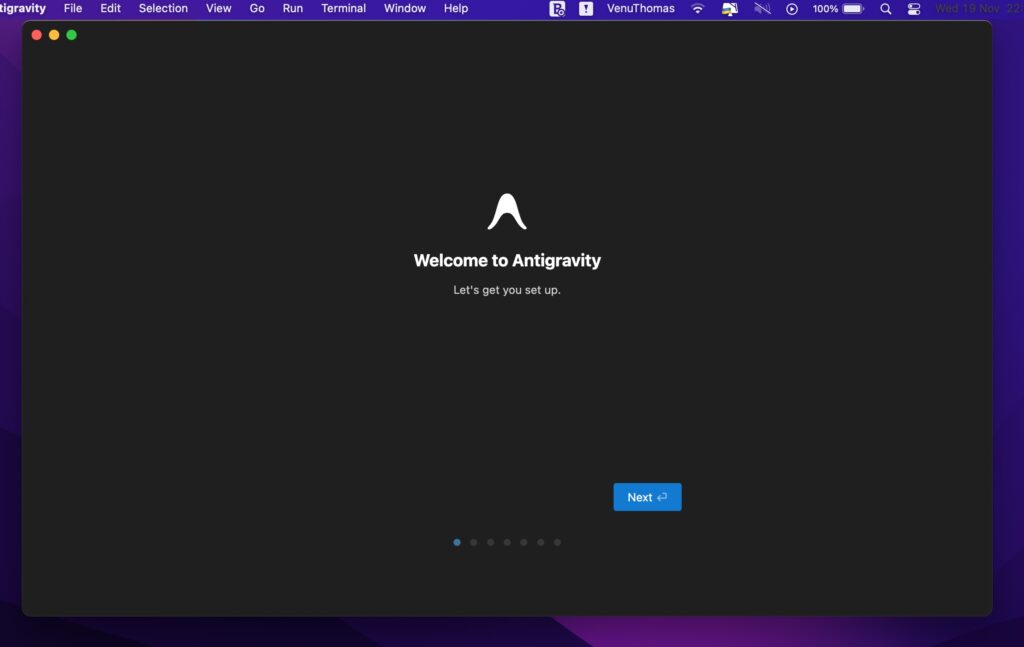
Clean. Minimal. Slightly mysterious.
This “Let’s get you set up” screen immediately feels different from the usual tool setup, almost like you’re about to train a new assistant rather than configure a text editor.
Setup Flow
Antigravity leads you through a surprisingly polished onboarding sequence.
It feels almost like setting up a smartphone: smooth, intentional, and user-friendly.
Choose Setup Flow
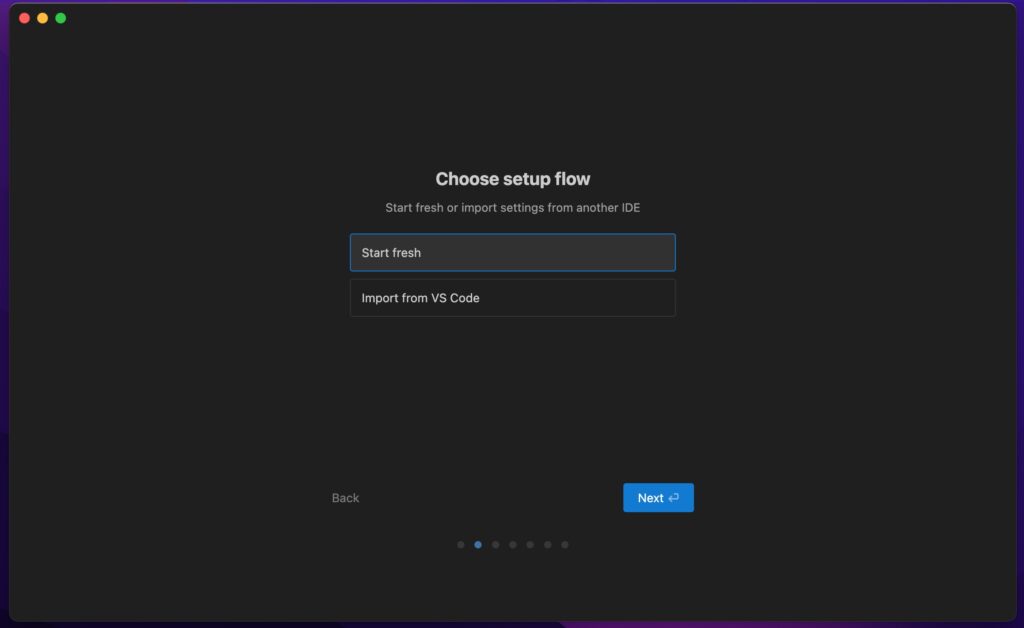
I picked Start fresh to see the pure Antigravity experience without carrying over old habits.
Choose Editor Theme
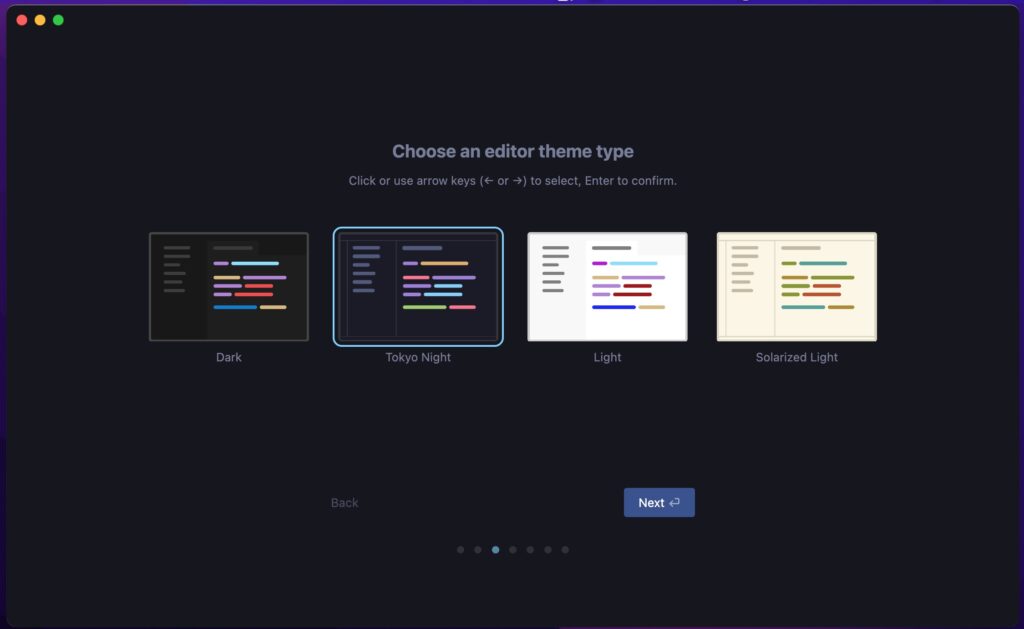
I really wanted to use the Tokyo Night theme because it looks so cool and not many people have it… but the text was a bit too pale and hard to read for me. So in the end, I just went with the regular Dark theme instead.
Agent Configuration
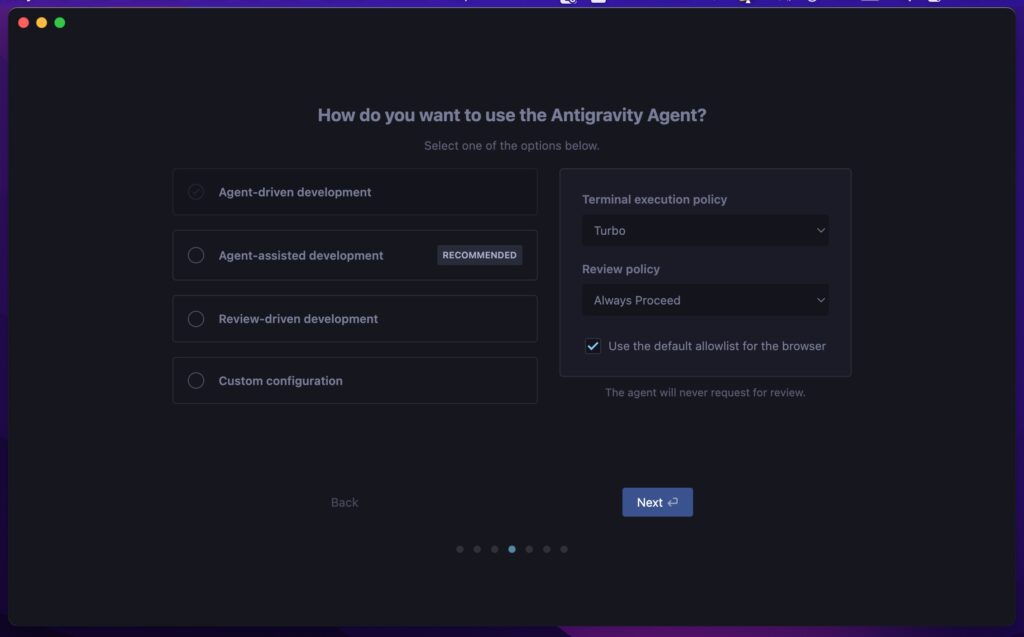
I chose Agent-driven development with:
- Turbo execution
- Always Proceed review
Configure Editor
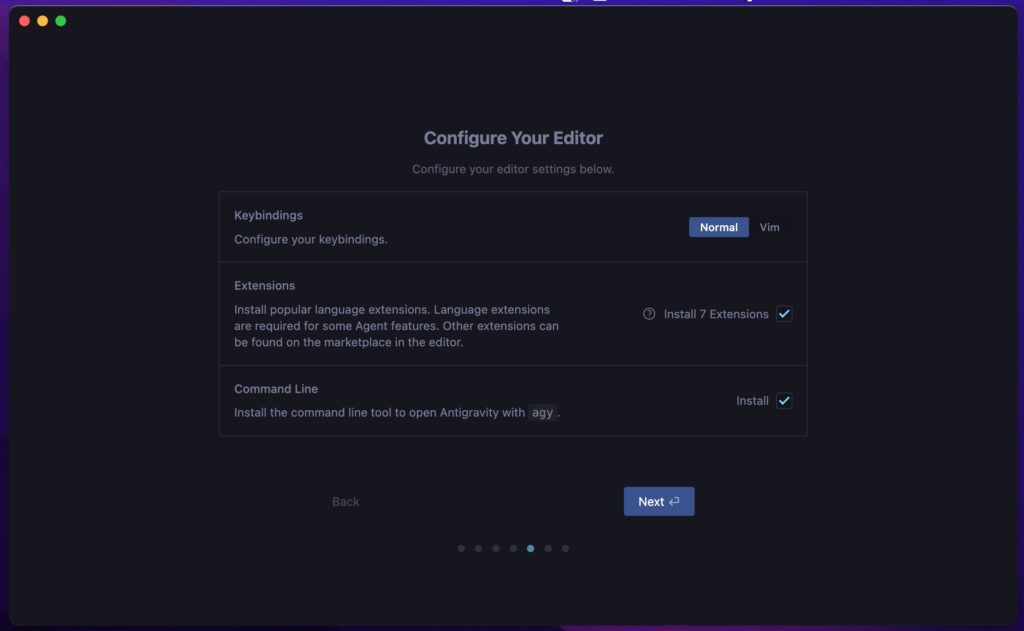
Next, the settings screen appeared. Are the default options actually good for me, or should I change something?
Sign in with Google
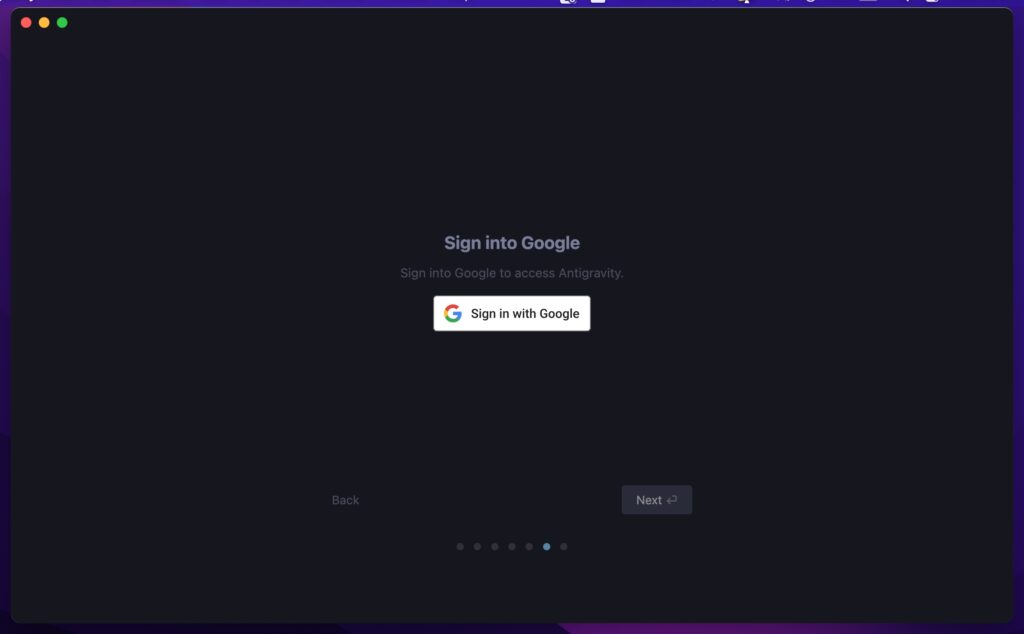
A quick login. No friction.
Terms of Use
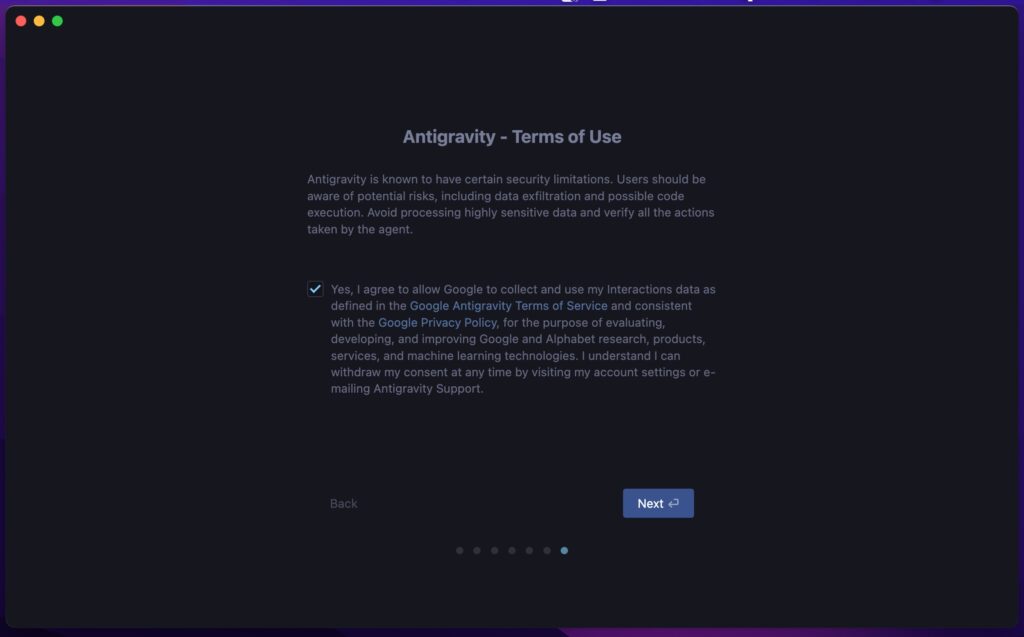
A standard consent screen describing data usage and limitations.
Click -> Next -> Done.
Antigravity is Ready
Antigravity is Ready
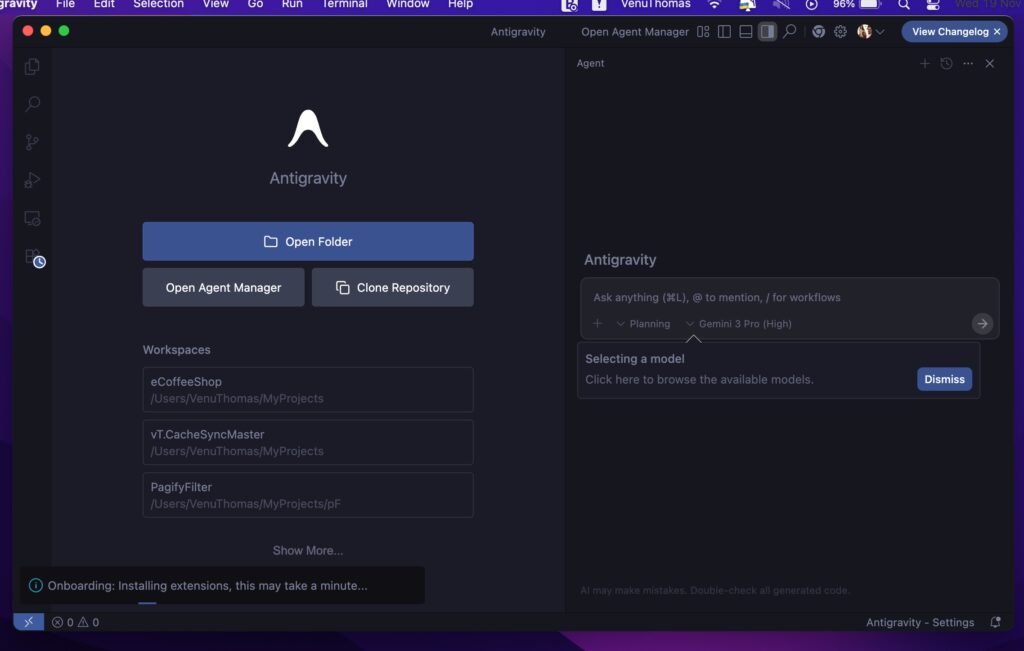
Here’s the interesting part: Antigravity looks exactly like a VS Code application! almost like a fork with an AI engine grafted in.
The familiar layout is still there:
- Sidebar icons
- File explorer
- Editor tabs
But the right-hand Agent panel immediately makes the difference obvious.
The entire interface feels like it was designed around conversations, planning, reasoning, and execution, not just writing code.
Choosing an AI Model
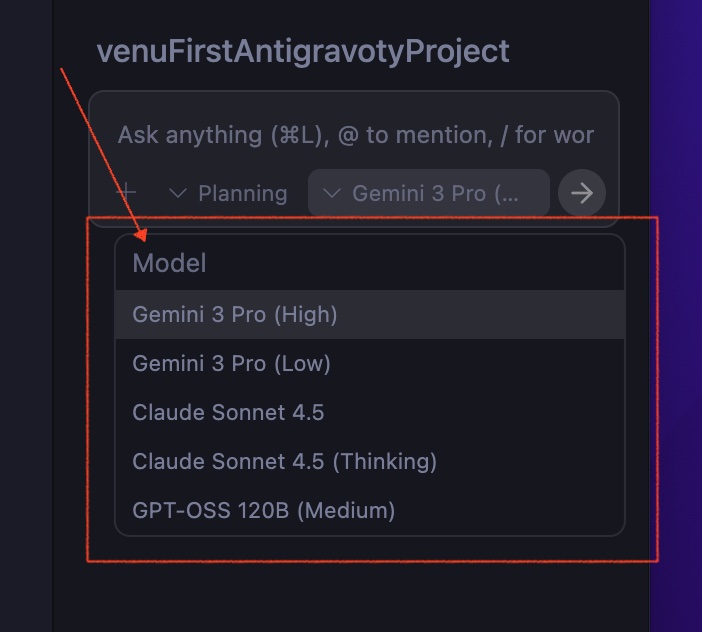
Here, you can switch any time depending on your task.
I went with Gemini 3 Pro (High).
Creating My First Project
My workspace:
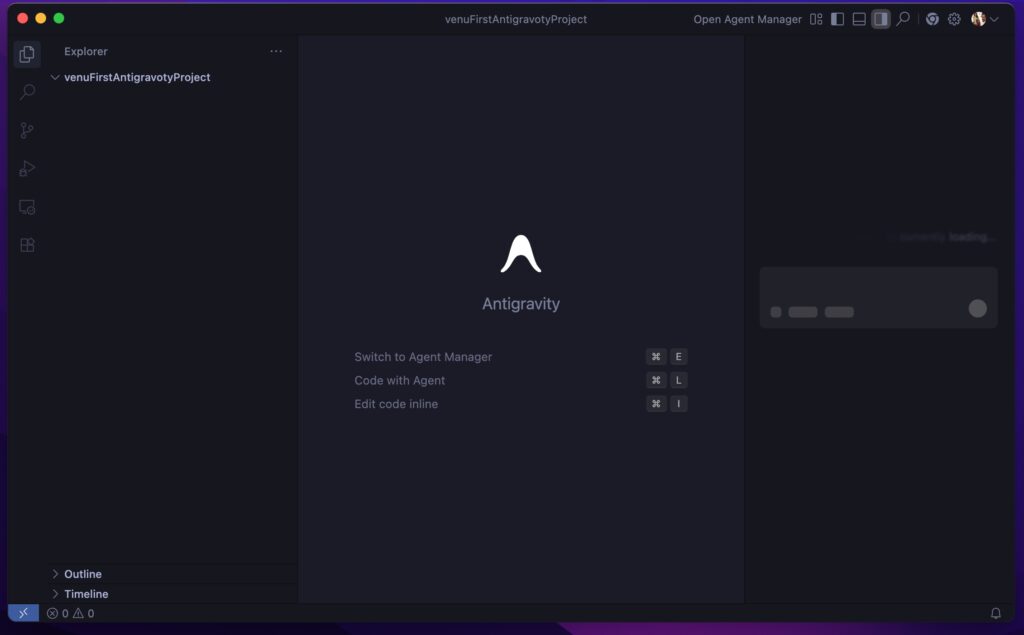
Let’s Build a Beginner Project
To match the style of the reference article, I asked the Agent to generate something extremely beginner-friendly , a small web app that anyone can understand.
Agent Task: Create a Task Reminder App
I opened the Gravity Assist window and wrote:
Please create a beginner-friendly ‘Task Reminder App’ in one HTML file.
Requirements:
1. A textbox to type a task
2. An ‘Add’ button
3. A list below to show the tasks
4. If a task is clicked, mark it as completed (strike-through)
5. Use only simple HTML, CSS, JS
6. Make it look clean and centered.
The Agent processed it and displayed a full task plan:
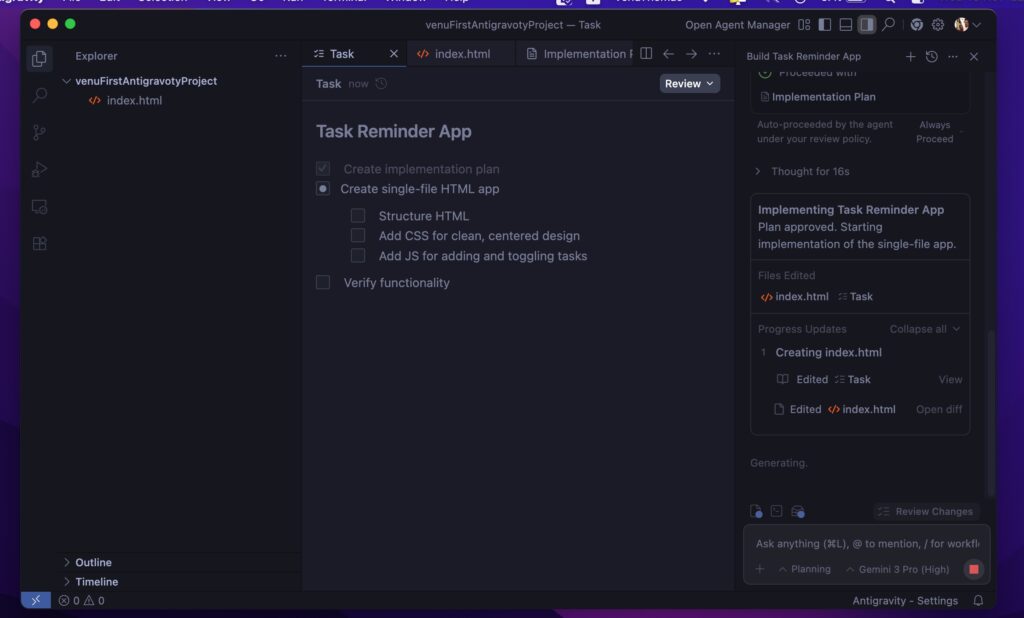
The steps were surprisingly thoughtful:
- Create the HTML file
- Add simple, clean CSS
- Implement JS logic
- Verify everything works
It even showed sub-tasks like “Structure the HTML” and “Verify functionality.”
I clicked Proceed.
The Generated Code
The full index.html appeared
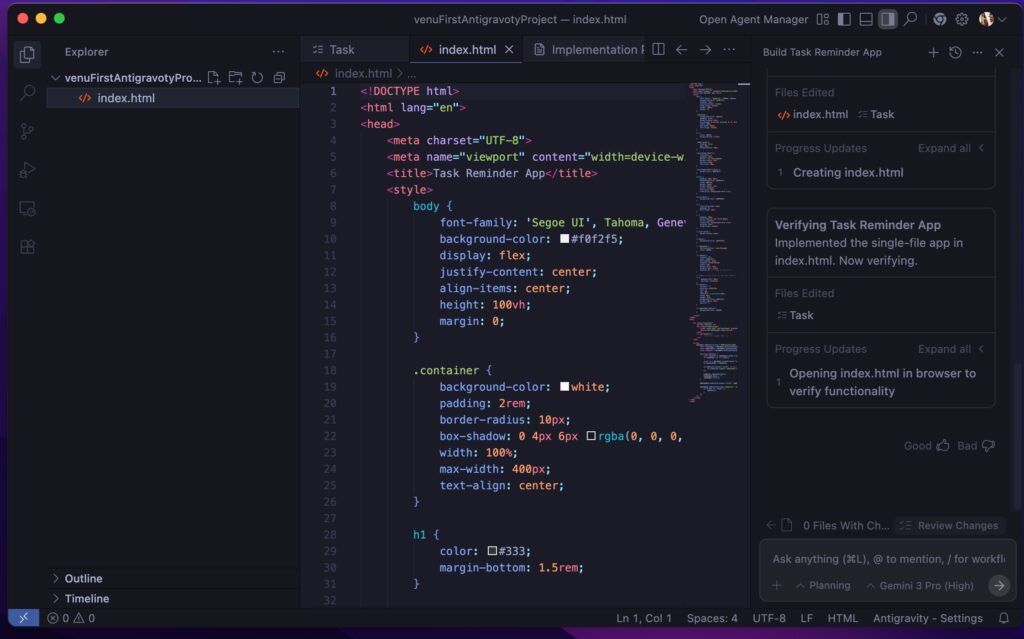
The code was clean, readable, and well-structured.
The CSS had sensible spacing and modern properties,
and the JavaScript was minimal but functional.
It genuinely felt like a small hand-coded project!
Reviewing the Implementation Plan
Before execution, Antigravity generated a clear “Implementation Plan” document:
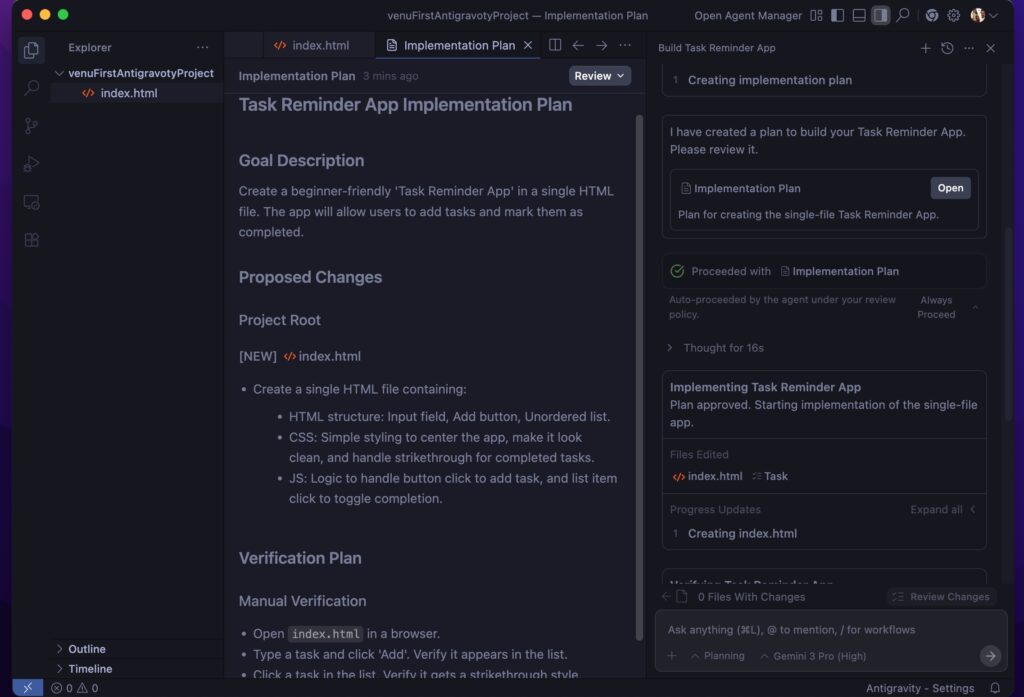
It described:
- Project goal
- HTML structure
- CSS approach
- JavaScript functionality
- Manual verification steps
This is something even some human devs forget to write.
Testing the App in Browser
And then the final result:
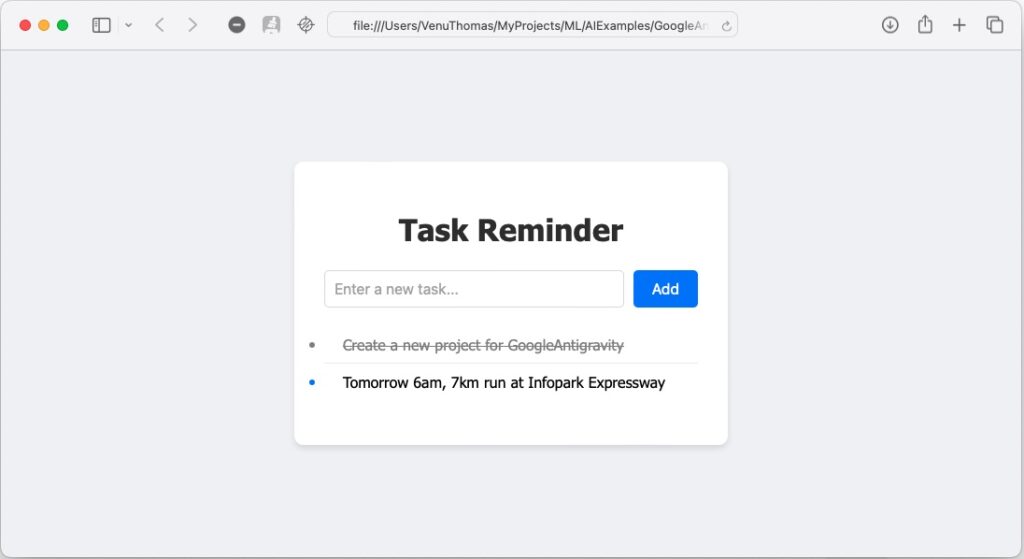
The Task Reminder app worked flawlessly:
- Add tasks
- Click to mark completed
- Clean UI
- Responsive styling
- Works in any browser
Everything behaved exactly as expected. 🙂
Summary:
Antigravity really impressed me (in a good way!). You can actually see everything the AI is doing, so it feels safe and trustworthy. I already want to keep using it.
A VS Code killer? No way! VS Code has years of plugins and tools. But Antigravity feels like the very first step into the future of coding.