In my earlier article, “Your First AI Application in .NET: A Step-by-Step Guide“: https://wisecodes.venuthomas.in/2025/09/21/your-first-ai-application-in-net-a-step-by-step-guide/ , I explored different ways to build AI-powered solutions—including Azure OpenAI, Semantic Kernel, and custom approaches. At that time, Microsoft Agent Framework wasn’t available, it launched publicly in October 2025. These concepts gave developers a solid foundation, but each approach required mixing and matching features for context handling, extensibility, and multi-step logic.
Now, Microsoft Agent Framework (MAF) brings these capabilities together in one unified, production-grade SDK. MAF blends the strengths of Semantic Kernel and AutoGen, providing streamlined development with native context management, powerful modular workflows, deep tool integration, enterprise-grade observability, and direct support for Azure AI Foundry and GitHub Models.
This comprehensive guide will help you build your first AI agent using MAF—with clear, step-by-step code samples, commentary, and practical comparisons to Semantic Kernel.
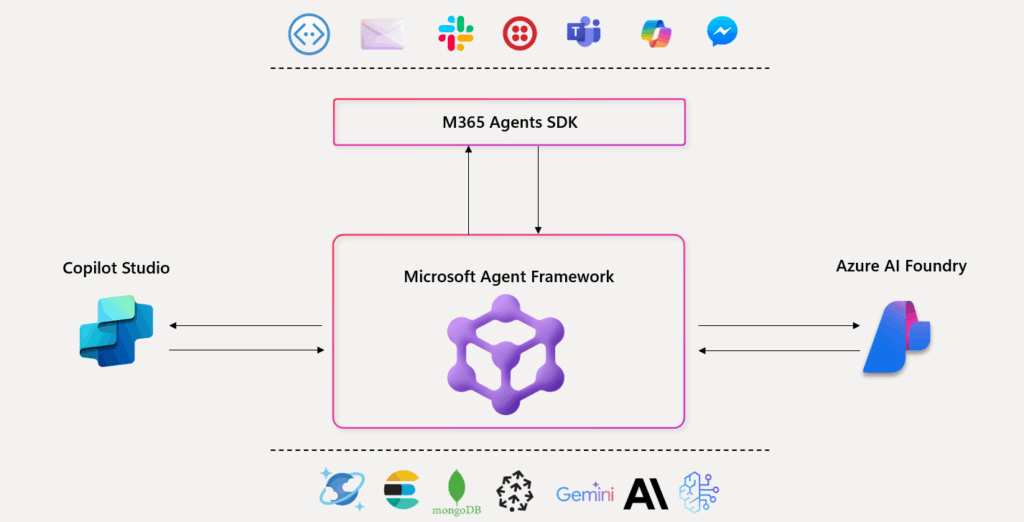
What is Microsoft Agent Framework?
The Microsoft Agent Framework (MAF) is a unified SDK for building conversational and autonomous AI agents in .NET and Python.
It enables developers to create intelligent agents that can reason, remember, use tools, perform multi-step logic, and collaborate—all within a secure, production-ready environment.
Why a New Approach for AI Agents?
As “agents” have become a buzzword in the AI world, most tools have remained fragmented.
True agents can plan, call APIs, collaborate, and adapt, but deploying these prototypes into production has often required stitching together multiple incomplete frameworks—usually without robust observability, security, or scalability.
To solve this, Microsoft combined two of its strongest foundations:
- Semantic Kernel (SK): provided enterprise-grade connectors and orchestration.
- AutoGen: contributed advanced multi-agent reasoning and collaboration.
The result is the Microsoft Agent Framework (MAF) bringing the best of both worlds into a single, coherent platform.
Introducing Microsoft Agent Framework
MAF is a developer toolkit and runtime that allows agents to run locally, scale to the cloud, and operate reliably in production.
Think of it this way:
- Semantic Kernel gave the enterprise strength
- AutoGen gave the research-level intelligence
- MAF delivers the unified, practical solution
Core Features
- Rapid agent creation for chat or task automation
- Multi-turn conversations with persistent context and memory
- Real-time streaming of agent responses
- Workflow builder for multi-step, logic-driven tasks
- Native observability and logging for robust monitoring
- Seamless integration with Azure AI Foundry and GitHub Models
- Structured outputs and strong typing for reliable automation
- Enterprise features for security, compliance, and scalability
- https://learn.microsoft.com/en-us/agent-framework/overview/agent-framework-overview
- https://devblogs.microsoft.com/foundry/introducing-microsoft-agent-framework-the-open-source-engine-for-agentic-ai-apps/
Prerequisites
Before starting, ensure you have:
- .NET 8.0 SDK or newer installed
- Access to Azure OpenAI or GitHub Models (such as gpt-4o or gpt-4o-mini)
- Azure CLI installed and logged in using
az login
Install Dependencies
For Azure OpenAI:
dotnet add package Azure.Identity
dotnet add package Azure.AI.OpenAI
dotnet add package Microsoft.Agents.AI.OpenAI --prerelease
For GitHub Models:
dotnet add package OpenAI
dotnet add package Microsoft.Extensions.AI.OpenAI --prerelease
dotnet add package Microsoft.Extensions.AI
dotnet add package Microsoft.Agents.AI --prerelease
Simple Agent Example
Let’s create a geography agent using Azure OpenAI that answers capital city questions.
<span class="line"><span style="color: #C586C0">using</span>
<span style="color: #D4D4D4"> </span>
<span style="color: #4EC9B0">Microsoft</span>
<span style="color: #D4D4D4">.</span>
<span style="color: #4EC9B0">Agents</span>
<span style="color: #D4D4D4">.</span>
<span style="color: #4EC9B0">AI</span>
<span style="color: #D4D4D4">;</span></span>
<span class="line"><span style="color: #C586C0">using</span>
<span style="color: #D4D4D4"> </span>
<span style="color: #4EC9B0">Microsoft</span>
<span style="color: #D4D4D4">.</span>
<span style="color: #4EC9B0">Extensions</span>
<span style="color: #D4D4D4">.</span>
<span style="color: #4EC9B0">AI</span>
<span style="color: #D4D4D4">;</span></span>
<span class="line"><span style="color: #C586C0">using</span>
<span style="color: #D4D4D4"> </span>
<span style="color: #4EC9B0">Azure</span>
<span style="color: #D4D4D4">.</span>
<span style="color: #4EC9B0">AI</span>
<span style="color: #D4D4D4">.</span>
<span style="color: #4EC9B0">OpenAI</span>
<span style="color: #D4D4D4">;</span></span>
<span class="line"><span style="color: #C586C0">using</span>
<span style="color: #D4D4D4"> </span>
<span style="color: #4EC9B0">Azure</span>
<span style="color: #D4D4D4">.</span>
<span style="color: #4EC9B0">Identity</span>
<span style="color: #D4D4D4">;</span></span>
<span class="line"><span style="color: #C586C0">using</span>
<span style="color: #D4D4D4"> </span>
<span style="color: #4EC9B0">OpenAI</span>
<span style="color: #D4D4D4">;</span></span>
<span class="line"></span>
<span class="line"><span style="color: #6A9955">// Step 1: Create an Azure OpenAI client using your Azure endpoint and credentials.</span></span>
<span class="line"><span style="color: #6A9955">// This client will allow you to communicate with the GPT-4o model hosted on Azure.</span></span>
<span class="line"><span style="color: #4EC9B0">AIAgent</span>
<span style="color: #D4D4D4"> </span>
<span style="color: #9CDCFE">agent</span>
<span style="color: #D4D4D4"> = </span>
<span style="color: #569CD6">new</span>
<span style="color: #D4D4D4"> </span>
<span style="color: #4EC9B0">AzureOpenAIClient</span>
<span style="color: #D4D4D4">(</span></span>
<span class="line"><span style="color: #D4D4D4">    </span>
<span style="color: #569CD6">new</span>
<span style="color: #D4D4D4"> </span>
<span style="color: #4EC9B0">Uri</span>
<span style="color: #D4D4D4">(</span>
<span style="color: #CE9178">"https://your-resource.openai.azure.com"</span>
<span style="color: #D4D4D4">), </span>
<span style="color: #6A9955">// Replace with your Azure OpenAI endpoint</span></span>
<span class="line"><span style="color: #D4D4D4">    </span>
<span style="color: #569CD6">new</span>
<span style="color: #D4D4D4"> </span>
<span style="color: #4EC9B0">DefaultAzureCredential</span>
<span style="color: #D4D4D4">() </span>
<span style="color: #6A9955">// Automatically uses credentials from 'az login' or environment</span></span>
<span class="line"><span style="color: #D4D4D4">)</span></span>
<span class="line"><span style="color: #D4D4D4">.</span>
<span style="color: #DCDCAA">GetChatClient</span>
<span style="color: #D4D4D4">(</span>
<span style="color: #CE9178">"gpt-4o"</span>
<span style="color: #D4D4D4">) </span>
<span style="color: #6A9955">// Specify the model deployment name (e.g., "gpt-4o")</span></span>
<span class="line"><span style="color: #D4D4D4">.</span>
<span style="color: #DCDCAA">CreateAIAgent</span>
<span style="color: #D4D4D4">(</span>
<span style="color: #CE9178">"You are a helpful geography expert."</span>
<span style="color: #D4D4D4">); </span>
<span style="color: #6A9955">// Create an agent with a system prompt</span></span>
<span class="line"></span>
<span class="line"><span style="color: #6A9955">// Step 2: Send a question to the agent and print its response</span></span>
<span class="line"><span style="color: #9CDCFE">Console</span>
<span style="color: #D4D4D4">.</span>
<span style="color: #DCDCAA">WriteLine</span>
<span style="color: #D4D4D4">(</span>
<span style="color: #CE9178">"User: What's the capital of Kerala?"</span>
<span style="color: #D4D4D4">);</span></span>
<span class="line"><span style="color: #569CD6">var</span>
<span style="color: #D4D4D4"> </span>
<span style="color: #9CDCFE">response</span>
<span style="color: #D4D4D4"> = </span>
<span style="color: #569CD6">await</span>
<span style="color: #D4D4D4"> </span>
<span style="color: #9CDCFE">agent</span>
<span style="color: #D4D4D4">.</span>
<span style="color: #DCDCAA">RunAsync</span>
<span style="color: #D4D4D4">(</span>
<span style="color: #CE9178">"What's the capital of Kerala?"</span>
<span style="color: #D4D4D4">);</span></span>
<span class="line"><span style="color: #9CDCFE">Console</span>
<span style="color: #D4D4D4">.</span>
<span style="color: #DCDCAA">WriteLine</span>
<span style="color: #D4D4D4">(</span>
<span style="color: #CE9178">$"Agent: {</span>
<span style="color: #9CDCFE">response</span>
<span style="color: #CE9178">}"</span>
<span style="color: #D4D4D4">);</span></span>
<span class="line"></span>
<span class="line"><span style="color: #6A9955">// Step 3: Ask another question and print the response</span></span>
<span class="line"><span style="color: #9CDCFE">Console</span>
<span style="color: #D4D4D4">.</span>
<span style="color: #DCDCAA">WriteLine</span>
<span style="color: #D4D4D4">(</span>
<span style="color: #CE9178">"User: What's the capital of India?"</span>
<span style="color: #D4D4D4">);</span></span>
<span class="line"><span style="color: #9CDCFE">response</span>
<span style="color: #D4D4D4"> = </span>
<span style="color: #569CD6">await</span>
<span style="color: #D4D4D4"> </span>
<span style="color: #9CDCFE">agent</span>
<span style="color: #D4D4D4">.</span>
<span style="color: #DCDCAA">RunAsync</span>
<span style="color: #D4D4D4">(</span>
<span style="color: #CE9178">"What's the capital of India?"</span>
<span style="color: #D4D4D4">);</span></span>
Multi-Turn Conversation (Stateful Context)
Agents built with MAF can maintain context across exchanges with the AgentThread class. This enables natural, contextual dialogue.
<span class="line"><span style="color: #6A9955">// Step 1: Create a new conversation thread to maintain context across multiple turns</span></span>
<span class="line"><span style="color: #569CD6">var</span>
<span style="color: #D4D4D4"> </span>
<span style="color: #9CDCFE">thread</span>
<span style="color: #D4D4D4"> = </span>
<span style="color: #9CDCFE">agent</span>
<span style="color: #D4D4D4">.</span>
<span style="color: #DCDCAA">GetNewThread</span>
<span style="color: #D4D4D4">(); </span>
<span style="color: #6A9955">// This keeps track of the conversation history</span></span>
<span class="line"></span>
<span class="line"><span style="color: #6A9955">// Step 2: Ask the first question</span></span>
<span class="line"><span style="color: #9CDCFE">Console</span>
<span style="color: #D4D4D4">.</span>
<span style="color: #DCDCAA">WriteLine</span>
<span style="color: #D4D4D4">(</span>
<span style="color: #CE9178">"User: What's the capital of Kerala?"</span>
<span style="color: #D4D4D4">);</span></span>
<span class="line"><span style="color: #569CD6">var</span>
<span style="color: #D4D4D4"> </span>
<span style="color: #9CDCFE">response1</span>
<span style="color: #D4D4D4"> = </span>
<span style="color: #569CD6">await</span>
<span style="color: #D4D4D4"> </span>
<span style="color: #9CDCFE">agent</span>
<span style="color: #D4D4D4">.</span>
<span style="color: #DCDCAA">RunAsync</span>
<span style="color: #D4D4D4">(</span>
<span style="color: #CE9178">"What's the capital of Kerala?"</span>
<span style="color: #D4D4D4">, </span>
<span style="color: #9CDCFE">thread</span>
<span style="color: #D4D4D4">); </span>
<span style="color: #6A9955">// Pass the thread to preserve context</span></span>
<span class="line"><span style="color: #9CDCFE">Console</span>
<span style="color: #D4D4D4">.</span>
<span style="color: #DCDCAA">WriteLine</span>
<span style="color: #D4D4D4">(</span>
<span style="color: #CE9178">$"Agent: {</span>
<span style="color: #9CDCFE">response1</span>
<span style="color: #CE9178">}"</span>
<span style="color: #D4D4D4">);</span></span>
<span class="line"></span>
<span class="line"><span style="color: #6A9955">// Step 3: Ask a second question in the same thread</span></span>
<span class="line"><span style="color: #9CDCFE">Console</span>
<span style="color: #D4D4D4">.</span>
<span style="color: #DCDCAA">WriteLine</span>
<span style="color: #D4D4D4">(</span>
<span style="color: #CE9178">"User: What's the capital of India?"</span>
<span style="color: #D4D4D4">);</span></span>
<span class="line"><span style="color: #569CD6">var</span>
<span style="color: #D4D4D4"> </span>
<span style="color: #9CDCFE">response2</span>
<span style="color: #D4D4D4"> = </span>
<span style="color: #569CD6">await</span>
<span style="color: #D4D4D4"> </span>
<span style="color: #9CDCFE">agent</span>
<span style="color: #D4D4D4">.</span>
<span style="color: #DCDCAA">RunAsync</span>
<span style="color: #D4D4D4">(</span>
<span style="color: #CE9178">"What's the capital of India?"</span>
<span style="color: #D4D4D4">, </span>
<span style="color: #9CDCFE">thread</span>
<span style="color: #D4D4D4">); </span>
<span style="color: #6A9955">// Still using the same thread</span></span>
<span class="line"><span style="color: #9CDCFE">Console</span>
<span style="color: #D4D4D4">.</span>
<span style="color: #DCDCAA">WriteLine</span>
<span style="color: #D4D4D4">(</span>
<span style="color: #CE9178">$"Agent: {</span>
<span style="color: #9CDCFE">response2</span>
<span style="color: #CE9178">}"</span>
<span style="color: #D4D4D4">);</span></span>
<span class="line"></span>
<span class="line"><span style="color: #6A9955">// Step 4: Ask a follow-up question that depends on previous answers</span></span>
<span class="line"><span style="color: #9CDCFE">Console</span>
<span style="color: #D4D4D4">.</span>
<span style="color: #DCDCAA">WriteLine</span>
<span style="color: #D4D4D4">(</span>
<span style="color: #CE9178">"User: Which has a larger population?"</span>
<span style="color: #D4D4D4">);</span></span>
<span class="line"><span style="color: #569CD6">var</span>
<span style="color: #D4D4D4"> </span>
<span style="color: #9CDCFE">response3</span>
<span style="color: #D4D4D4"> = </span>
<span style="color: #569CD6">await</span>
<span style="color: #D4D4D4"> </span>
<span style="color: #9CDCFE">agent</span>
<span style="color: #D4D4D4">.</span>
<span style="color: #DCDCAA">RunAsync</span>
<span style="color: #D4D4D4">(</span>
<span style="color: #CE9178">"Which has a larger population?"</span>
<span style="color: #D4D4D4">, </span>
<span style="color: #9CDCFE">thread</span>
<span style="color: #D4D4D4">); </span>
<span style="color: #6A9955">// Agent uses previous answers for reasoning</span></span>
<span class="line"><span style="color: #9CDCFE">Console</span>
<span style="color: #D4D4D4">.</span>
<span style="color: #DCDCAA">WriteLine</span>
<span style="color: #D4D4D4">(</span>
<span style="color: #CE9178">$"Agent: {</span>
<span style="color: #9CDCFE">response3</span>
<span style="color: #CE9178">}"</span>
<span style="color: #D4D4D4">);</span></span>
Streaming Responses
MAF supports streaming, where agent answers appear in real time—perfect for chat UIs.
<span class="line"></span>
<span class="line"><span style="color: #9CDCFE">Console</span>
<span style="color: #D4D4D4">.</span>
<span style="color: #DCDCAA">WriteLine</span>
<span style="color: #D4D4D4">(</span>
<span style="color: #CE9178">"User: What's the capital of Kerala?"</span>
<span style="color: #D4D4D4">);</span></span>
<span class="line"><span style="color: #9CDCFE">Console</span>
<span style="color: #D4D4D4">.</span>
<span style="color: #DCDCAA">Write</span>
<span style="color: #D4D4D4">(</span>
<span style="color: #CE9178">"Agent: "</span>
<span style="color: #D4D4D4">);</span></span>
<span class="line"></span>
<span class="line"><span style="color: #6A9955">// Stream each token as it's generated by the model</span></span>
<span class="line"><span style="color: #569CD6">await</span>
<span style="color: #D4D4D4"> </span>
<span style="color: #C586C0">foreach</span>
<span style="color: #D4D4D4"> (</span>
<span style="color: #569CD6">var</span>
<span style="color: #D4D4D4"> </span>
<span style="color: #9CDCFE">update</span>
<span style="color: #D4D4D4"> </span>
<span style="color: #C586C0">in</span>
<span style="color: #D4D4D4"> </span>
<span style="color: #9CDCFE">agent</span>
<span style="color: #D4D4D4">.</span>
<span style="color: #DCDCAA">RunStreamingAsync</span>
<span style="color: #D4D4D4">(</span>
<span style="color: #CE9178">"What's the capital of Kerala?"</span>
<span style="color: #D4D4D4">))</span></span>
<span class="line"><span style="color: #D4D4D4">{</span></span>
<span class="line"><span style="color: #D4D4D4">    </span>
<span style="color: #9CDCFE">Console</span>
<span style="color: #D4D4D4">.</span>
<span style="color: #DCDCAA">Write</span>
<span style="color: #D4D4D4">(</span>
<span style="color: #9CDCFE">update</span>
<span style="color: #D4D4D4">); </span>
<span style="color: #6A9955">// Print each token immediately for smoother UX</span></span>
<span class="line"><span style="color: #D4D4D4">}</span></span>
<span class="line"></span>
Interactive Console Chat
Combine streaming and state to create a conversational chatbot that maintains context:
<span class="line"><span style="color: #6A9955">// Step: Create a new conversation thread to maintain context across multiple turns</span></span>
<span class="line"><span style="color: #569CD6">var</span>
<span style="color: #D4D4D4"> </span>
<span style="color: #9CDCFE">thread</span>
<span style="color: #D4D4D4"> = </span>
<span style="color: #9CDCFE">agent</span>
<span style="color: #D4D4D4">.</span>
<span style="color: #DCDCAA">GetNewThread</span>
<span style="color: #D4D4D4">();</span></span>
<span class="line"></span>
<span class="line"><span style="color: #9CDCFE">Console</span>
<span style="color: #D4D4D4">.</span>
<span style="color: #DCDCAA">WriteLine</span>
<span style="color: #D4D4D4">(</span>
<span style="color: #CE9178">"Geography Agent — Type your questions! ('exit' to quit)"</span>
<span style="color: #D4D4D4">);</span></span>
<span class="line"></span>
<span class="line"><span style="color: #C586C0">while</span>
<span style="color: #D4D4D4"> (</span>
<span style="color: #569CD6">true</span>
<span style="color: #D4D4D4">)</span></span>
<span class="line"><span style="color: #D4D4D4">{</span></span>
<span class="line"><span style="color: #D4D4D4">    </span>
<span style="color: #9CDCFE">Console</span>
<span style="color: #D4D4D4">.</span>
<span style="color: #DCDCAA">Write</span>
<span style="color: #D4D4D4">(</span>
<span style="color: #CE9178">"You: "</span>
<span style="color: #D4D4D4">);</span></span>
<span class="line"><span style="color: #D4D4D4">    </span>
<span style="color: #569CD6">var</span>
<span style="color: #D4D4D4"> </span>
<span style="color: #9CDCFE">input</span>
<span style="color: #D4D4D4"> = </span>
<span style="color: #9CDCFE">Console</span>
<span style="color: #D4D4D4">.</span>
<span style="color: #DCDCAA">ReadLine</span>
<span style="color: #D4D4D4">();</span></span>
<span class="line"></span>
<span class="line"><span style="color: #6A9955">    // Exit the loop if the user types 'exit' or submits an empty line</span></span>
<span class="line"><span style="color: #D4D4D4">    </span>
<span style="color: #C586C0">if</span>
<span style="color: #D4D4D4"> (</span>
<span style="color: #569CD6">string</span>
<span style="color: #D4D4D4">.</span>
<span style="color: #DCDCAA">IsNullOrWhiteSpace</span>
<span style="color: #D4D4D4">(</span>
<span style="color: #9CDCFE">input</span>
<span style="color: #D4D4D4">) || </span>
<span style="color: #9CDCFE">input</span>
<span style="color: #D4D4D4">.</span>
<span style="color: #DCDCAA">ToLower</span>
<span style="color: #D4D4D4">() == </span>
<span style="color: #CE9178">"exit"</span>
<span style="color: #D4D4D4">)</span></span>
<span class="line"><span style="color: #D4D4D4">        </span>
<span style="color: #C586C0">break</span>
<span style="color: #D4D4D4">;</span></span>
<span class="line"></span>
<span class="line"><span style="color: #6A9955">    // Stream the agent's response in real-time for a smoother experience</span></span>
<span class="line"><span style="color: #D4D4D4">    </span>
<span style="color: #9CDCFE">Console</span>
<span style="color: #D4D4D4">.</span>
<span style="color: #DCDCAA">Write</span>
<span style="color: #D4D4D4">(</span>
<span style="color: #CE9178">"Agent: "</span>
<span style="color: #D4D4D4">);</span></span>
<span class="line"><span style="color: #D4D4D4">    </span>
<span style="color: #569CD6">await</span>
<span style="color: #D4D4D4"> </span>
<span style="color: #C586C0">foreach</span>
<span style="color: #D4D4D4"> (</span>
<span style="color: #569CD6">var</span>
<span style="color: #D4D4D4"> </span>
<span style="color: #9CDCFE">update</span>
<span style="color: #D4D4D4"> </span>
<span style="color: #C586C0">in</span>
<span style="color: #D4D4D4"> </span>
<span style="color: #9CDCFE">agent</span>
<span style="color: #D4D4D4">.</span>
<span style="color: #DCDCAA">RunStreamingAsync</span>
<span style="color: #D4D4D4">(</span>
<span style="color: #9CDCFE">input</span>
<span style="color: #D4D4D4">, </span>
<span style="color: #9CDCFE">thread</span>
<span style="color: #D4D4D4">))</span></span>
<span class="line"><span style="color: #D4D4D4">    {</span></span>
<span class="line"><span style="color: #D4D4D4">        </span>
<span style="color: #9CDCFE">Console</span>
<span style="color: #D4D4D4">.</span>
<span style="color: #DCDCAA">Write</span>
<span style="color: #D4D4D4">(</span>
<span style="color: #9CDCFE">update</span>
<span style="color: #D4D4D4">); </span>
<span style="color: #6A9955">// Print each token as it's generated</span></span>
<span class="line"><span style="color: #D4D4D4">    }</span></span>
<span class="line"></span>
<span class="line"><span style="color: #D4D4D4">    </span>
<span style="color: #9CDCFE">Console</span>
<span style="color: #D4D4D4">.</span>
<span style="color: #DCDCAA">WriteLine</span>
<span style="color: #D4D4D4">(); </span>
<span style="color: #6A9955">// Move to the next line after response is complete</span></span>
<span class="line"><span style="color: #D4D4D4">}</span></span>
Workflow Builder Example
Workflows allow you to connect multiple reasoning or processing steps, where the output of one step becomes the input to the next.
This is useful for building multi-step tasks such as research pipelines, text summarization, or other automated agent workflows.
To use workflows, add this MAF package to your project:
dotnet add package Microsoft.Agents.AI.Workflows --prerelease<span class="line"><span style="color: #C586C0">using</span>
<span style="color: #D4D4D4"> </span>
<span style="color: #4EC9B0">Microsoft</span>
<span style="color: #D4D4D4">.</span>
<span style="color: #4EC9B0">Agents</span>
<span style="color: #D4D4D4">.</span>
<span style="color: #4EC9B0">AI</span>
<span style="color: #D4D4D4">;</span></span>
<span class="line"><span style="color: #C586C0">using</span>
<span style="color: #D4D4D4"> </span>
<span style="color: #4EC9B0">Azure</span>
<span style="color: #D4D4D4">.</span>
<span style="color: #4EC9B0">AI</span>
<span style="color: #D4D4D4">.</span>
<span style="color: #4EC9B0">OpenAI</span>
<span style="color: #D4D4D4">;</span></span>
<span class="line"><span style="color: #C586C0">using</span>
<span style="color: #D4D4D4"> </span>
<span style="color: #4EC9B0">Azure</span>
<span style="color: #D4D4D4">.</span>
<span style="color: #4EC9B0">Identity</span>
<span style="color: #D4D4D4">;</span></span>
<span class="line"><span style="color: #C586C0">using</span>
<span style="color: #D4D4D4"> </span>
<span style="color: #4EC9B0">Microsoft</span>
<span style="color: #D4D4D4">.</span>
<span style="color: #4EC9B0">Agents</span>
<span style="color: #D4D4D4">.</span>
<span style="color: #4EC9B0">AI</span>
<span style="color: #D4D4D4">.</span>
<span style="color: #4EC9B0">Workflows</span>
<span style="color: #D4D4D4">;</span></span>
<span class="line"><span style="color: #C586C0">using</span>
<span style="color: #D4D4D4"> </span>
<span style="color: #4EC9B0">OpenAI</span>
<span style="color: #D4D4D4">;</span></span>
<span class="line"></span>
<span class="line"><span style="color: #6A9955">// Step 1: Connect to Azure OpenAI</span></span>
<span class="line"><span style="color: #6A9955">// This sets up a client that can talk to Azure-hosted GPT models.</span></span>
<span class="line"><span style="color: #6A9955">// DefaultAzureCredential uses your Azure login (via CLI or environment).</span></span>
<span class="line"><span style="color: #569CD6">var</span>
<span style="color: #D4D4D4"> </span>
<span style="color: #9CDCFE">agent</span>
<span style="color: #D4D4D4"> = </span>
<span style="color: #569CD6">new</span>
<span style="color: #D4D4D4"> </span>
<span style="color: #4EC9B0">AzureOpenAIClient</span>
<span style="color: #D4D4D4">(</span></span>
<span class="line"><span style="color: #D4D4D4"> </span>
<span style="color: #569CD6">new</span>
<span style="color: #D4D4D4"> </span>
<span style="color: #4EC9B0">Uri</span>
<span style="color: #D4D4D4">(</span>
<span style="color: #CE9178">"https://your-resource.openai.azure.com"</span>
<span style="color: #D4D4D4">), </span>
<span style="color: #6A9955">// Replace with your Azure OpenAI endpoint</span></span>
<span class="line"><span style="color: #D4D4D4"> </span>
<span style="color: #569CD6">new</span>
<span style="color: #D4D4D4"> </span>
<span style="color: #4EC9B0">DefaultAzureCredential</span>
<span style="color: #D4D4D4">()</span></span>
<span class="line"><span style="color: #D4D4D4">);</span></span>
<span class="line"></span>
<span class="line"><span style="color: #6A9955">// Step 2: Create the first agent to find capital cities</span></span>
<span class="line"><span style="color: #6A9955">// This agent is specialized to answer questions about Indian state capitals.</span></span>
<span class="line"><span style="color: #569CD6">var</span>
<span style="color: #D4D4D4"> </span>
<span style="color: #9CDCFE">capitalAgent</span>
<span style="color: #D4D4D4"> = </span>
<span style="color: #9CDCFE">agent</span></span>
<span class="line"><span style="color: #D4D4D4"> .</span>
<span style="color: #DCDCAA">GetChatClient</span>
<span style="color: #D4D4D4">(</span>
<span style="color: #CE9178">"gpt-4o"</span>
<span style="color: #D4D4D4">) </span>
<span style="color: #6A9955">// Use the GPT-4o model</span></span>
<span class="line"><span style="color: #D4D4D4"> .</span>
<span style="color: #DCDCAA">CreateAIAgent</span>
<span style="color: #D4D4D4">(</span></span>
<span class="line"><span style="color: #D4D4D4"> </span>
<span style="color: #9CDCFE">name</span>
<span style="color: #D4D4D4">: </span>
<span style="color: #CE9178">"CapitalFinder"</span>
<span style="color: #D4D4D4">, </span>
<span style="color: #6A9955">// Agent name</span></span>
<span class="line"><span style="color: #D4D4D4"> </span>
<span style="color: #9CDCFE">instructions</span>
<span style="color: #D4D4D4">: </span>
<span style="color: #CE9178">"You are a geography expert. Given an Indian state, return only its capital city."</span></span>
<span class="line"><span style="color: #D4D4D4"> );</span></span>
<span class="line"></span>
<span class="line"><span style="color: #6A9955">// Step 3: Create the second agent to find population data</span></span>
<span class="line"><span style="color: #6A9955">// This agent is focused on returning population estimates for cities.</span></span>
<span class="line"><span style="color: #569CD6">var</span>
<span style="color: #D4D4D4"> </span>
<span style="color: #9CDCFE">populationAgent</span>
<span style="color: #D4D4D4"> = </span>
<span style="color: #9CDCFE">agent</span></span>
<span class="line"><span style="color: #D4D4D4"> .</span>
<span style="color: #DCDCAA">GetChatClient</span>
<span style="color: #D4D4D4">(</span>
<span style="color: #CE9178">"gpt-4o"</span>
<span style="color: #D4D4D4">)</span></span>
<span class="line"><span style="color: #D4D4D4"> .</span>
<span style="color: #DCDCAA">CreateAIAgent</span>
<span style="color: #D4D4D4">(</span></span>
<span class="line"><span style="color: #D4D4D4"> </span>
<span style="color: #9CDCFE">name</span>
<span style="color: #D4D4D4">: </span>
<span style="color: #CE9178">"PopulationFinder"</span>
<span style="color: #D4D4D4">,</span></span>
<span class="line"><span style="color: #D4D4D4"> </span>
<span style="color: #9CDCFE">instructions</span>
<span style="color: #D4D4D4">: </span>
<span style="color: #CE9178">"You are a data expert. Given a city, return its latest estimated population."</span></span>
<span class="line"><span style="color: #D4D4D4"> );</span></span>
<span class="line"></span>
<span class="line"><span style="color: #6A9955">// Step 4: Build a sequential workflow</span></span>
<span class="line"><span style="color: #6A9955">// This chains the two agents so that the output of CapitalFinder becomes the input for PopulationFinder.</span></span>
<span class="line"><span style="color: #4EC9B0">Workflow</span>
<span style="color: #D4D4D4"> </span>
<span style="color: #9CDCFE">workflow</span>
<span style="color: #D4D4D4"> = </span>
<span style="color: #9CDCFE">AgentWorkflowBuilder</span>
<span style="color: #D4D4D4">.</span>
<span style="color: #DCDCAA">BuildSequential</span>
<span style="color: #D4D4D4">(</span>
<span style="color: #9CDCFE">capitalAgent</span>
<span style="color: #D4D4D4">, </span>
<span style="color: #9CDCFE">populationAgent</span>
<span style="color: #D4D4D4">);</span></span>
<span class="line"></span>
<span class="line"><span style="color: #6A9955">// Step 5: Convert the workflow into a single callable agent</span></span>
<span class="line"><span style="color: #6A9955">// This wraps the workflow so you can interact with it like a normal agent.</span></span>
<span class="line"><span style="color: #4EC9B0">AIAgent</span>
<span style="color: #D4D4D4"> </span>
<span style="color: #9CDCFE">workflowAgent</span>
<span style="color: #D4D4D4"> = </span>
<span style="color: #569CD6">await</span>
<span style="color: #D4D4D4"> </span>
<span style="color: #9CDCFE">workflow</span>
<span style="color: #D4D4D4">.</span>
<span style="color: #DCDCAA">AsAgentAsync</span>
<span style="color: #D4D4D4">();</span></span>
<span class="line"></span>
<span class="line"><span style="color: #6A9955">// Step 6: Run the workflow with a user prompt</span></span>
<span class="line"><span style="color: #6A9955">// The workflow will first find the capital of Kerala, then get its population.</span></span>
<span class="line"><span style="color: #9CDCFE">Console</span>
<span style="color: #D4D4D4">.</span>
<span style="color: #DCDCAA">WriteLine</span>
<span style="color: #D4D4D4">(</span>
<span style="color: #CE9178">"User: What's the capital of Kerala and its population?"</span>
<span style="color: #D4D4D4">);</span></span>
<span class="line"><span style="color: #569CD6">var</span>
<span style="color: #D4D4D4"> </span>
<span style="color: #9CDCFE">response</span>
<span style="color: #D4D4D4"> = </span>
<span style="color: #569CD6">await</span>
<span style="color: #D4D4D4"> </span>
<span style="color: #9CDCFE">workflowAgent</span>
<span style="color: #D4D4D4">.</span>
<span style="color: #DCDCAA">RunAsync</span>
<span style="color: #D4D4D4">(</span>
<span style="color: #CE9178">"Find the capital of Kerala and its population."</span>
<span style="color: #D4D4D4">);</span></span>
<span class="line"><span style="color: #9CDCFE">Console</span>
<span style="color: #D4D4D4">.</span>
<span style="color: #DCDCAA">WriteLine</span>
<span style="color: #D4D4D4">(</span>
<span style="color: #CE9178">$"Agent: {</span>
<span style="color: #9CDCFE">response</span>
<span style="color: #CE9178">.</span>
<span style="color: #9CDCFE">Text</span>
<span style="color: #CE9178">}"</span>
<span style="color: #D4D4D4">);</span></span>Tool Integration — Example with GeographyTool
Tools enable agents to call C# methods automatically when relevant to a user’s question.
In Semantic Kernel (SK), this behavior was implemented using the [KernelFunction] attribute.
In the Microsoft Agent Framework (MAF), it’s achieved through the AIFunctionFactory.Create() API, which turns any static or instance C# method into a callable AI function.
This allows the model to invoke your business logic dynamically, without manually writing conditions or explicit function calls.
The agent decides when to use the tool based on the user’s intent and context.
<span class="line"><span style="color: #569CD6">using</span>
<span style="color: #D4D4D4"> </span>
<span style="color: #4FC1FF">System</span>
<span style="color: #D4D4D4">.ComponentModel;</span></span>
<span class="line"></span>
<span class="line"><span style="color: #569CD6">namespace</span>
<span style="color: #D4D4D4"> </span>
<span style="color: #4EC9B0">ExampleAIProject</span>
<span style="color: #D4D4D4">;</span></span>
<span class="line"></span>
<span class="line"><span style="color: #9CDCFE">public</span>
<span style="color: #D4D4D4"> </span>
<span style="color: #569CD6">class</span>
<span style="color: #D4D4D4"> </span>
<span style="color: #4EC9B0">GeographyTool</span></span>
<span class="line"><span style="color: #D4D4D4">{</span></span>
<span class="line"><span style="color: #D4D4D4">    [</span>
<span style="color: #DCDCAA">Description</span>
<span style="color: #D4D4D4">(</span>
<span style="color: #CE9178">"Retrieves the capital city name for a specified country or state."</span>
<span style="color: #D4D4D4">)]</span></span>
<span class="line"><span style="color: #D4D4D4">    [</span>
<span style="color: #9CDCFE">return</span>
<span style="color: #D4D4D4">: </span>
<span style="color: #4EC9B0">Description</span>
<span style="color: #D4D4D4">(</span>
<span style="color: #CE9178">"The name of the capital city."</span>
<span style="color: #D4D4D4">)]</span></span>
<span class="line"><span style="color: #D4D4D4">    </span>
<span style="color: #569CD6">public</span>
<span style="color: #D4D4D4"> </span>
<span style="color: #569CD6">static</span>
<span style="color: #D4D4D4"> </span>
<span style="color: #9CDCFE">string</span>
<span style="color: #D4D4D4"> </span>
<span style="color: #DCDCAA">GetCapital</span>
<span style="color: #D4D4D4">(</span></span>
<span class="line"><span style="color: #D4D4D4">        [</span>
<span style="color: #9CDCFE">Description</span>
<span style="color: #D4D4D4">(</span>
<span style="color: #CE9178">"The country or state name."</span>
<span style="color: #D4D4D4">)] </span>
<span style="color: #9CDCFE">string</span>
<span style="color: #D4D4D4"> </span>
<span style="color: #9CDCFE">location</span>
<span style="color: #D4D4D4">)</span></span>
<span class="line"><span style="color: #D4D4D4">    {</span></span>
<span class="line"><span style="color: #D4D4D4">        </span>
<span style="color: #6A9955">// Normalize input for consistent matching</span></span>
<span class="line"><span style="color: #D4D4D4">        </span>
<span style="color: #C586C0">return</span>
<span style="color: #D4D4D4"> </span>
<span style="color: #9CDCFE">location</span>
<span style="color: #D4D4D4">.</span>
<span style="color: #DCDCAA">ToLower</span>
<span style="color: #D4D4D4">() </span>
<span style="color: #9CDCFE">switch</span></span>
<span class="line"><span style="color: #D4D4D4">        {</span></span>
<span class="line"><span style="color: #D4D4D4">            </span>
<span style="color: #CE9178">"india"</span>
<span style="color: #D4D4D4"> </span>
<span style="color: #569CD6">=></span>
<span style="color: #D4D4D4"> </span>
<span style="color: #CE9178">"New Delhi"</span>
<span style="color: #D4D4D4">,</span></span>
<span class="line"><span style="color: #D4D4D4">            </span>
<span style="color: #CE9178">"kerala"</span>
<span style="color: #D4D4D4"> </span>
<span style="color: #569CD6">=></span>
<span style="color: #D4D4D4"> </span>
<span style="color: #CE9178">"Thiruvananthapuram"</span>
<span style="color: #D4D4D4">,</span></span>
<span class="line"><span style="color: #D4D4D4">            </span>
<span style="color: #CE9178">"karnataka"</span>
<span style="color: #D4D4D4"> </span>
<span style="color: #569CD6">=></span>
<span style="color: #D4D4D4"> </span>
<span style="color: #CE9178">"Bengaluru"</span>
<span style="color: #D4D4D4">,</span></span>
<span class="line"><span style="color: #D4D4D4">            </span>
<span style="color: #CE9178">"tamil nadu"</span>
<span style="color: #D4D4D4"> </span>
<span style="color: #569CD6">=></span>
<span style="color: #D4D4D4"> </span>
<span style="color: #CE9178">"Chennai"</span>
<span style="color: #D4D4D4">,</span></span>
<span class="line"><span style="color: #D4D4D4">            </span>
<span style="color: #CE9178">"maharashtra"</span>
<span style="color: #D4D4D4"> </span>
<span style="color: #569CD6">=></span>
<span style="color: #D4D4D4"> </span>
<span style="color: #CE9178">"Mumbai"</span>
<span style="color: #D4D4D4">,</span></span>
<span class="line"><span style="color: #D4D4D4">            </span>
<span style="color: #9CDCFE">_</span>
<span style="color: #D4D4D4"> </span>
<span style="color: #569CD6">=></span>
<span style="color: #D4D4D4"> </span>
<span style="color: #CE9178">"Unknown"</span>
<span style="color: #D4D4D4"> </span>
<span style="color: #6A9955">// Default response if location is not recognized</span></span>
<span class="line"><span style="color: #D4D4D4">        };</span></span>
<span class="line"><span style="color: #D4D4D4">    }</span></span>
<span class="line"><span style="color: #D4D4D4">}</span></span>
Using GeographyTool with an Agent
<span class="line"><span style="color: #569CD6">using</span>
<span style="color: #D4D4D4"> </span>
<span style="color: #4FC1FF">Microsoft</span>
<span style="color: #D4D4D4">.Agents.AI;</span></span>
<span class="line"><span style="color: #569CD6">using</span>
<span style="color: #D4D4D4"> </span>
<span style="color: #4FC1FF">Microsoft</span>
<span style="color: #D4D4D4">.Extensions.AI;</span></span>
<span class="line"><span style="color: #569CD6">using</span>
<span style="color: #D4D4D4"> </span>
<span style="color: #4FC1FF">Azure</span>
<span style="color: #D4D4D4">.AI.OpenAI;</span></span>
<span class="line"><span style="color: #569CD6">using</span>
<span style="color: #D4D4D4"> </span>
<span style="color: #4FC1FF">Azure</span>
<span style="color: #D4D4D4">.Identity;</span></span>
<span class="line"><span style="color: #569CD6">using</span>
<span style="color: #D4D4D4"> </span>
<span style="color: #4FC1FF">ExampleAIProject</span>
<span style="color: #D4D4D4">; </span>
<span style="color: #6A9955">// Namespace where GeographyTool is defined</span></span>
<span class="line"><span style="color: #569CD6">using</span>
<span style="color: #D4D4D4"> </span>
<span style="color: #4FC1FF">OpenAI</span>
<span style="color: #D4D4D4">;</span></span>
<span class="line"></span>
<span class="line"><span style="color: #6A9955">// Step 1: Connect to Azure OpenAI</span></span>
<span class="line"><span style="color: #6A9955">// This sets up the client to communicate with GPT-4o hosted on Azure</span></span>
<span class="line"><span style="color: #9CDCFE">AIAgent</span>
<span style="color: #D4D4D4"> </span>
<span style="color: #9CDCFE">agent</span>
<span style="color: #D4D4D4"> = </span>
<span style="color: #569CD6">new</span>
<span style="color: #D4D4D4"> </span>
<span style="color: #DCDCAA">AzureOpenAIClient</span>
<span style="color: #D4D4D4">(</span></span>
<span class="line"><span style="color: #D4D4D4">    </span>
<span style="color: #569CD6">new</span>
<span style="color: #D4D4D4"> </span>
<span style="color: #DCDCAA">Uri</span>
<span style="color: #D4D4D4">(</span>
<span style="color: #CE9178">"https://your-resource.openai.azure.com"</span>
<span style="color: #D4D4D4">), </span>
<span style="color: #6A9955">// Replace with your Azure endpoint</span></span>
<span class="line"><span style="color: #D4D4D4">    </span>
<span style="color: #569CD6">new</span>
<span style="color: #D4D4D4"> </span>
<span style="color: #DCDCAA">DefaultAzureCredential</span>
<span style="color: #D4D4D4">() </span>
<span style="color: #6A9955">// Uses Azure CLI credentials (az login)</span></span>
<span class="line"><span style="color: #D4D4D4">)</span></span>
<span class="line"><span style="color: #D4D4D4">.</span>
<span style="color: #DCDCAA">GetChatClient</span>
<span style="color: #D4D4D4">(</span>
<span style="color: #CE9178">"gpt-4o"</span>
<span style="color: #D4D4D4">) </span>
<span style="color: #6A9955">// Use GPT-4o model</span></span>
<span class="line"><span style="color: #D4D4D4">.</span>
<span style="color: #DCDCAA">CreateAIAgent</span>
<span style="color: #D4D4D4">(</span></span>
<span class="line"><span style="color: #D4D4D4">    </span>
<span style="color: #9CDCFE">instructions</span>
<span style="color: #D4D4D4">: </span>
<span style="color: #CE9178">"You are a helpful geography expert."</span>
<span style="color: #D4D4D4">, </span>
<span style="color: #6A9955">// Agent's role</span></span>
<span class="line"><span style="color: #D4D4D4">    </span>
<span style="color: #9CDCFE">tools</span>
<span style="color: #D4D4D4">: </span>
<span style="color: #569CD6">new</span>
<span style="color: #D4D4D4">[] { AIFunctionFactory.Create(GeographyTool.GetCapital) } </span>
<span style="color: #6A9955">// Register the tool</span></span>
<span class="line"><span style="color: #D4D4D4">);</span></span>
<span class="line"></span>
<span class="line"><span style="color: #6A9955">// Step 2: Ask a question — the agent may choose to use the GeographyTool</span></span>
<span class="line"><span style="color: #9CDCFE">Console</span>
<span style="color: #D4D4D4">.</span>
<span style="color: #DCDCAA">WriteLine</span>
<span style="color: #D4D4D4">(</span>
<span style="color: #CE9178">"User: What is the capital of Kerala?"</span>
<span style="color: #D4D4D4">);</span></span>
<span class="line"><span style="color: #569CD6">var</span>
<span style="color: #D4D4D4"> </span>
<span style="color: #9CDCFE">response1</span>
<span style="color: #D4D4D4"> = </span>
<span style="color: #C586C0">await</span>
<span style="color: #D4D4D4"> </span>
<span style="color: #9CDCFE">agent</span>
<span style="color: #D4D4D4">.</span>
<span style="color: #DCDCAA">RunAsync</span>
<span style="color: #D4D4D4">(</span>
<span style="color: #CE9178">"What is the capital of Kerala?"</span>
<span style="color: #D4D4D4">);</span></span>
<span class="line"><span style="color: #9CDCFE">Console</span>
<span style="color: #D4D4D4">.</span>
<span style="color: #DCDCAA">WriteLine</span>
<span style="color: #D4D4D4">(</span>
<span style="color: #9CDCFE">$</span>
<span style="color: #CE9178">"Agent: {response1}"</span>
<span style="color: #D4D4D4">);</span></span>
<span class="line"></span>
<span class="line"><span style="color: #6A9955">// Step 3: Ask another question — the agent can reuse the tool</span></span>
<span class="line"><span style="color: #9CDCFE">Console</span>
<span style="color: #D4D4D4">.</span>
<span style="color: #DCDCAA">WriteLine</span>
<span style="color: #D4D4D4">(</span>
<span style="color: #CE9178">"User: What is the capital of India?"</span>
<span style="color: #D4D4D4">);</span></span>
<span class="line"><span style="color: #569CD6">var</span>
<span style="color: #D4D4D4"> </span>
<span style="color: #9CDCFE">response2</span>
<span style="color: #D4D4D4"> = </span>
<span style="color: #C586C0">await</span>
<span style="color: #D4D4D4"> </span>
<span style="color: #9CDCFE">agent</span>
<span style="color: #D4D4D4">.</span>
<span style="color: #DCDCAA">RunAsync</span>
<span style="color: #D4D4D4">(</span>
<span style="color: #CE9178">"What is the capital of India?"</span>
<span style="color: #D4D4D4">);</span></span>
<span class="line"><span style="color: #9CDCFE">Console</span>
<span style="color: #D4D4D4">.</span>
<span style="color: #DCDCAA">WriteLine</span>
<span style="color: #D4D4D4">(</span>
<span style="color: #9CDCFE">$</span>
<span style="color: #CE9178">"Agent: {response2}"</span>
<span style="color: #D4D4D4">);</span></span>
Approval Integration — Example with GeographyTool
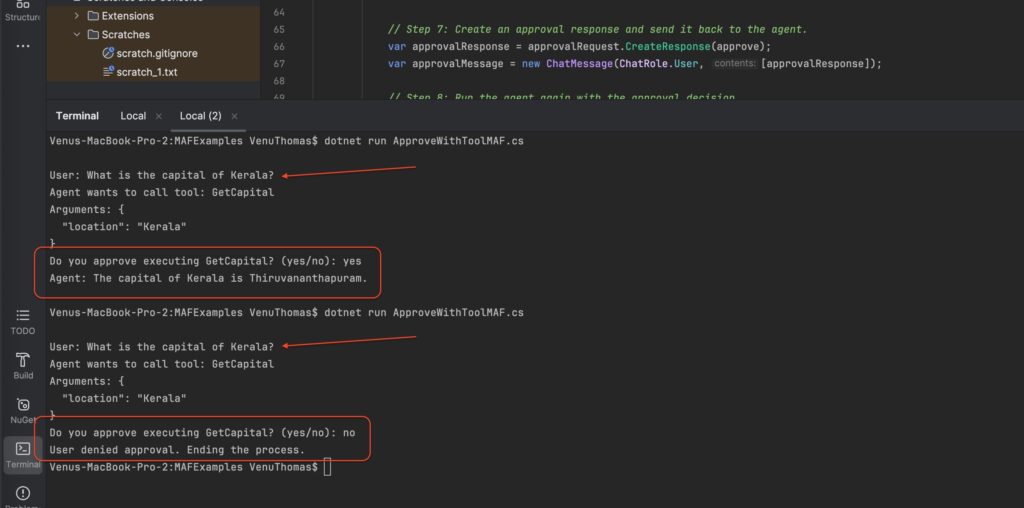
The <strong>ApprovalRequiredAIFunction</strong> feature in Microsoft Agent Framework adds human-in-the-loop control to AI tools.
When an agent decides to use a tool, it first pauses and requests user approval before executing it.
This ensures safer handling of sensitive or high-impact actions.
In Semantic Kernel, such approvals required custom logic; in MAF, they’re built-in through the ApprovalRequiredAIFunction wrapper,
which can be applied to any AIFunction created with AIFunctionFactory.Create().
<span class="line"><span style="color: #569CD6">#pragma warning disable MEAI001</span></span>
<span class="line"></span>
<span class="line"><span style="color: #C586C0">using</span>
<span style="color: #D4D4D4"> </span>
<span style="color: #4EC9B0">System</span>
<span style="color: #D4D4D4">.</span>
<span style="color: #4EC9B0">Text</span>
<span style="color: #D4D4D4">.</span>
<span style="color: #4EC9B0">Json</span>
<span style="color: #D4D4D4">;</span></span>
<span class="line"><span style="color: #C586C0">using</span>
<span style="color: #D4D4D4"> </span>
<span style="color: #4EC9B0">Azure</span>
<span style="color: #D4D4D4">.</span>
<span style="color: #4EC9B0">AI</span>
<span style="color: #D4D4D4">.</span>
<span style="color: #4EC9B0">OpenAI</span>
<span style="color: #D4D4D4">;</span></span>
<span class="line"><span style="color: #C586C0">using</span>
<span style="color: #D4D4D4"> </span>
<span style="color: #4EC9B0">Azure</span>
<span style="color: #D4D4D4">.</span>
<span style="color: #4EC9B0">Identity</span>
<span style="color: #D4D4D4">;</span></span>
<span class="line"><span style="color: #C586C0">using</span>
<span style="color: #D4D4D4"> </span>
<span style="color: #4EC9B0">Microsoft</span>
<span style="color: #D4D4D4">.</span>
<span style="color: #4EC9B0">Agents</span>
<span style="color: #D4D4D4">.</span>
<span style="color: #4EC9B0">AI</span>
<span style="color: #D4D4D4">;</span></span>
<span class="line"><span style="color: #C586C0">using</span>
<span style="color: #D4D4D4"> </span>
<span style="color: #4EC9B0">Microsoft</span>
<span style="color: #D4D4D4">.</span>
<span style="color: #4EC9B0">Extensions</span>
<span style="color: #D4D4D4">.</span>
<span style="color: #4EC9B0">AI</span>
<span style="color: #D4D4D4">;</span></span>
<span class="line"><span style="color: #C586C0">using</span>
<span style="color: #D4D4D4"> </span>
<span style="color: #4EC9B0">ExampleAIProject</span>
<span style="color: #D4D4D4">;</span></span>
<span class="line"><span style="color: #C586C0">using</span>
<span style="color: #D4D4D4"> </span>
<span style="color: #4EC9B0">OpenAI</span>
<span style="color: #D4D4D4">;</span></span>
<span class="line"></span>
<span class="line"><span style="color: #6A9955">        // Step 1: Create an Azure OpenAI client.</span></span>
<span class="line"><span style="color: #6A9955">        // This connects your app to the Azure OpenAI service using Azure CLI credentials.</span></span>
<span class="line"><span style="color: #D4D4D4">        </span>
<span style="color: #569CD6">var</span>
<span style="color: #D4D4D4"> </span>
<span style="color: #9CDCFE">client</span>
<span style="color: #D4D4D4"> = </span>
<span style="color: #569CD6">new</span>
<span style="color: #D4D4D4"> </span>
<span style="color: #4EC9B0">AzureOpenAIClient</span>
<span style="color: #D4D4D4">(</span></span>
<span class="line"><span style="color: #D4D4D4">            </span>
<span style="color: #569CD6">new</span>
<span style="color: #D4D4D4"> </span>
<span style="color: #4EC9B0">Uri</span>
<span style="color: #D4D4D4">(</span>
<span style="color: #CE9178">"https://your-resource.openai.azure.com"</span>
<span style="color: #D4D4D4">),</span></span>
<span class="line"><span style="color: #D4D4D4">            </span>
<span style="color: #569CD6">new</span>
<span style="color: #D4D4D4"> </span>
<span style="color: #4EC9B0">AzureCliCredential</span>
<span style="color: #D4D4D4">()</span></span>
<span class="line"><span style="color: #D4D4D4">        ).</span>
<span style="color: #DCDCAA">GetChatClient</span>
<span style="color: #D4D4D4">(</span>
<span style="color: #CE9178">"gpt-4o-mini"</span>
<span style="color: #D4D4D4">);</span></span>
<span class="line"></span>
<span class="line"><span style="color: #6A9955">        // Step 2: Create an AI agent.</span></span>
<span class="line"><span style="color: #6A9955">        // This agent is configured to ask for approval before using any external tools.</span></span>
<span class="line"><span style="color: #D4D4D4">        </span>
<span style="color: #4EC9B0">AIAgent</span>
<span style="color: #D4D4D4"> </span>
<span style="color: #9CDCFE">agent</span>
<span style="color: #D4D4D4"> = </span>
<span style="color: #9CDCFE">client</span>
<span style="color: #D4D4D4">.</span>
<span style="color: #DCDCAA">CreateAIAgent</span>
<span style="color: #D4D4D4">(</span></span>
<span class="line"><span style="color: #D4D4D4">            </span>
<span style="color: #9CDCFE">instructions</span>
<span style="color: #D4D4D4">: </span>
<span style="color: #CE9178">"You are a helpful geography assistant. You must ask for approval before calling any tools."</span>
<span style="color: #D4D4D4">,</span></span>
<span class="line"><span style="color: #D4D4D4">            </span>
<span style="color: #9CDCFE">tools</span>
<span style="color: #D4D4D4">: [</span>
<span style="color: #569CD6">new</span>
<span style="color: #D4D4D4"> </span>
<span style="color: #4EC9B0">ApprovalRequiredAIFunction</span>
<span style="color: #D4D4D4">(</span>
<span style="color: #9CDCFE">AIFunctionFactory</span>
<span style="color: #D4D4D4">.</span>
<span style="color: #DCDCAA">Create</span>
<span style="color: #D4D4D4">(</span>
<span style="color: #9CDCFE">GeographyTool</span>
<span style="color: #D4D4D4">.</span>
<span style="color: #9CDCFE">GetCapital</span>
<span style="color: #D4D4D4">))]</span></span>
<span class="line"><span style="color: #D4D4D4">        );</span></span>
<span class="line"></span>
<span class="line"><span style="color: #6A9955">        // Step 3: Create a conversation thread to keep track of the session.</span></span>
<span class="line"><span style="color: #D4D4D4">        </span>
<span style="color: #4EC9B0">AgentThread</span>
<span style="color: #D4D4D4"> </span>
<span style="color: #9CDCFE">thread</span>
<span style="color: #D4D4D4"> = </span>
<span style="color: #9CDCFE">agent</span>
<span style="color: #D4D4D4">.</span>
<span style="color: #DCDCAA">GetNewThread</span>
<span style="color: #D4D4D4">();</span></span>
<span class="line"></span>
<span class="line"><span style="color: #6A9955">        // Step 4: Send the first user question.</span></span>
<span class="line"><span style="color: #D4D4D4">        </span>
<span style="color: #9CDCFE">Console</span>
<span style="color: #D4D4D4">.</span>
<span style="color: #DCDCAA">WriteLine</span>
<span style="color: #D4D4D4">(</span>
<span style="color: #CE9178">"User: What is the capital of Kerala?"</span>
<span style="color: #D4D4D4">);</span></span>
<span class="line"><span style="color: #D4D4D4">        </span>
<span style="color: #4EC9B0">AgentRunResponse</span>
<span style="color: #D4D4D4"> </span>
<span style="color: #9CDCFE">firstResponse</span>
<span style="color: #D4D4D4"> = </span>
<span style="color: #569CD6">await</span>
<span style="color: #D4D4D4"> </span>
<span style="color: #9CDCFE">agent</span>
<span style="color: #D4D4D4">.</span>
<span style="color: #DCDCAA">RunAsync</span>
<span style="color: #D4D4D4">(</span>
<span style="color: #CE9178">"What is the capital of Kerala?"</span>
<span style="color: #D4D4D4">, </span>
<span style="color: #9CDCFE">thread</span>
<span style="color: #D4D4D4">);</span></span>
<span class="line"></span>
<span class="line"><span style="color: #6A9955">        // Step 5: Check if the agent requested approval before running the tool.</span></span>
<span class="line"><span style="color: #D4D4D4">        </span>
<span style="color: #569CD6">var</span>
<span style="color: #D4D4D4"> </span>
<span style="color: #9CDCFE">approvalRequests</span>
<span style="color: #D4D4D4"> = </span>
<span style="color: #9CDCFE">firstResponse</span>
<span style="color: #D4D4D4">.</span>
<span style="color: #9CDCFE">Messages</span></span>
<span class="line"><span style="color: #D4D4D4">            .</span>
<span style="color: #DCDCAA">SelectMany</span>
<span style="color: #D4D4D4">(</span>
<span style="color: #9CDCFE">message</span>
<span style="color: #D4D4D4"> => </span>
<span style="color: #9CDCFE">message</span>
<span style="color: #D4D4D4">.</span>
<span style="color: #9CDCFE">Contents</span>
<span style="color: #D4D4D4">)</span></span>
<span class="line"><span style="color: #D4D4D4">            .</span>
<span style="color: #DCDCAA">OfType</span>
<span style="color: #D4D4D4"><</span>
<span style="color: #4EC9B0">FunctionApprovalRequestContent</span>
<span style="color: #D4D4D4">>()</span></span>
<span class="line"><span style="color: #D4D4D4">            .</span>
<span style="color: #DCDCAA">ToList</span>
<span style="color: #D4D4D4">();</span></span>
<span class="line"></span>
<span class="line"><span style="color: #6A9955">        // Step 6: Handle approval if required.</span></span>
<span class="line"><span style="color: #D4D4D4">        </span>
<span style="color: #C586C0">if</span>
<span style="color: #D4D4D4"> (</span>
<span style="color: #9CDCFE">approvalRequests</span>
<span style="color: #D4D4D4">.</span>
<span style="color: #9CDCFE">Count</span>
<span style="color: #D4D4D4"> > </span>
<span style="color: #B5CEA8">0</span>
<span style="color: #D4D4D4">)</span></span>
<span class="line"><span style="color: #D4D4D4">        {</span></span>
<span class="line"><span style="color: #6A9955">            // The agent is asking for permission to run a function.</span></span>
<span class="line"><span style="color: #D4D4D4">            </span>
<span style="color: #569CD6">var</span>
<span style="color: #D4D4D4"> </span>
<span style="color: #9CDCFE">approvalRequest</span>
<span style="color: #D4D4D4"> = </span>
<span style="color: #9CDCFE">approvalRequests</span>
<span style="color: #D4D4D4">.</span>
<span style="color: #DCDCAA">First</span>
<span style="color: #D4D4D4">();</span></span>
<span class="line"><span style="color: #D4D4D4">            </span>
<span style="color: #9CDCFE">Console</span>
<span style="color: #D4D4D4">.</span>
<span style="color: #DCDCAA">WriteLine</span>
<span style="color: #D4D4D4">(</span>
<span style="color: #CE9178">$"Agent wants to call tool: {</span>
<span style="color: #9CDCFE">approvalRequest</span>
<span style="color: #CE9178">.</span>
<span style="color: #9CDCFE">FunctionCall</span>
<span style="color: #CE9178">.</span>
<span style="color: #9CDCFE">Name</span>
<span style="color: #CE9178">}"</span>
<span style="color: #D4D4D4">);</span></span>
<span class="line"><span style="color: #6A9955">            // Display arguments as readable JSON.</span></span>
<span class="line"><span style="color: #D4D4D4">            </span>
<span style="color: #569CD6">string</span>
<span style="color: #D4D4D4"> </span>
<span style="color: #9CDCFE">argsJson</span>
<span style="color: #D4D4D4"> = </span>
<span style="color: #9CDCFE">JsonSerializer</span>
<span style="color: #D4D4D4">.</span>
<span style="color: #DCDCAA">Serialize</span>
<span style="color: #D4D4D4">(</span></span>
<span class="line"><span style="color: #D4D4D4">                </span>
<span style="color: #9CDCFE">approvalRequest</span>
<span style="color: #D4D4D4">.</span>
<span style="color: #9CDCFE">FunctionCall</span>
<span style="color: #D4D4D4">.</span>
<span style="color: #9CDCFE">Arguments</span>
<span style="color: #D4D4D4">,</span></span>
<span class="line"><span style="color: #D4D4D4">                </span>
<span style="color: #569CD6">new</span>
<span style="color: #D4D4D4"> </span>
<span style="color: #4EC9B0">JsonSerializerOptions</span>
<span style="color: #D4D4D4"> { </span>
<span style="color: #9CDCFE">WriteIndented</span>
<span style="color: #D4D4D4"> = </span>
<span style="color: #569CD6">true</span>
<span style="color: #D4D4D4"> }</span></span>
<span class="line"><span style="color: #D4D4D4">            );</span></span>
<span class="line"><span style="color: #D4D4D4">            </span>
<span style="color: #9CDCFE">Console</span>
<span style="color: #D4D4D4">.</span>
<span style="color: #DCDCAA">WriteLine</span>
<span style="color: #D4D4D4">(</span>
<span style="color: #CE9178">$"Arguments: {</span>
<span style="color: #9CDCFE">argsJson</span>
<span style="color: #CE9178">}"</span>
<span style="color: #D4D4D4">);</span></span>
<span class="line"></span>
<span class="line"><span style="color: #6A9955">            // Ask the user for approval through the console.</span></span>
<span class="line"><span style="color: #D4D4D4">            </span>
<span style="color: #9CDCFE">Console</span>
<span style="color: #D4D4D4">.</span>
<span style="color: #DCDCAA">Write</span>
<span style="color: #D4D4D4">(</span>
<span style="color: #CE9178">$"Do you approve executing {</span>
<span style="color: #9CDCFE">approvalRequest</span>
<span style="color: #CE9178">.</span>
<span style="color: #9CDCFE">FunctionCall</span>
<span style="color: #CE9178">.</span>
<span style="color: #9CDCFE">Name</span>
<span style="color: #CE9178">}? (yes/no): "</span>
<span style="color: #D4D4D4">);</span></span>
<span class="line"><span style="color: #D4D4D4">            </span>
<span style="color: #569CD6">string</span>
<span style="color: #D4D4D4"> </span>
<span style="color: #9CDCFE">userInput</span>
<span style="color: #D4D4D4"> = </span>
<span style="color: #9CDCFE">Console</span>
<span style="color: #D4D4D4">.</span>
<span style="color: #DCDCAA">ReadLine</span>
<span style="color: #D4D4D4">()?.</span>
<span style="color: #DCDCAA">Trim</span>
<span style="color: #D4D4D4">().</span>
<span style="color: #DCDCAA">ToLowerInvariant</span>
<span style="color: #D4D4D4">() ?? </span>
<span style="color: #CE9178">""</span>
<span style="color: #D4D4D4">;</span></span>
<span class="line"><span style="color: #D4D4D4">            </span>
<span style="color: #569CD6">bool</span>
<span style="color: #D4D4D4"> </span>
<span style="color: #9CDCFE">approve</span>
<span style="color: #D4D4D4"> = </span>
<span style="color: #9CDCFE">userInput</span>
<span style="color: #D4D4D4"> == </span>
<span style="color: #CE9178">"yes"</span>
<span style="color: #D4D4D4"> || </span>
<span style="color: #9CDCFE">userInput</span>
<span style="color: #D4D4D4"> == </span>
<span style="color: #CE9178">"y"</span>
<span style="color: #D4D4D4">;</span></span>
<span class="line"></span>
<span class="line"><span style="color: #6A9955">            // Step 7: Create a response message for the agent with the approval decision.</span></span>
<span class="line"><span style="color: #D4D4D4">            </span>
<span style="color: #569CD6">var</span>
<span style="color: #D4D4D4"> </span>
<span style="color: #9CDCFE">approvalResponse</span>
<span style="color: #D4D4D4"> = </span>
<span style="color: #9CDCFE">approvalRequest</span>
<span style="color: #D4D4D4">.</span>
<span style="color: #DCDCAA">CreateResponse</span>
<span style="color: #D4D4D4">(</span>
<span style="color: #9CDCFE">approve</span>
<span style="color: #D4D4D4">);</span></span>
<span class="line"><span style="color: #D4D4D4">            </span>
<span style="color: #569CD6">var</span>
<span style="color: #D4D4D4"> </span>
<span style="color: #9CDCFE">approvalMessage</span>
<span style="color: #D4D4D4"> = </span>
<span style="color: #569CD6">new</span>
<span style="color: #D4D4D4"> </span>
<span style="color: #4EC9B0">ChatMessage</span>
<span style="color: #D4D4D4">(</span>
<span style="color: #9CDCFE">ChatRole</span>
<span style="color: #D4D4D4">.</span>
<span style="color: #9CDCFE">User</span>
<span style="color: #D4D4D4">, [</span>
<span style="color: #9CDCFE">approvalResponse</span>
<span style="color: #D4D4D4">]);</span></span>
<span class="line"></span>
<span class="line"><span style="color: #6A9955">            // Step 8: Send the approval message to the agent so it can continue.</span></span>
<span class="line"><span style="color: #D4D4D4">            </span>
<span style="color: #4EC9B0">AgentRunResponse</span>
<span style="color: #D4D4D4"> </span>
<span style="color: #9CDCFE">finalResponse</span>
<span style="color: #D4D4D4"> = </span>
<span style="color: #569CD6">await</span>
<span style="color: #D4D4D4"> </span>
<span style="color: #9CDCFE">agent</span>
<span style="color: #D4D4D4">.</span>
<span style="color: #DCDCAA">RunAsync</span>
<span style="color: #D4D4D4">(</span>
<span style="color: #9CDCFE">approvalMessage</span>
<span style="color: #D4D4D4">, </span>
<span style="color: #9CDCFE">thread</span>
<span style="color: #D4D4D4">);</span></span>
<span class="line"></span>
<span class="line"><span style="color: #6A9955">            // Display the agent’s final answer.</span></span>
<span class="line"><span style="color: #D4D4D4">            </span>
<span style="color: #9CDCFE">Console</span>
<span style="color: #D4D4D4">.</span>
<span style="color: #DCDCAA">WriteLine</span>
<span style="color: #D4D4D4">(</span>
<span style="color: #CE9178">$"Agent: {</span>
<span style="color: #9CDCFE">finalResponse</span>
<span style="color: #CE9178">.</span>
<span style="color: #9CDCFE">Text</span>
<span style="color: #CE9178">}"</span>
<span style="color: #D4D4D4">);</span></span>
<span class="line"><span style="color: #D4D4D4">        }</span></span>
<span class="line"><span style="color: #D4D4D4">        </span>
<span style="color: #C586C0">else</span></span>
<span class="line"><span style="color: #D4D4D4">        {</span></span>
<span class="line"><span style="color: #6A9955">            // If no approval was requested, display the agent’s direct response.</span></span>
<span class="line"><span style="color: #D4D4D4">            </span>
<span style="color: #9CDCFE">Console</span>
<span style="color: #D4D4D4">.</span>
<span style="color: #DCDCAA">WriteLine</span>
<span style="color: #D4D4D4">(</span>
<span style="color: #CE9178">$"Agent: {</span>
<span style="color: #9CDCFE">firstResponse</span>
<span style="color: #CE9178">.</span>
<span style="color: #9CDCFE">Text</span>
<span style="color: #CE9178">}"</span>
<span style="color: #D4D4D4">);</span></span>
<span class="line"><span style="color: #D4D4D4">        }</span></span>
<span class="line"></span>
Screenshot of output will be like this:
Structured Output
Structured output enables agents to return results as strongly typed C# objects instead of plain text.
This eliminates the need for manual JSON parsing and provides more reliable automation.
Create a model class
<span class="line"><span style="color: #569CD6">namespace</span>
<span style="color: #D4D4D4"> </span>
<span style="color: #4EC9B0">ExampleAIProject</span>
<span style="color: #D4D4D4">; </span></span>
<span class="line"></span>
<span class="line"><span style="color: #6A9955">// Step 1: Define a record type to represent structured data returned by the agent</span></span>
<span class="line"><span style="color: #569CD6">public</span>
<span style="color: #D4D4D4"> </span>
<span style="color: #569CD6">record</span>
<span style="color: #D4D4D4"> </span>
<span style="color: #4EC9B0">CityInfo</span>
<span style="color: #D4D4D4">(</span>
<span style="color: #569CD6">string</span>
<span style="color: #D4D4D4"> </span>
<span style="color: #9CDCFE">Name</span>
<span style="color: #D4D4D4">, </span>
<span style="color: #569CD6">string</span>
<span style="color: #D4D4D4"> </span>
<span style="color: #9CDCFE">Country</span>
<span style="color: #D4D4D4">, </span>
<span style="color: #569CD6">int</span>
<span style="color: #D4D4D4"> </span>
<span style="color: #9CDCFE">Population</span>
<span style="color: #D4D4D4">);</span></span><span class="line"><span style="color: #C586C0">using</span>
<span style="color: #D4D4D4"> </span>
<span style="color: #4EC9B0">Microsoft</span>
<span style="color: #D4D4D4">.</span>
<span style="color: #4EC9B0">Agents</span>
<span style="color: #D4D4D4">.</span>
<span style="color: #4EC9B0">AI</span>
<span style="color: #D4D4D4">;</span></span>
<span class="line"><span style="color: #C586C0">using</span>
<span style="color: #D4D4D4"> </span>
<span style="color: #4EC9B0">Azure</span>
<span style="color: #D4D4D4">.</span>
<span style="color: #4EC9B0">AI</span>
<span style="color: #D4D4D4">.</span>
<span style="color: #4EC9B0">OpenAI</span>
<span style="color: #D4D4D4">;</span></span>
<span class="line"><span style="color: #C586C0">using</span>
<span style="color: #D4D4D4"> </span>
<span style="color: #4EC9B0">Azure</span>
<span style="color: #D4D4D4">.</span>
<span style="color: #4EC9B0">Identity</span>
<span style="color: #D4D4D4">;</span></span>
<span class="line"><span style="color: #C586C0">using</span>
<span style="color: #D4D4D4"> </span>
<span style="color: #4EC9B0">ExampleAIProject</span>
<span style="color: #D4D4D4">; </span>
<span style="color: #6A9955">// Namespace where CityInfo is defined</span></span>
<span class="line"><span style="color: #C586C0">using</span>
<span style="color: #D4D4D4"> </span>
<span style="color: #4EC9B0">OpenAI</span>
<span style="color: #D4D4D4">;</span></span>
<span class="line"></span>
<span class="line"></span>
<span class="line"><span style="color: #6A9955">// Step 2: Connect to Azure OpenAI</span></span>
<span class="line"><span style="color: #6A9955">// This client allows communication with the GPT-4o model hosted on Azure</span></span>
<span class="line"><span style="color: #569CD6">var</span>
<span style="color: #D4D4D4"> </span>
<span style="color: #9CDCFE">client</span>
<span style="color: #D4D4D4"> = </span>
<span style="color: #569CD6">new</span>
<span style="color: #D4D4D4"> </span>
<span style="color: #4EC9B0">AzureOpenAIClient</span>
<span style="color: #D4D4D4">(</span></span>
<span class="line"><span style="color: #D4D4D4"> </span>
<span style="color: #569CD6">new</span>
<span style="color: #D4D4D4"> </span>
<span style="color: #4EC9B0">Uri</span>
<span style="color: #D4D4D4">(</span>
<span style="color: #CE9178">"https://your-resource.openai.azure.com"</span>
<span style="color: #D4D4D4">), </span>
<span style="color: #6A9955">// Replace with your Azure endpoint</span></span>
<span class="line"><span style="color: #D4D4D4"> </span>
<span style="color: #569CD6">new</span>
<span style="color: #D4D4D4"> </span>
<span style="color: #4EC9B0">DefaultAzureCredential</span>
<span style="color: #D4D4D4">() </span>
<span style="color: #6A9955">// Uses Azure CLI credentials (az login)</span></span>
<span class="line"><span style="color: #D4D4D4">);</span></span>
<span class="line"></span>
<span class="line"><span style="color: #6A9955">// Step 3: Create an agent using the GPT-4o model</span></span>
<span class="line"><span style="color: #6A9955">// The agent is instructed to extract structured data from user input</span></span>
<span class="line"><span style="color: #4EC9B0">ChatClientAgent</span>
<span style="color: #D4D4D4"> </span>
<span style="color: #9CDCFE">agent</span>
<span style="color: #D4D4D4"> = </span>
<span style="color: #9CDCFE">client</span></span>
<span class="line"><span style="color: #D4D4D4"> .</span>
<span style="color: #DCDCAA">GetChatClient</span>
<span style="color: #D4D4D4">(</span>
<span style="color: #CE9178">"gpt-4o"</span>
<span style="color: #D4D4D4">)</span></span>
<span class="line"><span style="color: #D4D4D4"> .</span>
<span style="color: #DCDCAA">CreateAIAgent</span>
<span style="color: #D4D4D4">(</span>
<span style="color: #569CD6">new</span>
<span style="color: #D4D4D4"> </span>
<span style="color: #4EC9B0">ChatClientAgentOptions</span>
<span style="color: #D4D4D4">(</span></span>
<span class="line"><span style="color: #D4D4D4"> </span>
<span style="color: #9CDCFE">instructions</span>
<span style="color: #D4D4D4">: </span>
<span style="color: #CE9178">"You are a helpful geography expert. Extract city name, country, and population from user input."</span></span>
<span class="line"><span style="color: #D4D4D4"> ));</span></span>
<span class="line"></span>
<span class="line"><span style="color: #6A9955">// Step 4: Send a prompt and expect a structured response of type CityInfo</span></span>
<span class="line"><span style="color: #6A9955">// The agent will parse the input and return a strongly typed object</span></span>
<span class="line"><span style="color: #4EC9B0">AgentRunResponse</span>
<span style="color: #D4D4D4"><</span>
<span style="color: #4EC9B0">CityInfo</span>
<span style="color: #D4D4D4">> </span>
<span style="color: #9CDCFE">info</span>
<span style="color: #D4D4D4"> = </span>
<span style="color: #569CD6">await</span>
<span style="color: #D4D4D4"> </span>
<span style="color: #9CDCFE">agent</span>
<span style="color: #D4D4D4">.</span>
<span style="color: #DCDCAA">RunAsync</span>
<span style="color: #D4D4D4"><</span>
<span style="color: #4EC9B0">CityInfo</span>
<span style="color: #D4D4D4">>(</span></span>
<span class="line"><span style="color: #D4D4D4"> </span>
<span style="color: #CE9178">"The city of Delhi is in India and has around 35 million people."</span></span>
<span class="line"><span style="color: #D4D4D4">);</span></span>
<span class="line"></span>
<span class="line"><span style="color: #6A9955">// Step 5: Use the structured response in your application</span></span>
<span class="line"><span style="color: #6A9955">// This demonstrates how structured AI output can be used directly in logic</span></span>
<span class="line"><span style="color: #9CDCFE">Console</span>
<span style="color: #D4D4D4">.</span>
<span style="color: #DCDCAA">WriteLine</span>
<span style="color: #D4D4D4">(</span>
<span style="color: #CE9178">$"Name: {</span>
<span style="color: #9CDCFE">info</span>
<span style="color: #CE9178">.</span>
<span style="color: #9CDCFE">Result</span>
<span style="color: #CE9178">.</span>
<span style="color: #9CDCFE">Name</span>
<span style="color: #CE9178">}, Country: {</span>
<span style="color: #9CDCFE">info</span>
<span style="color: #CE9178">.</span>
<span style="color: #9CDCFE">Result</span>
<span style="color: #CE9178">.</span>
<span style="color: #9CDCFE">Country</span>
<span style="color: #CE9178">}, Population: {</span>
<span style="color: #9CDCFE">info</span>
<span style="color: #CE9178">.</span>
<span style="color: #9CDCFE">Result</span>
<span style="color: #CE9178">.</span>
<span style="color: #9CDCFE">Population</span>
<span style="color: #CE9178">}"</span>
<span style="color: #D4D4D4">);</span></span>
<span class="line"></span>More samples can be found in Microsoft’s official GitHub repository: https://github.com/microsoft/agent-framework/tree/main/dotnet/samples
If You’ve Used Semantic Kernel (SK): What’s Different, What’s Better?
Is Agent Framework the same as SK/OpenAI code?
Yes, Agent Framework is strikingly familiar in its core code structure: agent creation, maintaining stateful dialog, tool integration, and step chaining all follow the patterns introduced in Semantic Kernel and improved for clarity and scalability.
You can migrate most Semantic Kernel code directly, with only minor changes to namespaces or class names.
For migration details, review Microsoft’s official migration guide:
https://learn.microsoft.com/en-us/agent-framework/migration-guide/from-semantic-kernel/?pivots=programming-language-csharp
Major Advantages Over My Previous Approaches
- Unified, production-ready SDK without needing to blend multiple libraries or custom plugins
- Improved state management and native multi-turn context handling
- Fluid APIs for streaming and logical workflow creation
- Reduced boilerplate and more expressive, readable code
- Enterprise observability, durability, security, and compliance, ready for cloud deployment
- Streamlined migration for Semantic Kernel users—core logic remains compatible
- Full scalability and deployment support for Azure AI Foundry and other enterprise platforms
- Structured outputs and type-safe data exchanges for robust automation
All these enhancements help accelerate agentic AI development, reduce maintenance, and raise reliability—while keeping the learning curve gentle for experienced .NET developers.
Additional Agent Framework Highlights
- Function tools: Direct invocation of C# and external APIs as part of agent reasoning
- Schema-driven responses: Strongly typed outputs and validation of structured results
- Multi-agent orchestration: Build sophisticated workflows across specialized agents
- Enterprise observability: Out-of-the-box logging, tracing, and metrics
- Security and compliance: Integrated controls for privacy, auditing, and identity
- Durable workflows: Support for persistent state and human-in-the-loop handoff
Conclusion
Previously, you learned how to build AI applications using Semantic Kernel and OpenAI.
With Microsoft Agent Framework, you now gain a unified, modern SDK for building powerful, context-aware agents in .NET.
The same .NET syntax now supports multi-turn memory, native tool integration, multi-agent workflows, structured outputs, and enterprise-grade observability.
Start building intelligent, agentic applications in .NET today—and take advantage of the simplicity, extensibility, and scalability now available with Microsoft Agent Framework.